
The phone dialer lives in the top bar of every page. Click the phone icon to open it. From there you can call a contact yourself from your browser, have one of your AI voice agents call them for you, see your recent calls, and choose which of your numbers the call comes from.
The dialer is a Pro+ feature. On the Free plan, clicking the phone icon shows an upgrade prompt instead.
The four tabs
| Tab | What it's for |
|---|---|
| Dial | Find a contact or type a number, then call them yourself or start an AI call |
| Recent | Your latest calls, with direction, time and outcome |
| Settings | Shortcuts to Phone numbers & SMS and A2P / carrier registration |
| Call logs | Opens the full call history: AI and human calls, filters, recordings and exports |
Open the dialer on a contact
You can open the dialer two ways:
- From a contact. Click the call icon next to a phone number on the contact's page. The dialer opens with that contact already filled in.
- From the top bar. Click the phone icon, then type in the search field. It matches contact name, phone number or user. Pick a result from the list, or type a full number on the keypad.
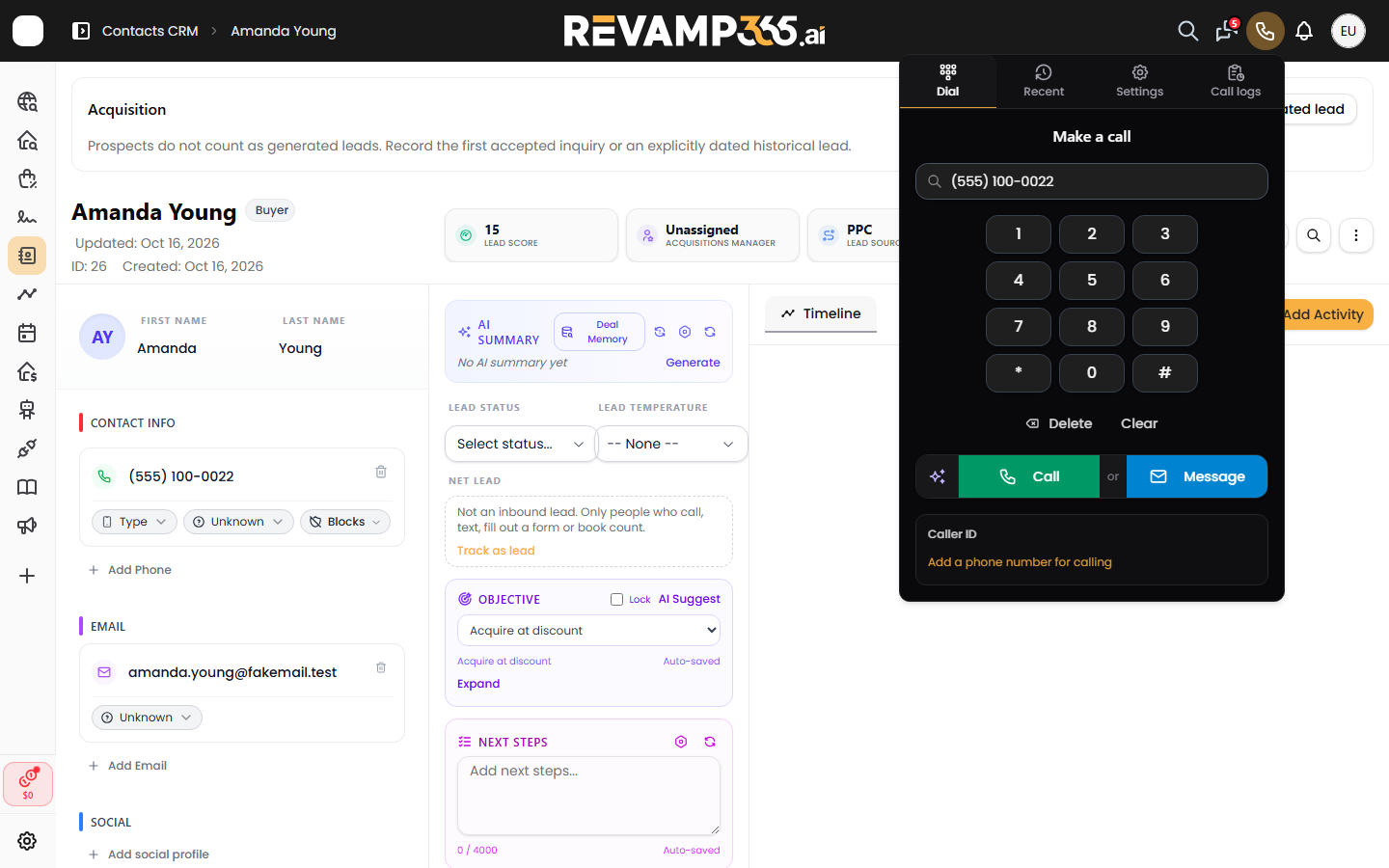
Delete removes the last digit and Clear empties the field.
Call a contact yourself
- Open the dialer on the contact.
- Under Caller ID, pick the number the contact should see. If you don't have a number yet, the dialer shows Add a phone number for calling, which takes you to the Phone Numbers tab.
- Click the green Call button.
- The first time, your browser asks for microphone access. Allow it, or the call can't connect.
While you're on the call, a call bar stays on screen with Mute, End Call, a live transcript toggle and a link to the contact's record. You can minimize it to a slim bar and keep working.
Calls go to saved contacts. If you type a number that doesn't match a contact, the dialer tells you no contact was found and opens your CRM search for that number. Add the contact first, then call.
Have an AI voice agent call the contact
The small ✨ button at the left of the Call row starts an AI call. One of your voice agents calls the contact right away. You don't need to enroll them in a campaign or workflow.
- Open the dialer on the contact and choose your Caller ID.
- Click ✨. The Call with an AI agent panel opens with your voice agents.
- Click the agent you want. Clicking only selects it. Nothing dials yet.
- Read the summary line at the bottom. It shows which agent will call which contact, at which number, from which Caller ID.
- Click Start AI call.
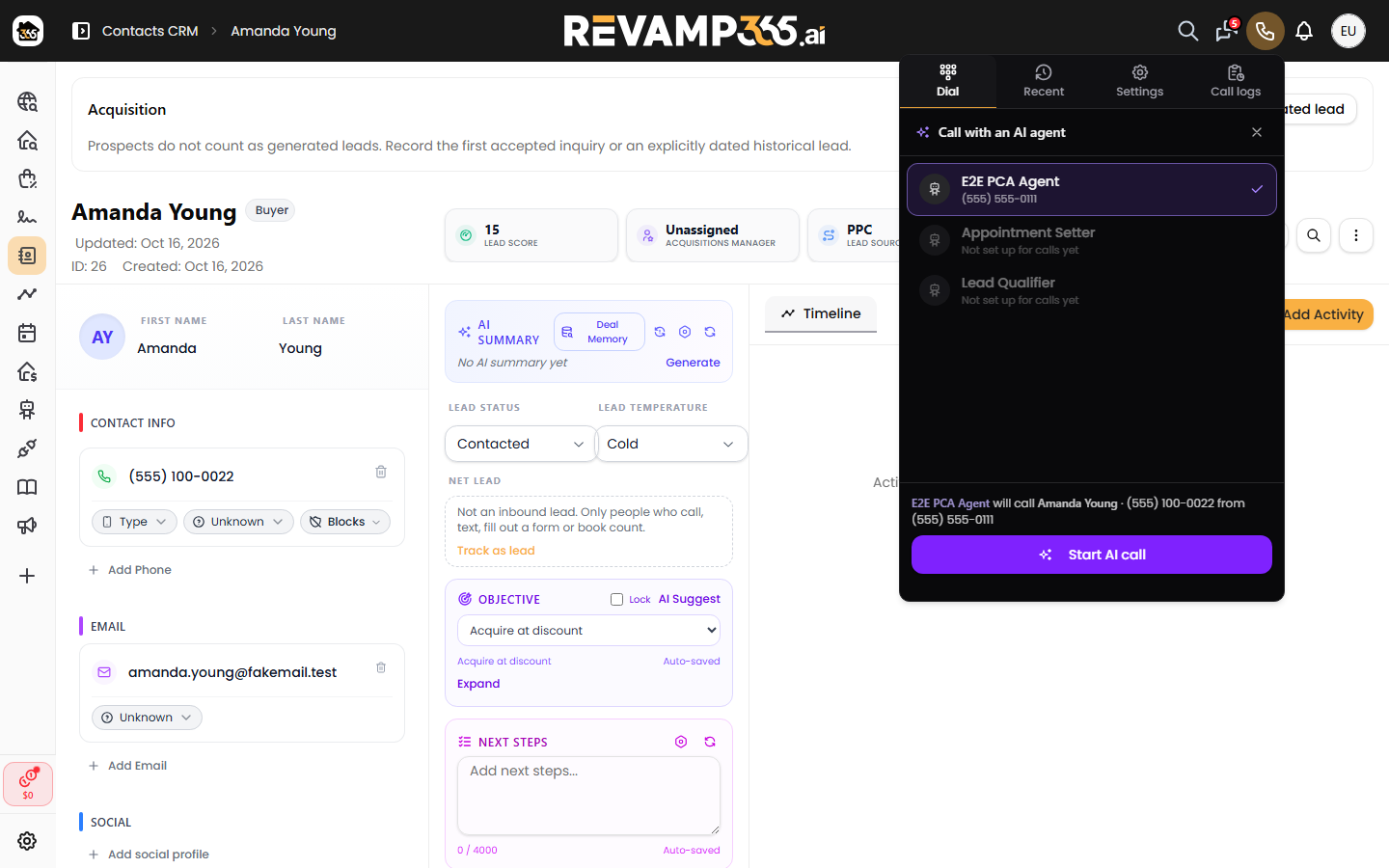
A confirmation shows which agent is calling. The dialer remembers the agent you used last and selects it next time.
Agents marked Not set up for calls yet can't place calls until they're built and published in AI Voice & Chat. If you don't see the ✨ button at all, your seat doesn't have permission to manage voice. Ask the account owner to grant it.
For how AI calls pick the number, which checks they run and how to use them to test an agent, see test your AI voice agent with a real phone call.
Send a text instead
The blue Message button opens your SMS conversations so you can text the contact.
Recent calls
The Recent tab lists your latest calls. Each row shows the contact, the time, Inbound or Outbound, and an outcome badge such as Answered, Voicemail, No Answer or Missed Call.
- Click a row to open that contact.
- Click the bell icon on a row to dismiss its notification, or Clear All to dismiss them all.
- Missed in CRM opens your contacts filtered to people with missed calls.
AI calls you start from the ✨ button don't appear on this tab. Find them under Call logs and on the contact's timeline.
Troubleshooting
- The phone icon shows an upgrade prompt. The dialer is a Pro+ feature, so upgrade to use it.
- "Select a caller ID or add a number in Phone numbers settings." You have no number to call from. Add or buy one on the Phone Numbers tab.
- The call doesn't connect and mentions the microphone. Allow microphone access for Revamp365 in your browser's site settings, then try again.
- "No contact found for that number." The number isn't on a saved contact. Add the contact, then call.