
Inbound docs match the in-app guide. For screenshots, troubleshooting tables, FAQ, field reference, limits, HMAC verification, duplicate handling — this article mirrors the wizard under Integrations & Apps → Webhooks → Inbound Docs (Beta). Bookmark either version.
Quick start
Revamp365 can accept leads from any tool that can POST JSON or application/x-www-form-urlencoded — Zapier, Make.com, Carrot sites, Jotform, raw HTML forms, custom scripts, you name it. You create an Inbound Lead Source once per tool, copy its webhook URL, and paste that URL into the sender. Every matching lead becomes a Contact automatically.
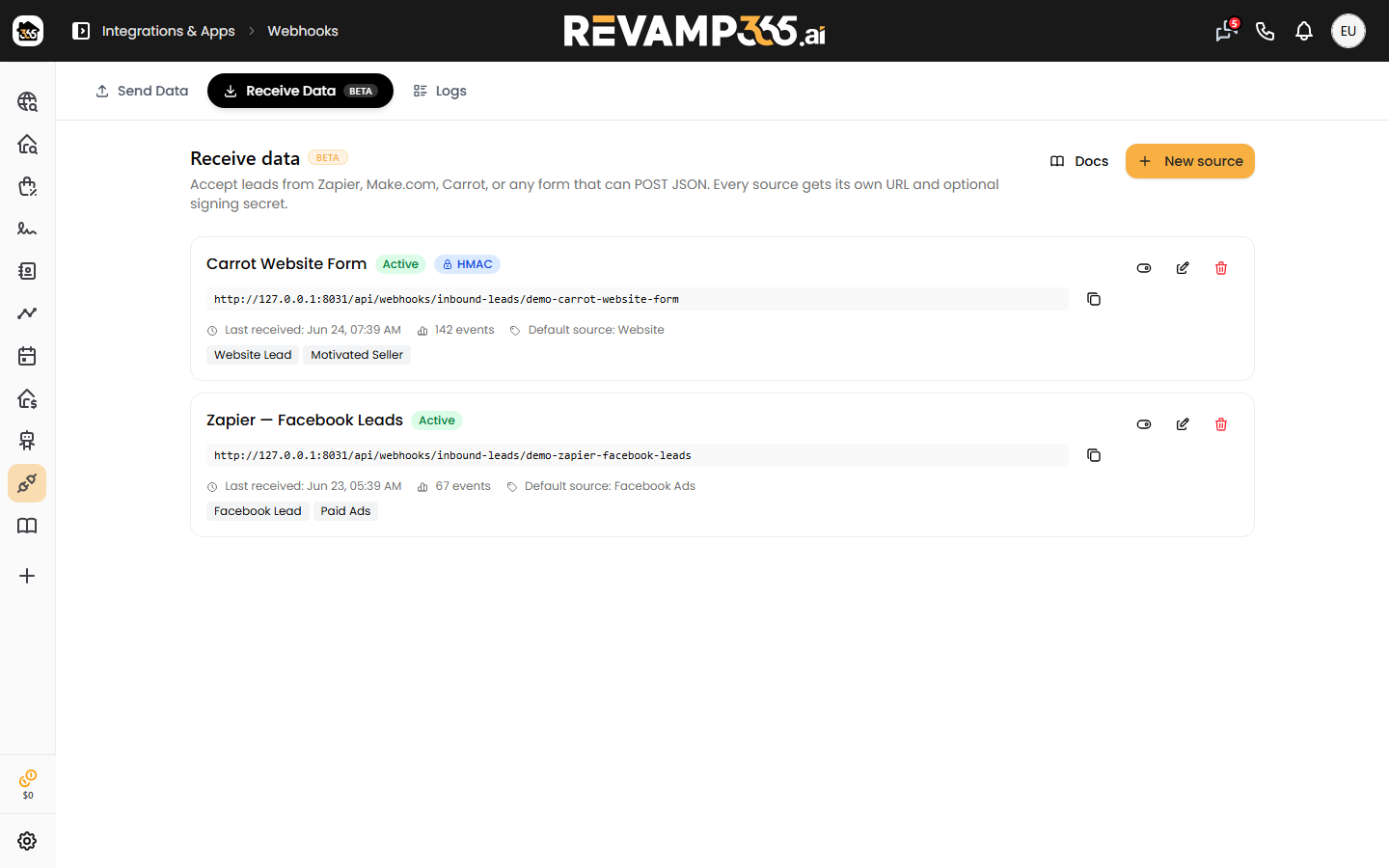
- Go to Integrations & Apps → Webhooks → Inbound Leads.
- Click New source, give it a name (e.g. Carrot forms), and save.
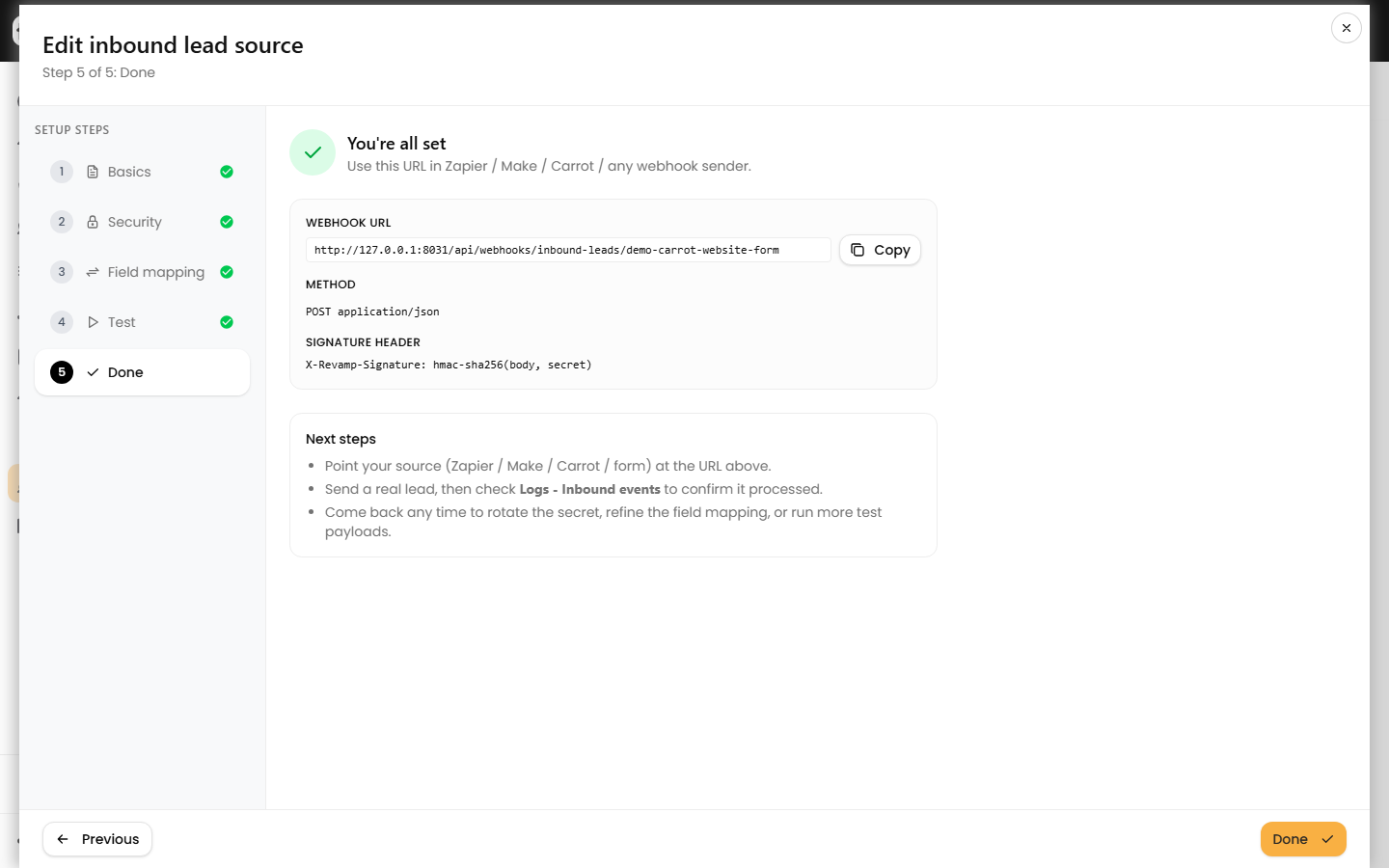
- Copy the webhook URL shown on the Done step.
- Paste that URL into your tool's webhook or HTTP-POST action.
- Submit a real lead and confirm it appears under Inbound Logs.
Carrot integration
Carrot is the highest-priority integration for most PPC agencies. Carrot sites post Gravity Forms submissions as application/x-www-form-urlencoded with field labels like Name, Phone, Email, and Property Address (City). Revamp accepts that content type and auto-detects those labels — no field mapping and no JSON conversion required.
- In your Carrot dashboard, open Settings → Leads → Webhooks.
- Add a new webhook. Set URL to the webhook URL from your Inbound Lead Source.
- Set Method to
POST. Leave Carrot's default content type (form-urlencoded) — do not look for a JSON option; Carrot does not offer one. - Leave HMAC off on the Revamp source (Carrot cannot send a signature header).
- Save and submit a test lead from your Carrot site. The lead will land in Contacts CRM within seconds.
If a custom Carrot form uses unusual labels, return to the source's Field Mapping step and paste a sample payload — Revamp will detect the available paths so you can map them.
Zapier integration
Use Zapier when you want to bridge from another system (Facebook Lead Ads, Gravity Forms, a spreadsheet, etc.) into Revamp365.
- Create a new Zap. Pick any trigger (e.g. Facebook Lead Ads → New Lead).
- Add an action step: Webhooks by Zapier → POST.
- Set URL to your Inbound Lead Source URL.
- Set Payload Type to JSON.
- Map the trigger's fields onto keys like
first_name,last_name,email,phone,address,city,state,zip,tags,notes. - Turn the Zap on. New leads will flow into Revamp within a minute of the source firing.
Only have a single "name" field? Map it to a key called
full_nameinstead offirst_name(Podio's Title, a Carrot "Full name" field, and similar). Revamp automatically splits it into first and last name on the first space — no Code step needed.nameandcontact_namebehave the same way.
Make.com integration
Make (formerly Integromat) uses the HTTP → Make a request module.
- Add the HTTP → Make a request module after your trigger.
- Set URL to your Inbound Lead Source URL.
- Set Method to
POST. - Add a header
Content-Type: application/json. - Set Body type to Raw and enter JSON using module output variables for the values.
Custom form or curl
Any HTTP client can post to your webhook URL. Here is a minimal cURL example:
curl -X POST "https://revamp365.ai/api/webhooks/inbound-leads/YOUR_TOKEN" \
  -H "Content-Type: application/json" \
  -d '{
    "first_name": "Jane",
    "last_name": "Doe",
    "email": "jane@example.com",
    "phone": "5125550100",
    "address": "123 Main St",
    "city": "Austin",
    "state": "TX",
    "zip": "78701",
    "tags": ["hot-lead"],
    "notes": "Submitted via marketing form"
  }'
Successful submissions respond with HTTP 202 and {"success": true, "event_id": 123}. The lead is processed asynchronously on the queue.
Canonical payload reference
Every inbound payload is normalized into this canonical shape before creating or merging a Contact. You do not have to send every field — at minimum you need an email or a phone.
Identity
| Field | Type | Notes |
|---|---|---|
email |
string | Validated as email; lowercased |
phone |
string | Any format; normalized to E.164 |
first_name / last_name |
string | Max 200 chars each |
full_name (also name or contact_name) |
string | Use when the source only has a single combined name field. Revamp splits it on the first space — everything before becomes the first name, everything after the last name (e.g. "Mark Miller" → Mark / Miller). Ignored if you already send first_name. |
Mailing address (the person's postal address)
| Field | Type | Notes |
|---|---|---|
address_full |
string | Whole address in one field ("123 Main St, Philadelphia, PA 19103") — Revamp splits it into the components below. Explicitly-sent components win over the split. |
address / city / state / zip |
string | Stored on Contact.mailing_* |
Property address (seller leads)
Use these when the form is asking "what house are you selling?" — they map to the CRM's Most Recent Property (MRP) columns on the Contact, not the mailing address.
| Field | Type | Notes |
|---|---|---|
property_address_full |
string | Whole property address in one field — split the same way as address_full |
property_address |
string | Subject-property street |
property_city / property_state / property_zip |
string | Populates mrp_city / mrp_state / mrp_zip |
Lead lifecycle
| Field | Type | Notes |
|---|---|---|
lead_source |
string | Falls back to the source's default |
lead_status |
string | Preserved on existing contacts; new contacts default to NEW |
lead_temperature |
string | e.g. Hot / Warm / Cool / Cold |
lead_manager_email |
string | Matches a Revamp user by email and auto-assigns as lead manager |
date_lead_created |
string (date) | When the lead originally arrived — useful when migrating history from another CRM. Any parseable date (2026-06-15, 06/15/2026). Never moves an existing contact's date. |
Working the lead
| Field | Type | Notes |
|---|---|---|
objective |
string | Matched to your Objective presets by key or label (case-insensitive); unrecognized values become Unknown / Discovery. Fills an empty objective; overwrites only if the source allows overwriting and the objective isn't locked. |
next_steps |
string | Free text shown in Next Steps on the contact page. Fills when empty; overwrites only if the source allows overwriting. |
Classification & lists (unioned on merge)
Each accepts an array or a comma-separated string. Values are merged into whatever is already on the contact — nothing is overwritten.
| Field | Type | Notes |
|---|---|---|
contact_type |
array / string | e.g. lead, buyer, seller (lead is auto-added) |
deal_type |
array / string | e.g. wholesale, flip, rental |
price_range |
array / string | |
counties |
array / string | |
lists |
array / string | |
tags |
array / string | Unioned with source default tags |
Provenance & extras
| Field | Type | Notes |
|---|---|---|
external_id |
string | CRM id from the sender; used for dedup alongside phone/email |
company |
string | Added to the contact's company names (unioned, never overwritten) |
notes |
string | Saved as a timeline note on the contact (never overwritten) |
custom_fields |
object | Arbitrary key/value — captured as ContactCustomField |
Field mapping deep-dive
If your sender uses different key names or a nested structure, open your Inbound Lead Source and go to the Field Mapping step.
- Paste a real sample payload from your tool into the textarea at the top.
- Revamp recursively flattens the JSON into dot-paths (e.g.
data.lead.email_address,items[0].phone). - For each canonical field on the left, pick a path on the right or switch to Static value to hard-code a value (useful for
lead_source: Facebook Ads). - Use Add custom field for anything else you want to capture.
- Save and return to the Test step to preview — Revamp will show exactly which Contact would be created or merged, without writing anything.
No mapping = best-effort auto-detect. Zapier's default output shape, Carrot/Gravity Forms labels (Name, Phone, Email, Property Address (City)), and simple {first_name, email, phone} payloads all work with zero configuration.
Map a lead field to a custom CRM field you created
Anything that isn't one of the built-in fields above can still land on the Contact — as a custom field. If you've already created a custom field in your Contacts CRM (e.g. Motivation, Asking Price, Best time to call), you can route an incoming value straight into it.
The one rule that makes it work: the key you send under custom_fields must match the custom field's name exactly — same spelling and capitalization as it appears in your CRM.
Option A — In-app Field Mapping (recommended; works with any sender)
This is the right path for Zapier, where each row in the POST action's Data table is a single flat key — you send a plain key and let Revamp route it to the correct custom field.
- Open your Inbound Lead Source and go to the Field Mapping step.
- Under Custom fields, click Add custom field.
- In the field name box, type the custom field's name exactly as it appears in your CRM (e.g.
Motivation). - Leave the toggle on From payload and pick the incoming path that holds the value (e.g.
motivation, or a nested path likedata.lead.motivation) — or switch to Static value to hard-code one. - Save and use the Test step to confirm the value appears on the previewed Contact.
Option B — Send a custom_fields object directly
If your sender can emit nested JSON (Make.com, a custom script, or cURL), include a custom_fields object whose keys are your CRM field names:
{
  "phone": "5125550100",
  "custom_fields": {
    "Motivation": "Divorce",
    "Asking Price": "250000"
  }
}
Zapier's flat Data rows can't build a nested object on their own, so for Zapier use Option A above.
No matching field yet? If you send a
custom_fieldskey that doesn't match an existing custom field, Revamp auto-creates a new text field with that exact name (up to 50 auto-created fields per account). Handy — but a typo creates a duplicate field, so copy the name carefully.
On merge: like the built-in fields, an existing non-empty custom-field value is never overwritten by a later inbound lead — blanks are filled, real data is preserved.
HMAC security
When your sender supports custom headers, you can require an HMAC-SHA256 signature so nobody else can POST to your URL.
- Edit your Inbound Lead Source and go to the Security step.
- Click Generate secret (or Rotate) and copy the plaintext secret — it is shown once.
- In Zapier's POST action, add a header:
- Name:
X-Revamp-Signature - Value: compute
hmac_sha256(body, secret)in a Code-by-Zapier step, or use Zapier's built-in webhook signature helper if available.
- Name:
- Requests without a valid signature will be rejected with a generic 404 (to avoid revealing whether the URL exists).
Carrot and most simple webhook senders do not support custom headers — skip HMAC for those and rely on the token in the URL for protection.
Troubleshooting
If a Zap fires successfully but no Contact appears, check the Inbound Logs tab under Webhooks. Every POST Revamp receives for a known source is logged there, including rejected content types and oversized bodies. Common situations:
- Status:
ignored, error "Payload has neither a normalizable phone nor email" — your sender isn't including a valid phone or email under the keys Revamp expects. Open Field Mapping and map them explicitly. - Status:
receivedand it stays there — your queue worker isn't runninginbound-leads. On self-hosted installs, make sure the worker includes that queue name. Contact support if you are not self-hosted. - Status:
failed— hover the error column for the reason. Click the retry icon after fixing the underlying issue (e.g. adjusting a field mapping). - Status:
failed, error about Content-Type — the sender used a type we do not accept (for exampletext/plain). Carrot and Gravity Forms should sendapplication/x-www-form-urlencoded; Zapier/Make should sendapplication/json. - No POST appears at all — the source may be inactive, the token in the URL may be wrong, or HMAC may be misconfigured. Open your sender's own logs and confirm it is hitting the correct URL. Unknown tokens return 404 and are not logged (so the URL cannot be probed).
FAQ
Does a matched Contact get overwritten when new data arrives? No. Revamp uses fill-blanks merge logic — only empty columns on the existing Contact are updated. Tags are unioned. Existing lead_source / lead_status are preserved so your own edits are never lost.
How are duplicates detected? Revamp normalizes incoming phones to E.164 and emails to lowercase, then looks for a matching Contact in your account — first by phone, then by email. If one is found, it is merged; otherwise a new Contact is created with lead_status = NEW.
What is the rate limit? 200 requests/minute per source by default. Legitimate senders will never hit this. If you need more, contact support.
Is there a daily cap? You'll get a one-time in-app notification if a single day crosses 10,000 inbound events for your account — that's usually a sign of a broken loop. Nothing is blocked.
Can I delete a source? Yes. Deleting an Inbound Lead Source soft-deletes it for 30 days — the URL stops accepting leads immediately, and any events still queued will be ignored. Contacts already created by that source remain in your CRM.