
Once you have built an AI voice agent in Revamp365, you manage its lifecycle from one place. This covers how an agent becomes live, how to copy it, how to roll back changes, and how to remove it.
Where to manage agents
- Open AI Voice & Chat from the sidebar.
- The page opens on the Dashboard tab — click the Agents tab next to it.
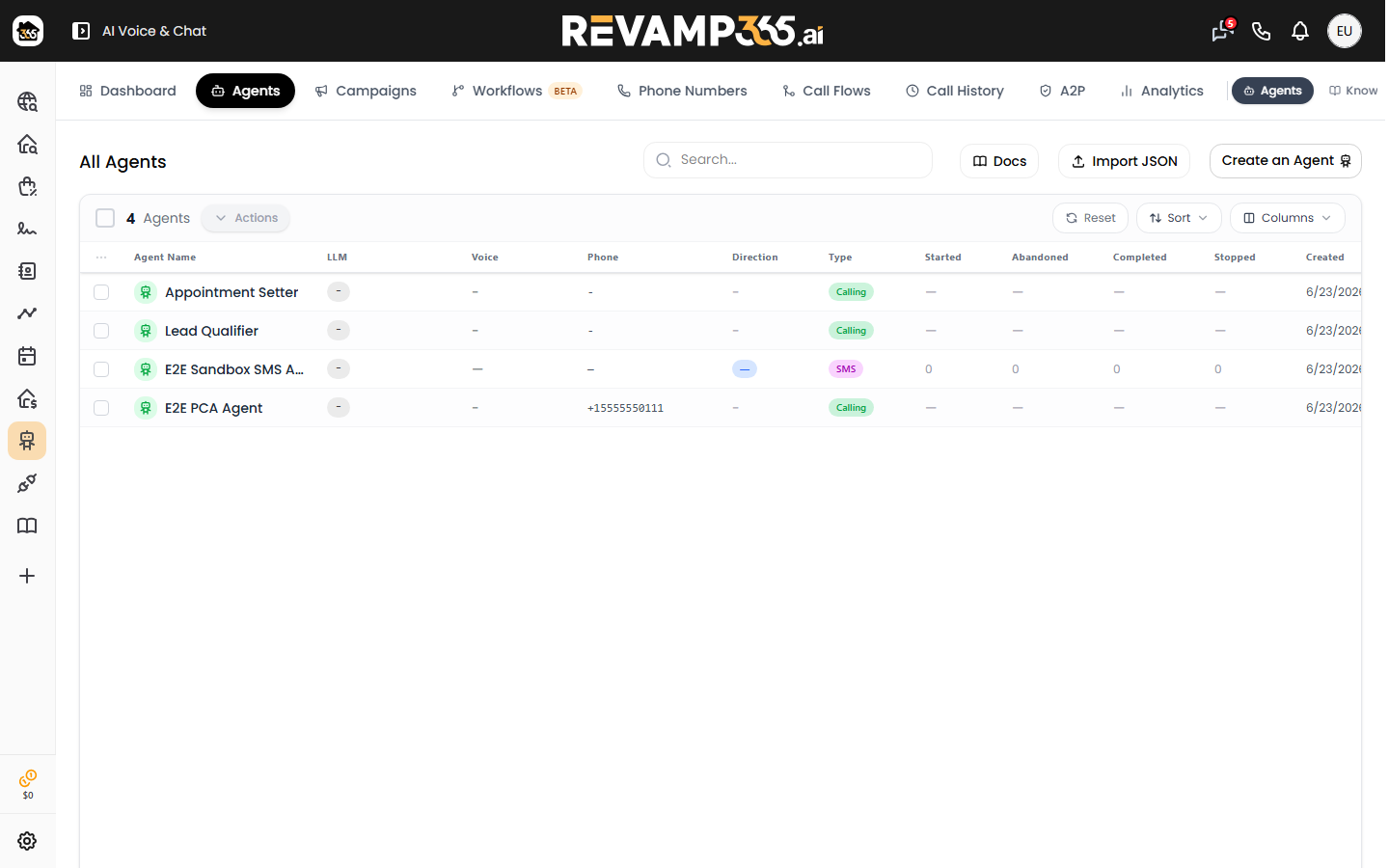
- The All Agents table lists every voice agent, with Calling and SMS type badges.
Click any row to open the builder. Select rows with the checkboxes to reveal the Actions menu.
Publishing happens on save
Revamp365 does not use a separate Publish button. When you save an agent in the builder, it is published to the live calling engine automatically so your changes take effect on the next call. Both new agents and edits to existing agents are published the same way.
To see publish state, open the Columns dropdown (top right of the table) and enable the Published column:
| Badge | Meaning |
|---|---|
| Published | A live version exists and answers calls |
| Draft | Saved locally but no live version yet |
There is no one-click "unpublish." To stop an agent from taking calls, remove its phone number assignment in the builder, or delete the agent.
Duplicate an agent
Duplicating clones the full configuration — flow, prompt, voice, and post-call analysis — into a new agent so you can iterate without touching the original.
- Select exactly one Calling agent using its checkbox.
- Open Actions and choose Duplicate.
- The copy appears named with a (Copy) suffix.
Notes:
- Duplicate is available for voice agents only, one at a time.
- The new copy starts without phone numbers assigned, so it will not take calls until you wire it up and save.
Export and back up
Use Actions → Export to JSON to download the selected agents as a .json file. This is the portable backup format; you can re-create agents later with the Import JSON button in the table header.
Roll back with version history
Each save creates a new version. Inside the agent builder, open the version history drawer to restore an earlier configuration. After you restore, the editor reloads with the restored setup, which you then save to make live again.
Remove an agent
There is no archive state for voice agents — removal is a delete:
- Select one or more agents.
- Open Actions → Delete and confirm.
Deletion is permanent, so export a JSON backup first if you might need the agent again.
Before you go live
Always place a test call to confirm tone, flow, and transfer behavior before pointing real traffic at an agent. See place a test call to an AI voice agent to verify the published version end to end.