
A Knowledge Base gives your AI voice or chat agent a set of facts to pull from during a call, so it answers from your documents instead of guessing. You build the Knowledge Base once, then attach it to any agent.
Where to find it
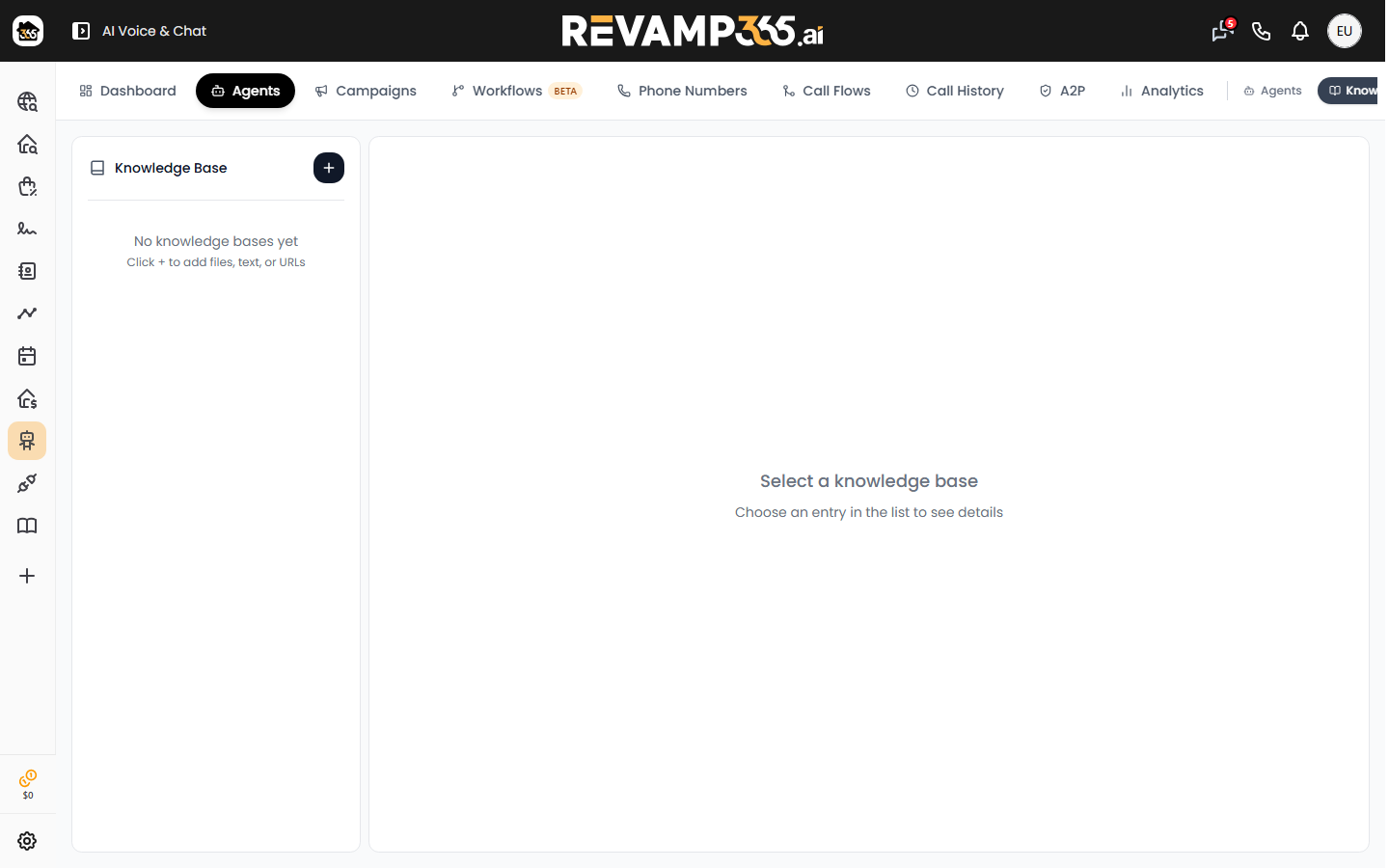
- Open AI Voice & Chat from the main navigation.
- Click the Agents tab.
- Click the Knowledge Base sub-tab.
The left sidebar lists every Knowledge Base on your account. Select one to see its ID, type, and creation date in the detail panel.
Create a Knowledge Base
- Click the + button at the top of the sidebar to open the Add knowledge base dialog.
- Enter a Name (40 characters or fewer) — for example,
Property FAQs.
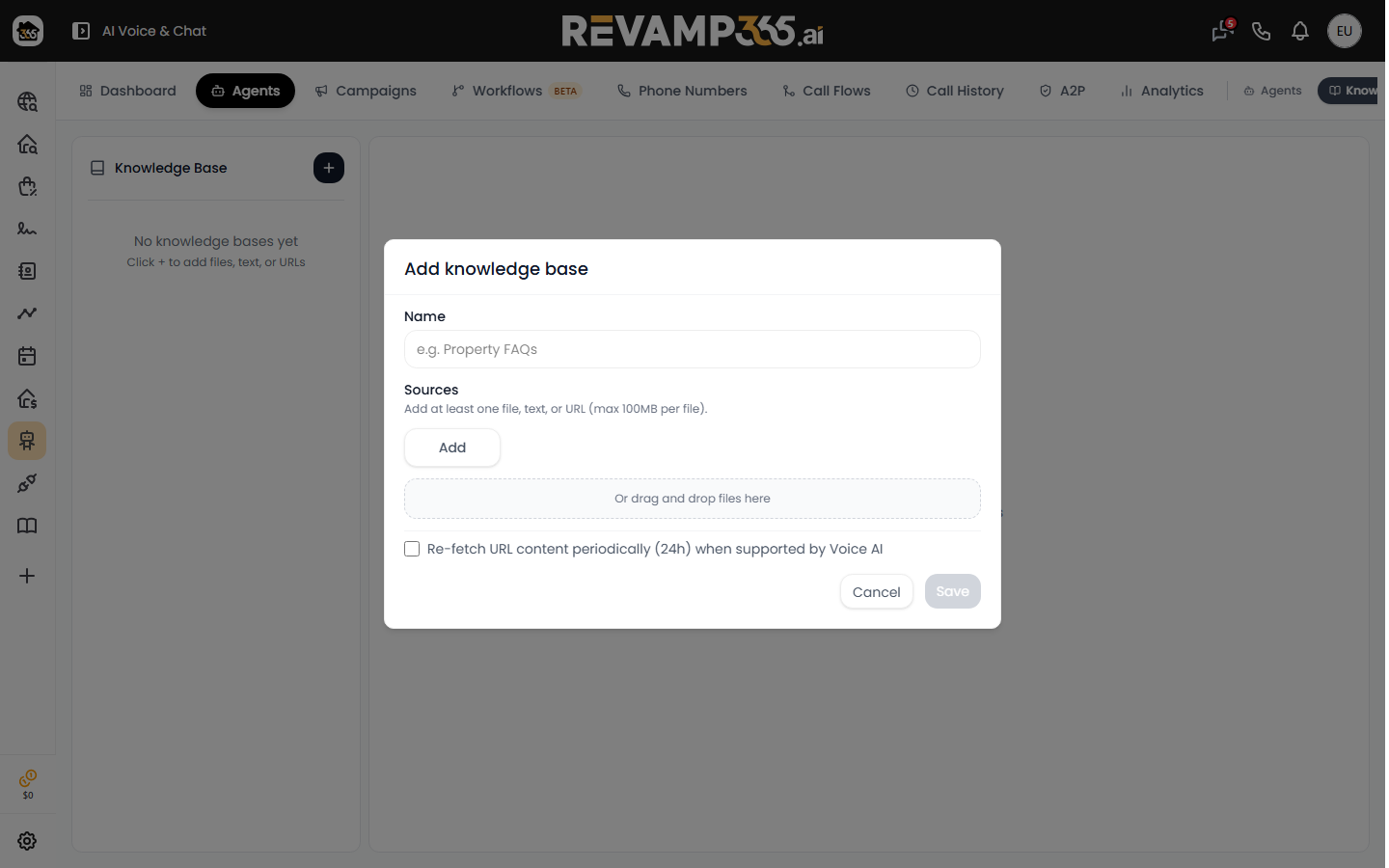 3. Click Add and pick a source type, or drag files onto the drop zone:
| Source | What it does | Limit |
|---|---|---|
| Upload files | Pulls text from your documents | 100MB per file |
| Add text | Paste content manually with an optional title | — |
| Add URL | Crawls a public page (http/https only) |
— |
- Add as many sources as you need; each appears in a removable list.
- Optionally tick Re-fetch URL content periodically (24h) to keep crawled pages fresh.
- Click Save. The Knowledge Base is stored in Voice AI and appears in the sidebar.
You need a name plus at least one file, text block, or URL before Save activates.
Supported file types
Files are processed for their text content. Use .pdf, .docx, .doc, or .txt — these extract reliably. A file with no readable text (such as a scanned image PDF) is skipped, and the save fails if nothing usable is found.
Attach it to an agent
A Knowledge Base does nothing on its own — it has to be linked to an agent.
- Open the agent you want in the builder, or create a new one.
- Find the Knowledge Base picker, click Add, and select your Knowledge Base.
- Save the agent. The selected Knowledge Bases now ground its answers.
One Knowledge Base can be reused across several agents, so a single Property FAQs set can power both a seller-outreach voice agent and a buyer chat agent.
Edit or delete
The original files, pasted text, and crawled pages are not shown back to you in Revamp365 — the panel only confirms what is stored. To change content, build a new Knowledge Base with the updated sources and attach it.
To remove one, select it, click the trash icon, and confirm Delete knowledge base?. Deletion removes it from your account and from Voice AI and cannot be undone, so detach it from any live agents first.
Tips for grounded answers
- Keep each Knowledge Base focused on one topic so retrieval stays accurate.
- Pair it with a clear system prompt — see write an AI voice agent system prompt.
- Run a test call afterward to confirm the agent quotes the right facts.
Knowledge Base management is part of the AI Voice & Chat feature set; if you do not see the Agents tab, your plan may need an upgrade.