
Every Revamp365 AI voice agent has two settings that shape how it sounds and how much each call costs: the speaking voice and the LLM model that powers its responses. Both live in the agent builder's left sidebar, and a live cost strip updates as you change them.
Where these settings live
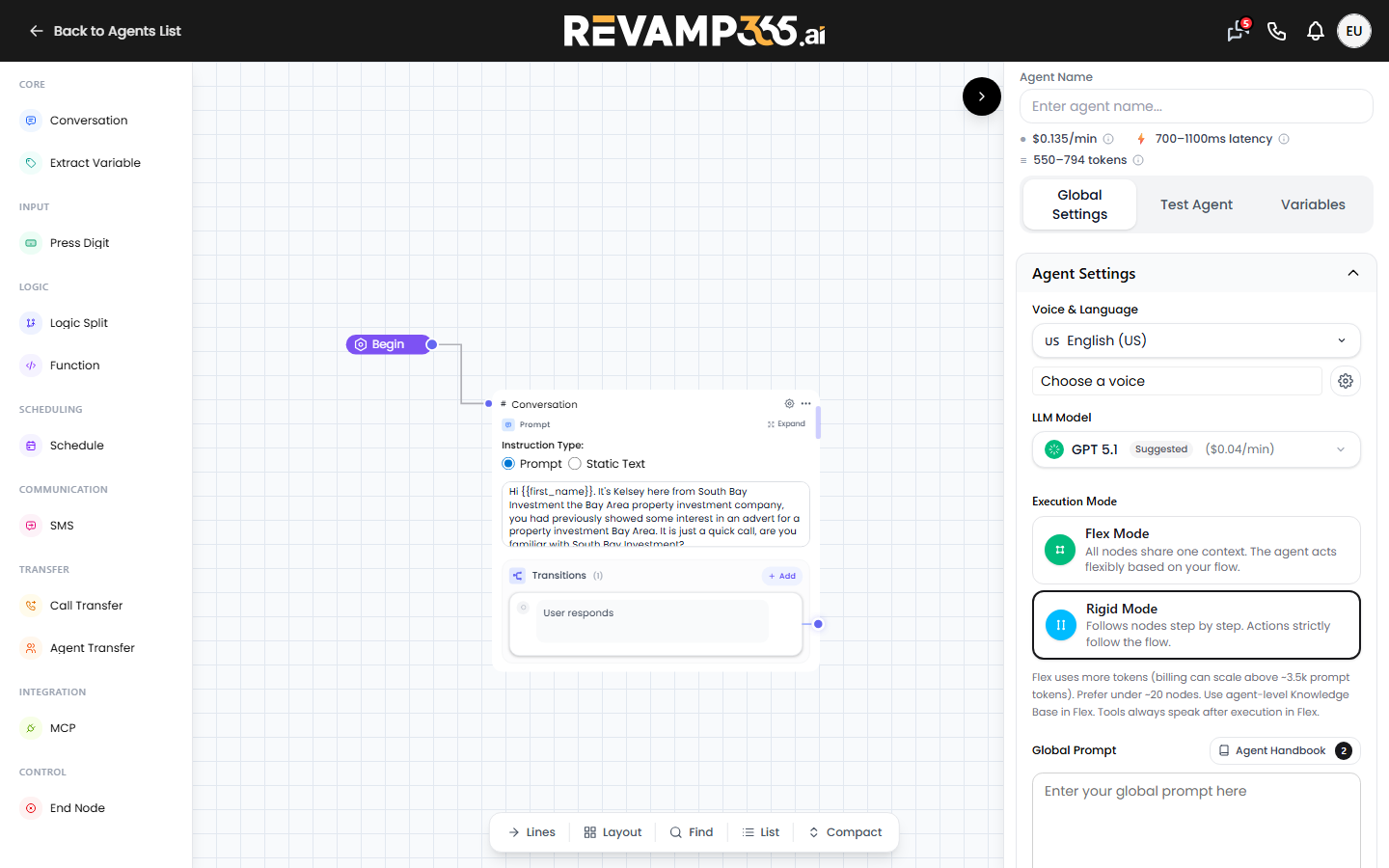
Go to AI Voice, open the Agents tab, and click an agent to open the builder at /ai-voice/agent. In the left sidebar under Agent Settings, expand the accordion to find the Voice & Language and LLM Model controls. Just above the tabs, a cost strip shows the estimated $/min, a latency band, and a token band for the current voice and model.
Pick a voice
Click the Choose a voice button to open the voice table. Each row lists the Voice name and a Trait; click Use Voice to assign it. The catalog is roughly 50 ElevenLabs voices spanning American, British, Australian, Indian, German, and Spanish accents at young, middle-aged, and old ages — the default for new agents is Hailey.
Next to the voice button, the gear icon opens Voice Settings, where you fine-tune how the chosen voice delivers lines:
- Voice Model — the ElevenLabs engine (the default is
eleven_flash_v2). - Voice Speed — 0.5 to 2.0 (default 1.1).
- Voice Temperature — 0 to 2.0; higher is more expressive (default 1.6).
- Voice Volume — 0 to 2.0 (default 1.0).
Your voice choice also affects cost: ElevenLabs voices carry a higher text-to-speech rate than other providers, and that difference is folded into the $/min shown in the cost strip.
Pick an LLM model
Open the LLM Model picker. Models are split into two groups:
- Versatile and highly intelligent — flagship models such as GPT 5.1 (the Suggested default), Claude 4.6 Sonnet, and Gemini 3.0 Flash. Use these when the agent must reason over multi-turn conversations or follow detailed instructions.
- Fast and cost-efficient — smaller models like GPT 4.1 mini, GPT 5 nano (tagged Cheapest), and Gemini 2.5 Flash Lite. Use these for high-volume outbound or simple scripted flows where speed and price matter more than depth.
Each row shows its provider icon and per-minute price, so you can weigh quality against cost as you scan the list.
Turn on Fast Tier (premium routing)
After you select a model, a Fast Tier (premium routing) toggle appears at the bottom of the picker. Fast Tier routes the model through a dedicated high-priority pool for roughly 25% lower average latency and 50% less variance, at a higher per-minute rate. It is only available for models that publish a Fast Tier price — most OpenAI models do; Anthropic and Google models do not, and the toggle is disabled for them.
| Choice | Best for | Trade-off |
|---|---|---|
| Flagship model | Complex reasoning, careful instruction-following | Higher $/min, slightly higher latency |
| Fast model | High-volume calling, simple flows | Less depth on tricky conversations |
| Fast Tier on | Snappier, more consistent responses | Costs more per minute |
Override the model on a single node
The picker above sets the agent-wide default. To run one conversation-flow node on a different model, select that node, find the LLM section in its sidebar, and turn on Choose a different LLM for this node to reveal a node-level picker. This is useful for, say, running a cheap model on a greeting node and a flagship model where the agent negotiates.
The Analysis Model used for post-call analysis is set separately on the Post-Call Analysis panel — see configure post-call analysis fields.
Test before you commit
Voice and model choices only matter once you hear them. After choosing, place a test call to the AI voice agent to confirm the voice sounds right and the model keeps up with the conversation.