
On the Listed Properties Search page (the Listing Search item in the left sidebar), three controls do the heavy lifting for finding motivated, time-sensitive MLS deals: the DOM chip, the Status chip, and per-status day ranges inside Advanced MLS Search. This covers how each one behaves and where the price-relative signal actually lives.
Filter by days on market (DOM)
Click the DOM chip in the filter bar to open the Days on Market popover. Set DOM Min and DOM Max, then click Apply. Leaving Min blank and setting Max to a low number surfaces fresh listings; setting a high Min (for example 90+) surfaces stale, aging inventory worth a lowball offer.
The same popover holds a Closed Date Filter (Earliest / Latest Close Date). It only takes effect when your Status includes Closed — the popover notes: "Change Status filter to 'Closed' to use the Closed Date Filter."
Results default to DOM (Shortest to longest). Use Sort By to flip to longest-first, and add the MLS DOM column in List view to see each listing's day count.
Filter by MLS status
Click the Status chip to choose which statuses return. Revamp365 supports all nine:
| Status | Status |
|---|---|
| Active | Active Under Contract |
| Coming Soon | Pending |
| Temp Off Market | Withdrawn |
| Closed | Canceled |
| Expired |
Only Active is checked by default. The four off-market statuses — Withdrawn, Closed, Expired, and Canceled — auto-apply a 180-day window so you only see recent records. Aged Expired and Withdrawn listings are prime cold-outreach targets.
Set day ranges per status (Advanced)
For finer control, open Advanced MLS Search and scroll to Status — Dates or Days. Each status row has its own Days Min and Days Max field, active once that status is checked.
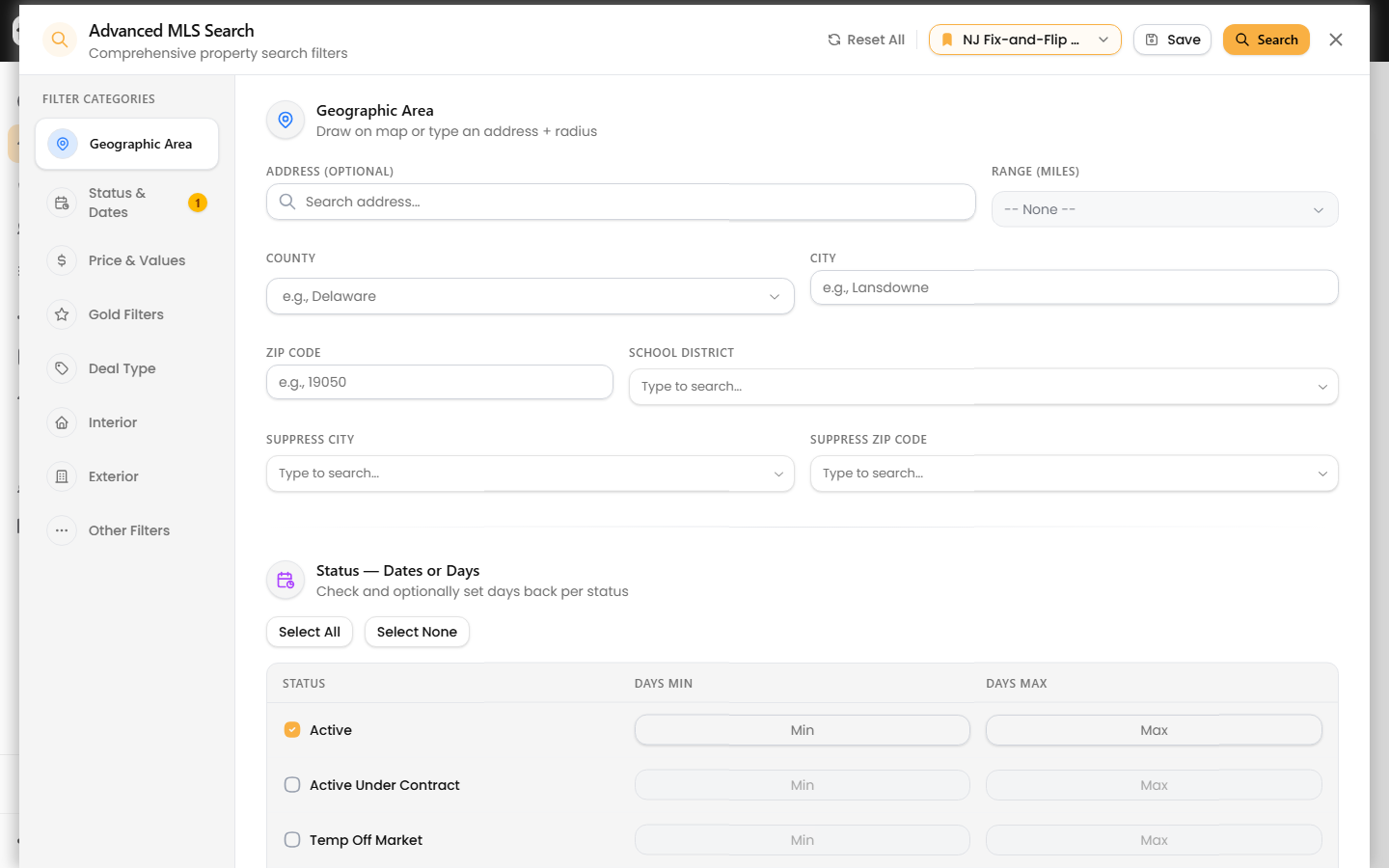 Days are relative to today — the panel states: "Days" are relative to today (e.g., 0–180 = last 6 months). So Closed with Days Max 90 returns sales from the last quarter.
This section also exposes Listing Date Min/Max, a standalone DOM Min/Max, and Close Date Min/Max for exact-date windows instead of rolling day counts.
Finding price drops and underpriced listings
Revamp365's MLS search does not have a dedicated "price reduced" or "price drop since listing" filter. To target mispriced inventory, use the Below Market preset under the Gold Filter chip.
Those advanced Gold knobs behind Show Advance Filters are locked on the Free plan and require a paid plan; the Below Market preset itself stays available.
Save the filter set
Once your DOM, status, and value filters are dialed in, save the search from the filter bar to reuse it or turn it into recurring alerts — see save MLS search and turn on alerts. If a combination returns nothing, loosen status or DOM first, per troubleshoot zero-result property searches.