
A cover-email template is the message that carries your filled agreement to the listing agent. Save it once with merge tags, and Revamp365 fills in the agent name, property address, and offer price each time you send.
Open the email template builder
- In the left sidebar, open Offer Bot.
- Click the Email Templates tab.
- Click Add Email Template. To change an existing one, click the pencil icon on its row.
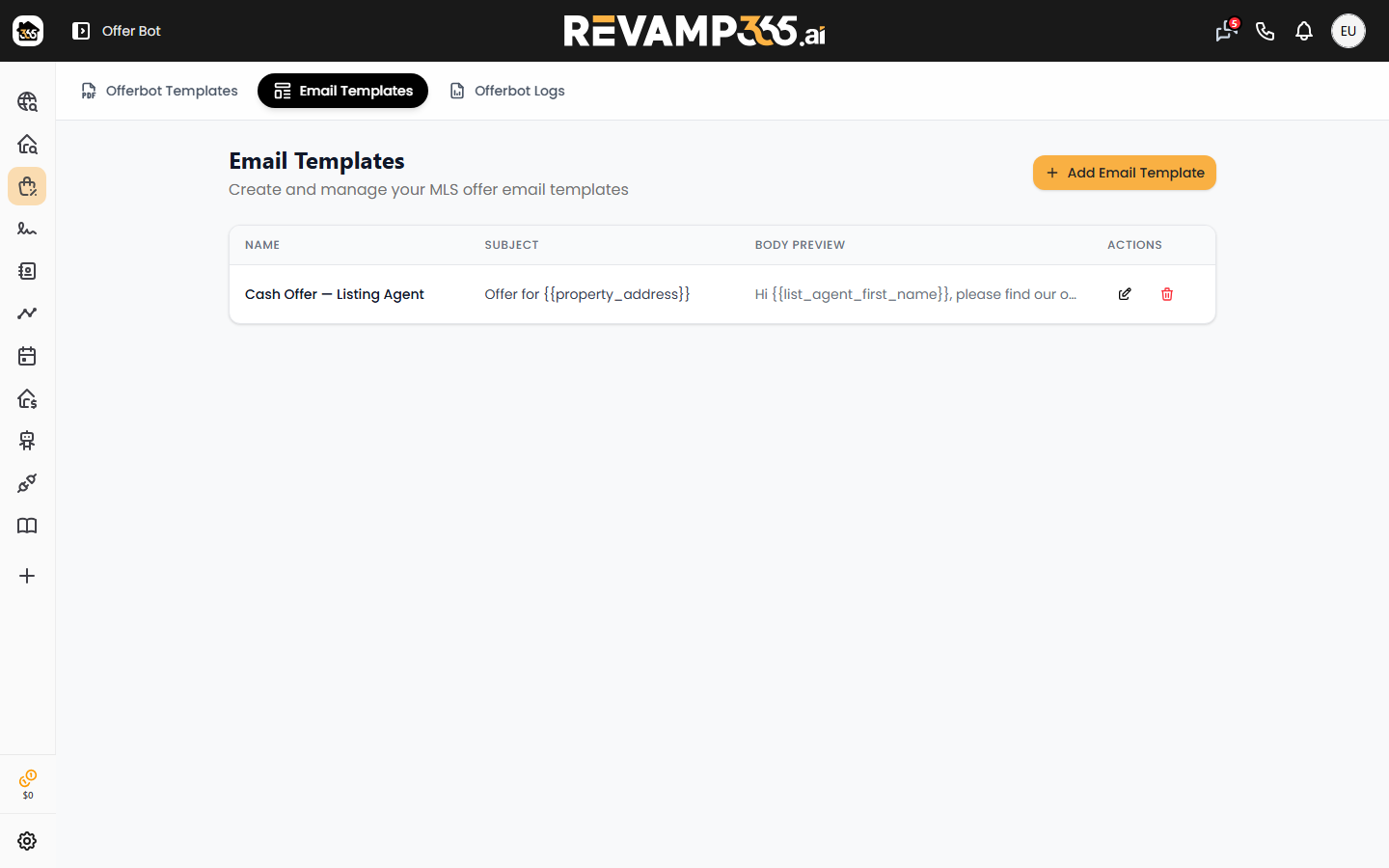
Fill in the template fields
| Field | What it does |
|---|---|
| Template Name | Internal label only — the agent never sees it |
| Email Subject | Subject line; merge tags work here |
| Email Body | The message; merge tags work here |
Both Subject and Body show a (Tags enabled) hint.
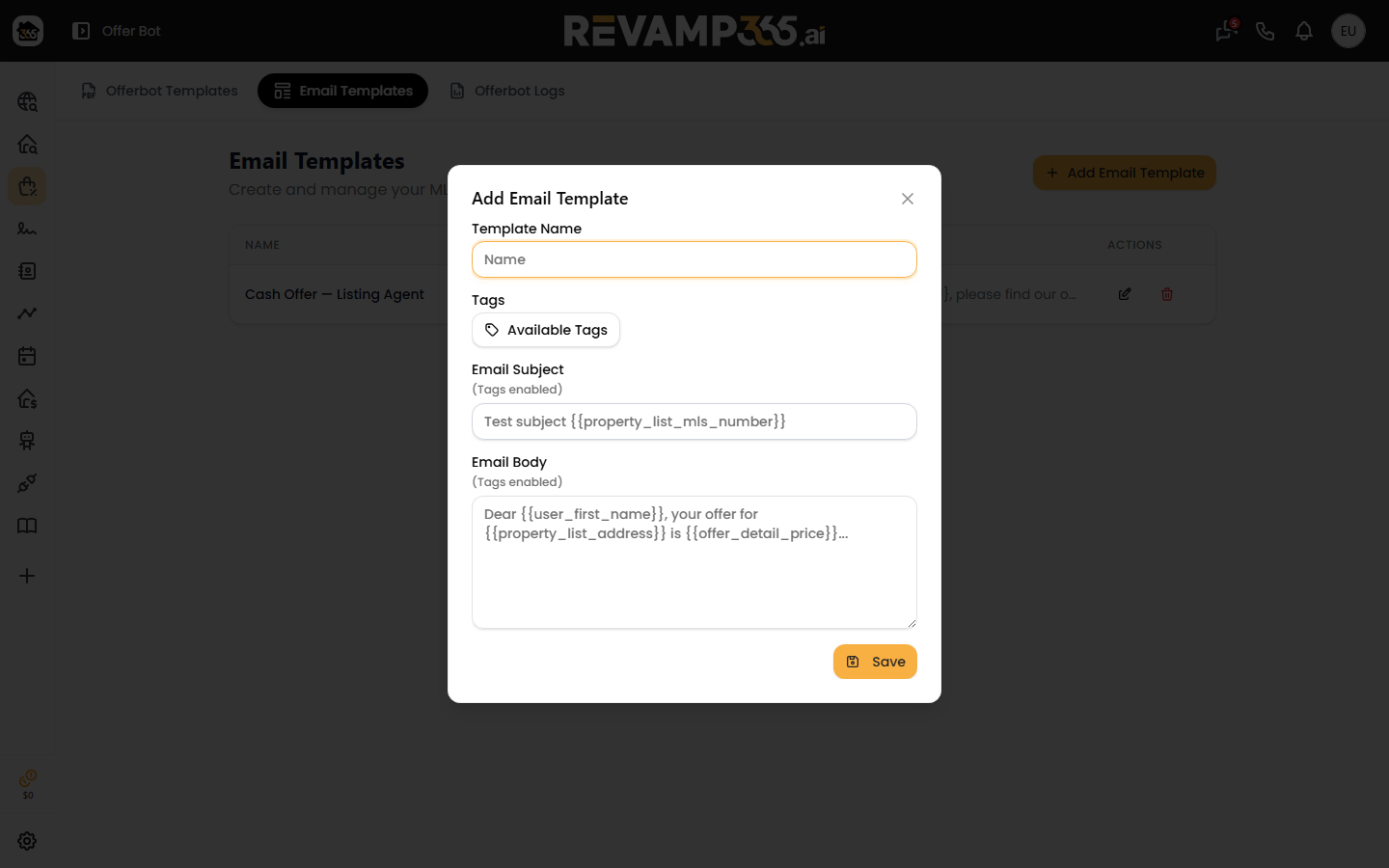
Add merge tags
Merge tags use double-brace syntax: {{field_key}}.
- Click Available Tags.
- Pick a tag — it copies
{{field_key}}to your clipboard. - Paste it into the Subject or Body.
Common tags:
{{list_agent_first_name}}— listing agent's first name{{property_address}}— full street address{{mls_number}}— MLS listing number{{list_price}}— list price{{offer_price}}— your offer amount{{offer_price_text}}— offer amount spelled out{{user_first_name}}and{{company_name}}— your name and company{{current_date}},{{date_plus_30}}— today, or today plus 30 days
A short body might read:
Hi
{{list_agent_first_name}}, please find our offer of{{offer_price}}for{{property_address}}(MLS{{mls_number}}) attached.
If a tag has no value for a listing, it renders as blank rather than printing the raw tag. Click Save.
How the email is sent
When you send from Automated Offers, you pick this template together with your PDF template. Revamp365 then:
- Replaces every tag with that listing's live data.
- Puts the listing agent's email in To when one is on file.
- Attaches the filled Agreement of Sale.
- Shows a preview so you can read the resolved message before it goes out.
By default the message is sent from offers@revamp365.ai. The From name is your full name. Reply-To and CC default to your account email (or the company email on your profile if you set one) so replies come back to you and you keep a copy.
If you turn on Offers routing through a connected inbox, the message goes from that address instead and the platform CC is dropped — your Sent folder is the copy.
Pair this with generating an offer from an MLS listing and Offerbot Logs.