
The Websites editor lets you reshape the lead-gen site that Revamp365 generates during A2P activation: rearrange blocks, rewrite copy, add pages, and publish without touching the compliance pieces that keep your SMS traffic approved.
Open the editor
- Go to Integrations & Apps, find the Websites card, and click Open.
- If you see "Your website isn't ready yet," finish A2P compliance activation first — click Go to A2P Registration. The site is generated during that step.
The Websites editor is included on Dealmaker. If you don't see it yet, your plan or your A2P setup isn't complete. For the first build, see generate a hosted compliance website with AI.
Edit pages and blocks
The center canvas is a live, edge-to-edge preview. The left rail lists your Pages; the Add blocks palette below it drops new sections in.
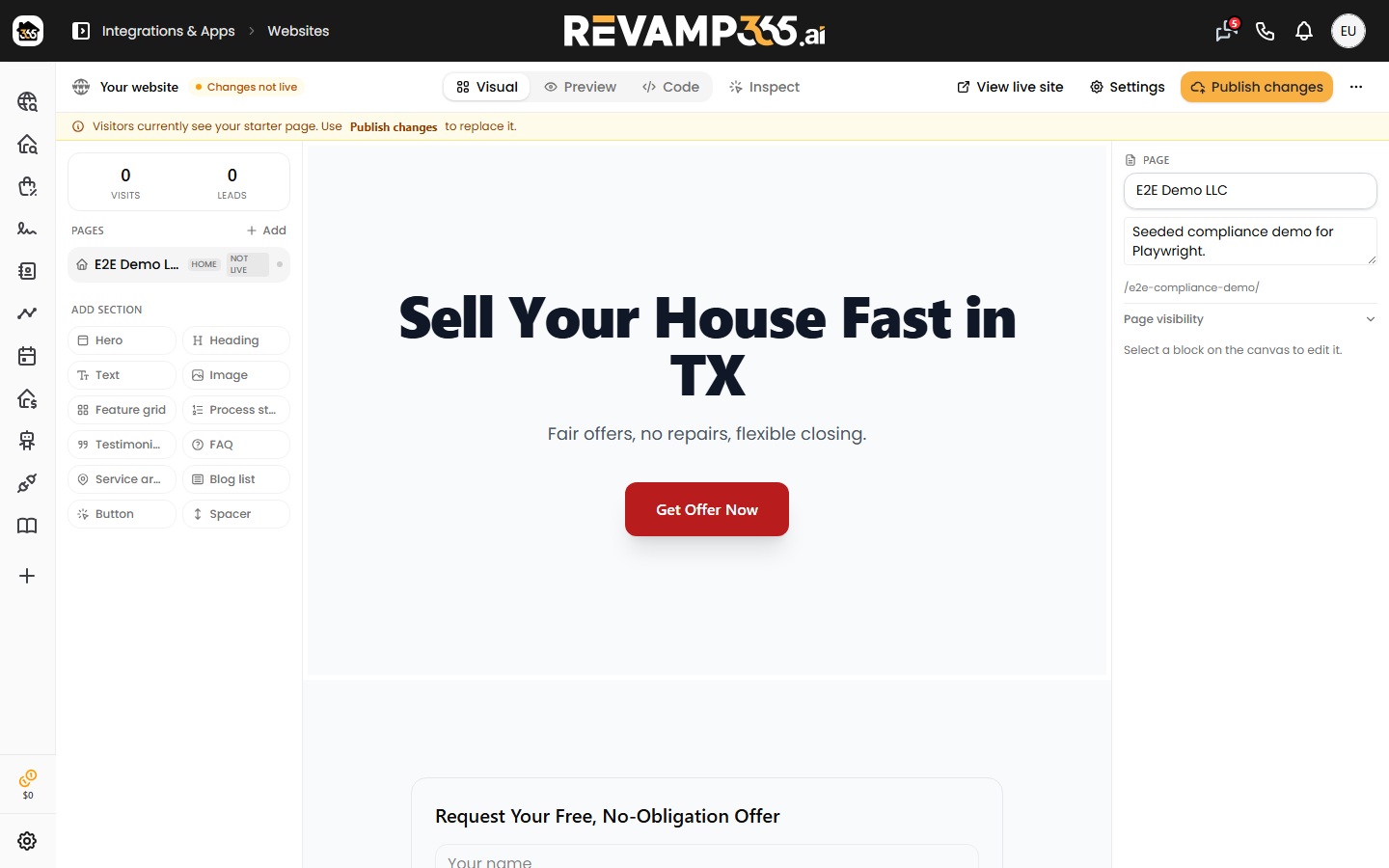
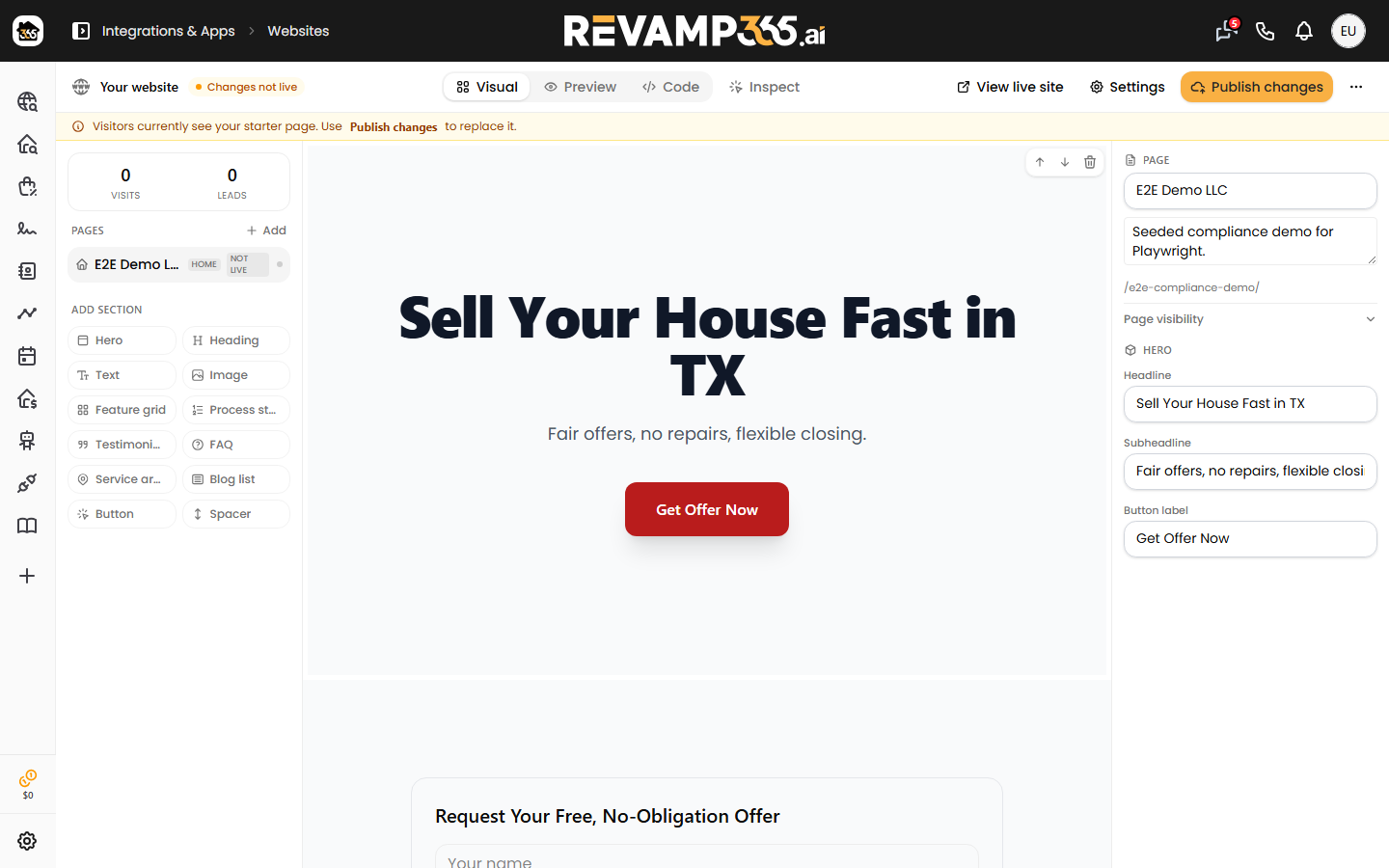
- Select any block on the canvas to open its fields in the right inspector.
- Reorder blocks by dragging the grip handle that appears on hover.
- Delete a block with the trash icon (locked blocks show a lock instead).
- Add a block from the palette: Hero, Heading, Text, Image, Feature grid, Process steps, Testimonials, FAQ, Service areas, Blog list, Button, or Spacer.
List-style blocks edit as one item per line. FAQ uses Question | Answer, Testimonials use Name | Quote, and Feature grid accepts plain lines or Title | Description.
Edits save automatically — watch the Saved / Saving… / Save failed status in the toolbar.
Branding and section backgrounds
Your brand color and logo come from your A2P compliance profile, so they aren't edited in this screen. What you can control per section: select a block that starts a band, then set Section background in the inspector.
| Option | Result |
|---|---|
| Default (auto) | Alternating tone chosen for you |
| Light / Dark | Solid light or dark band |
| Brand color | Fills with your brand color |
| Gradient | Brand gradient band |
Open the Preview tab to see the band; it applies on the live page after you publish.
SEO and adding pages
- Set the Page title and Meta description (SEO) in the inspector. The page URL shows below as
/{slug}/{path}. - Click Add in the Pages rail to create a Page or Blog post. Limits: up to 25 pages and 100 blog posts, 80 blocks per page.
- Image uploads accept JPEG, PNG, WebP, or GIF up to 5 MB (no SVG).
Compliance copy is locked
Blocks marked with a lock — the lead form, the SMS opt-in CTA, and legal text — are "managed automatically for SMS compliance" and can't be edited or deleted. The Privacy Policy, Terms of Service, and Opt-In nav links are locked for the same reason. See use the Websites editor for your compliance page.
Rebuild and publish
- Rebuild with AI regenerates a fresh draft from your business details. Confirm the prompt — it replaces your current draft, but your live site stays up until you publish, and the build runs for a few minutes in the background.
- Publish (toolbar) takes the whole site live. Use the per-page Publish / Unpublish toggle for individual pages, then View live to check the result.
If forms aren't capturing leads after publishing, see troubleshoot hosted compliance site lead capture.