
Speed to lead is everything in real estate investing. Revamp365.ai provides pre-built AI voice agent templates designed specifically for real estate use cases. These templates come pre-configured with the right prompts, logic, and settings to handle common scenarios like seller follow-ups or inbound receptionist duties, allowing you to automate your lead qualification instantly.
This guide will walk you through creating a powerful real estate AI agent using a template.
Step 1: Navigate to the AI Voice Dashboard
- From the main Revamp365.ai dashboard, click on AI Voice & Chat in the left navigation menu.
- Click on the Agents tab at the top of the page to view your existing agents.
- Click the Create an Agent button in the top right corner.
- Select Voice Agent from the dropdown menu.
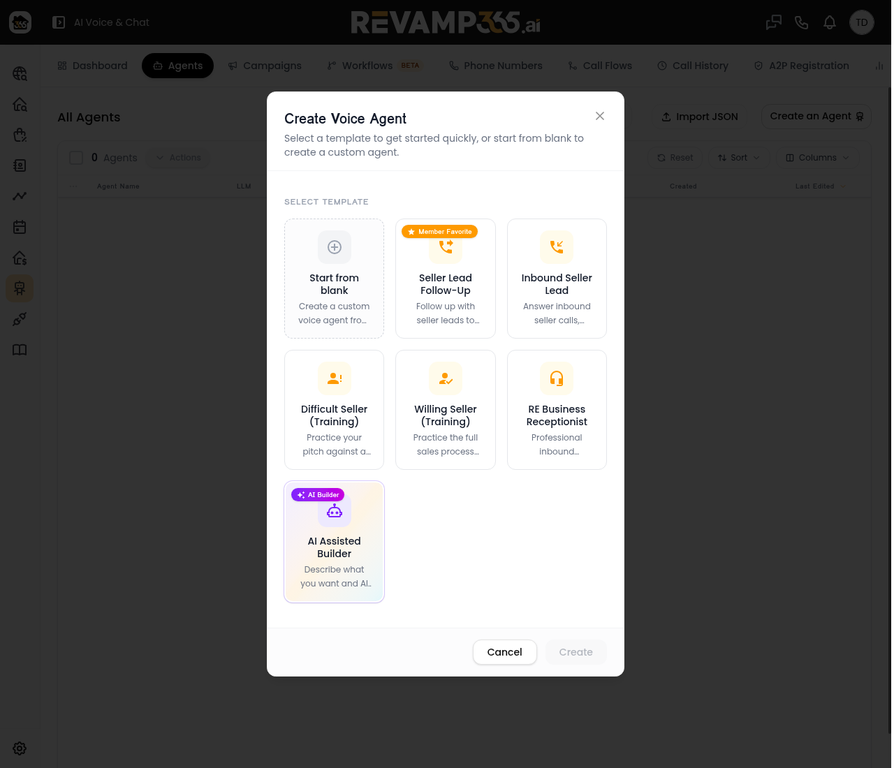
Step 2: Select a Real Estate AI Template
The Create Voice Agent modal will appear, displaying several options tailored for investors and wholesalers.
- Browse the available templates. Popular options include:
- Seller Lead Follow-Up: Follow up with seller leads to qualify motivation, timeline, and book appointments.
- Inbound Seller Lead: Answer inbound seller calls, discover lead source, and qualify through the full acquisition process.
- RE Business Receptionist: Professional inbound receptionist that routes sellers, buyers, and general inquiries.
- Click on the template that best fits your needs (e.g., Seller Lead Follow-Up).
- Click the Create button at the bottom of the modal.
Step 3: Review the Pre-Built Conversational Flow
Once created, you will be taken to the Agent Editor. The template automatically populates the canvas with a complete conversational flow designed to convert real estate leads.
- Review the Nodes: The canvas displays the logical steps of the conversation (e.g., Start/Identify Lead, Property Confirmation, Mini Intro).
- Examine Prompts: Click on any node to see the specific script the AI will use at that stage of the conversation.
- Check Transitions: Notice how the nodes are connected. These transitions dictate how the AI moves from one topic to the next based on the seller's responses (e.g., "Confirmed Identity", "Not Interested").
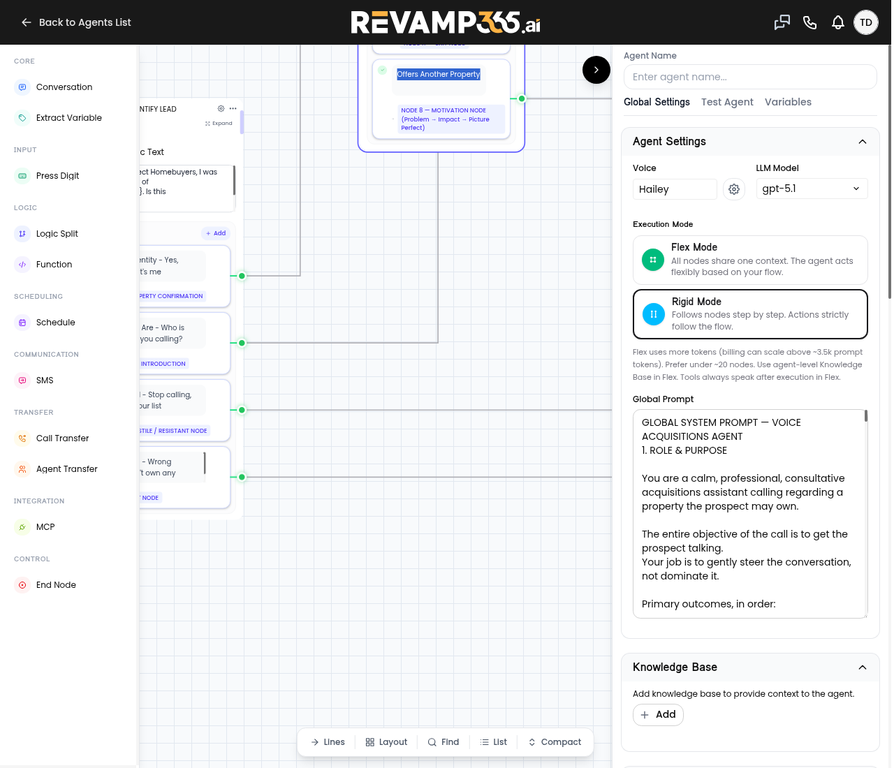
Step 4: Configure Your AI Agent Settings
The right-hand panel contains the global settings for your new agent. While the template provides a strong foundation, you should review and adjust these settings to match your specific wholesaling or investing business.
- Agent Name: Give your agent a recognizable name at the top of the panel.
- Voice: Select the voice profile you want the agent to use.
- LLM Model: Choose the underlying AI model (e.g., gpt-5.1).
- Execution Mode: Templates typically use Flex Mode, allowing the agent to act flexibly based on the flow, or Rigid Mode for strict step-by-step adherence.
- Post Call Analysis: Review the data extraction settings to ensure the agent captures the right information from every call (e.g., Call Disposition, Interest Level, Call Summary).
Step 5: Test and Publish Your Real Estate AI
Before deploying your agent to call live seller leads, it's crucial to test it.
- Click the Test Agent tab in the right panel to simulate a conversation and ensure the flow works as expected.
- Once you are satisfied with the agent's performance and settings, click the Publish button at the bottom of the settings panel to make the agent active.
Frequently Asked Questions (FAQ)
What is an AI voice agent for real estate? An AI voice agent is an automated system that can have intelligent, two-way voice conversations with your potential and current clients. In real estate, they are used to qualify seller leads, answer inbound calls, and book appointments 24/7.
Can I customize the pre-built templates? Yes. Once you load a template in Revamp365.ai, you have full access to the Agent Editor. You can change the scripts, add new logic nodes, or adjust the post-call analysis fields to fit your exact business model.
How does the AI know if a lead is qualified? The templates include "Post Call Analysis" fields that instruct the AI to evaluate the conversation and categorize the lead based on their motivation, timeline, and interest level.
Field Reference: Post Call Analysis
Templates often include pre-configured Post Call Analysis fields to help you quickly sort leads. Here are common examples:
| Field Name | Type | Description |
|---|---|---|
| call_disposition | Selector | Categorizes the outcome of the call (e.g., Qualified - Interested, Wrong Number, Do Not Call). |
| interest_level | Selector | Classifies the contact's interest level (Hot, Warm, Cold) based on explicit statements. |
| call_summary | Text | A structured summary of the call, including owner details, motivation, timeline, and price expectations. |
| spoke_with_owner | Yes/No | Indicates whether the actual property owner or decision-maker participated in the conversation. |