
Outbound calling is the lifeblood of real estate wholesaling and investing. With Revamp365.ai, you can automate your entire cold calling and follow-up process using the AI Agent Campaign Builder. This tool allows you to deploy your custom AI voice agents to call hundreds of seller leads automatically, qualifying them and booking appointments directly to your calendar.
This guide will walk you through the 5-step Campaign Builder, including crucial best practices for list management and phone number health.
Step 1: Basic Information
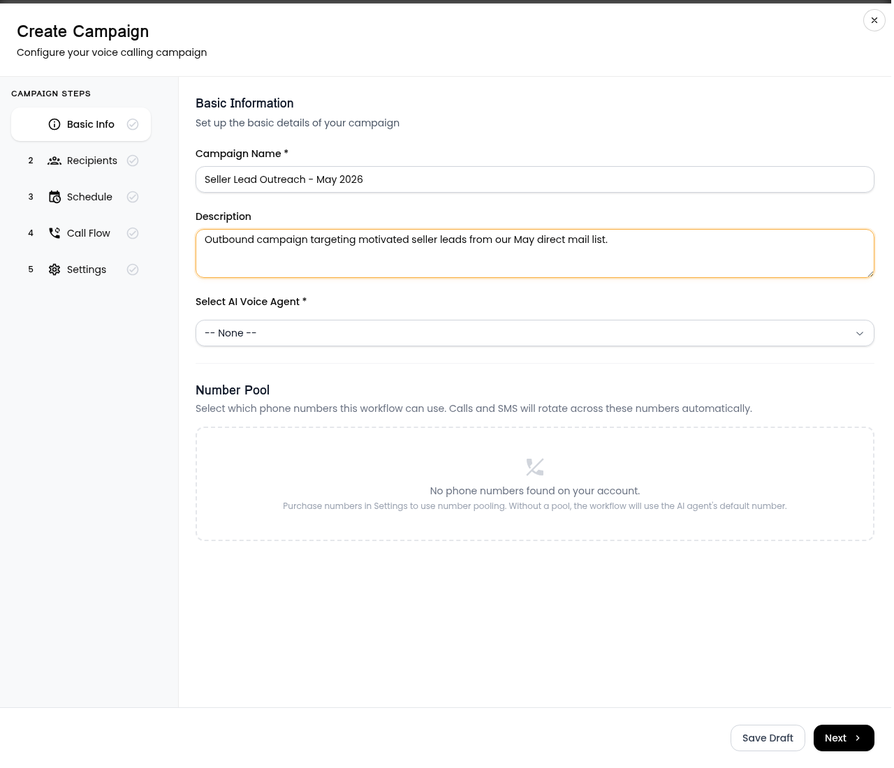
The first step is to name your campaign and select the AI agent that will be making the calls.
- Navigate to AI Voice & Chat > Campaigns.
- Click the Create Campaign button.
- Campaign Name: Give your campaign a clear, descriptive name (e.g., "May 2026 - Absentee Owners").
- Select AI Voice Agent: Choose the specific agent you built (from a template or from scratch) that is trained for this specific list.
Step 2: Select Recipients (The "Continue Calling" Strategy)
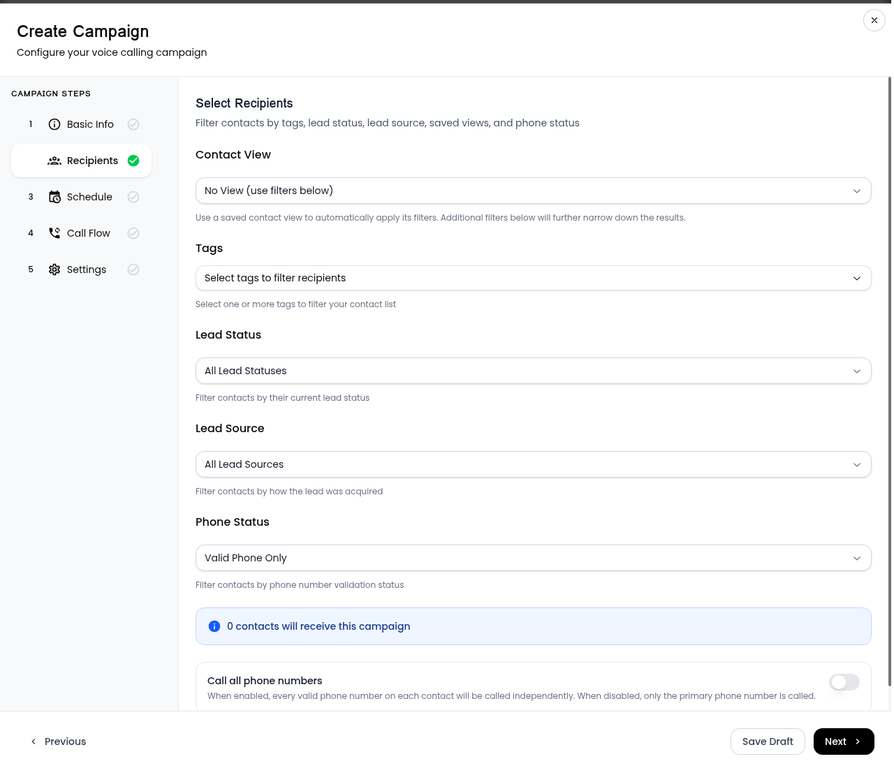
This step determines who your AI agent will call. You can filter your CRM contacts by Tags, Lead Status, or Lead Source.
Crucial Best Practice: The "Continue Calling" Tag If you intend to run this campaign more than once (which is highly recommended for outbound lists), you must manage your list carefully so you don't repeatedly call leads who have already been qualified or disqualified.
- Before creating the campaign: Go to your Contacts CRM and tag the entire list of leads you want to call with the tag "Continue Calling".
- In Step 2 of the Campaign Builder: Under the Tags dropdown, select the "Continue Calling" tag (along with any other tags that segment your list, like "Absentee Owner").
- How it works: When you use the Default Call Flow (see Step 4), the system is pre-configured to automatically remove the "Continue Calling" tag from any lead that the AI speaks to and either qualifies or disqualifies.
- Rerunning the campaign: When you duplicate and rerun this campaign next week, the AI will only call the leads who still have the "Continue Calling" tag (i.e., the ones who didn't answer previously).
Step 3: Calling Schedule & Limits
Real estate outbound calling must respect legal calling hours and phone number reputation limits.
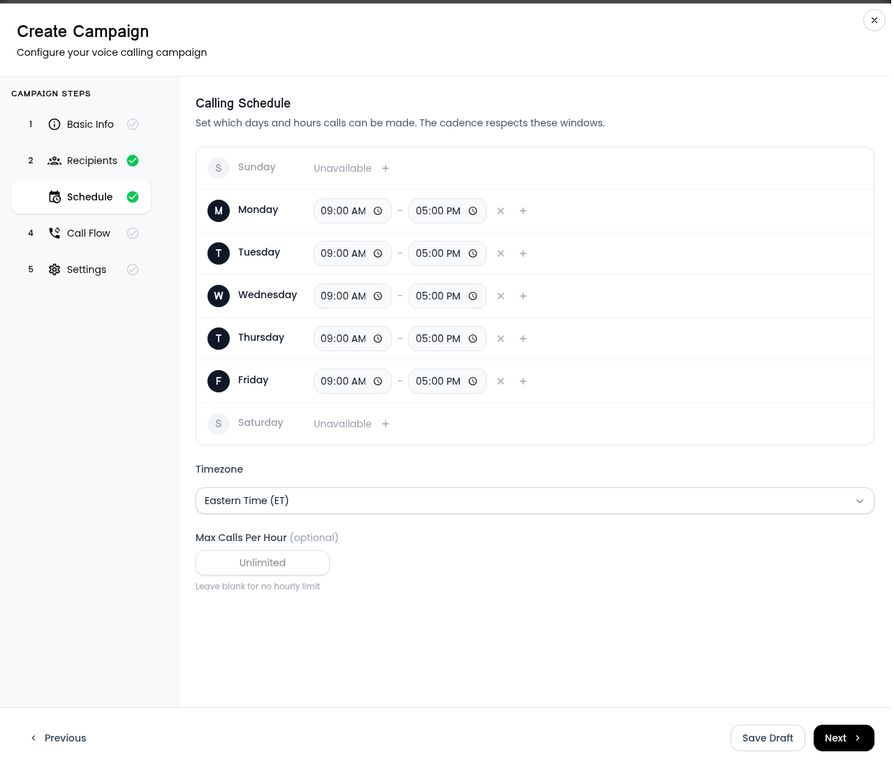
- Select Days and Times: Use the grid to select the exact hours your AI agent is allowed to make calls (e.g., Monday-Friday, 9:00 AM to 5:00 PM). The AI will automatically pause calling outside of these windows.
- Timezone: Ensure the timezone matches your target market.
- Max Calls Per Hour: You can throttle the speed of the campaign here.
Crucial Best Practice: Phone Number Health To prevent your phone numbers from being flagged as "Spam Risk" by carriers, we strongly recommend a maximum of 150 to 200 calls per phone number, per day. If your campaign has 1,000 recipients, you should either spread the campaign over 5 days or purchase a Number Pool with 5 different phone numbers to distribute the call volume.
Step 4: Call Flow (Automated Follow-Up Rules)
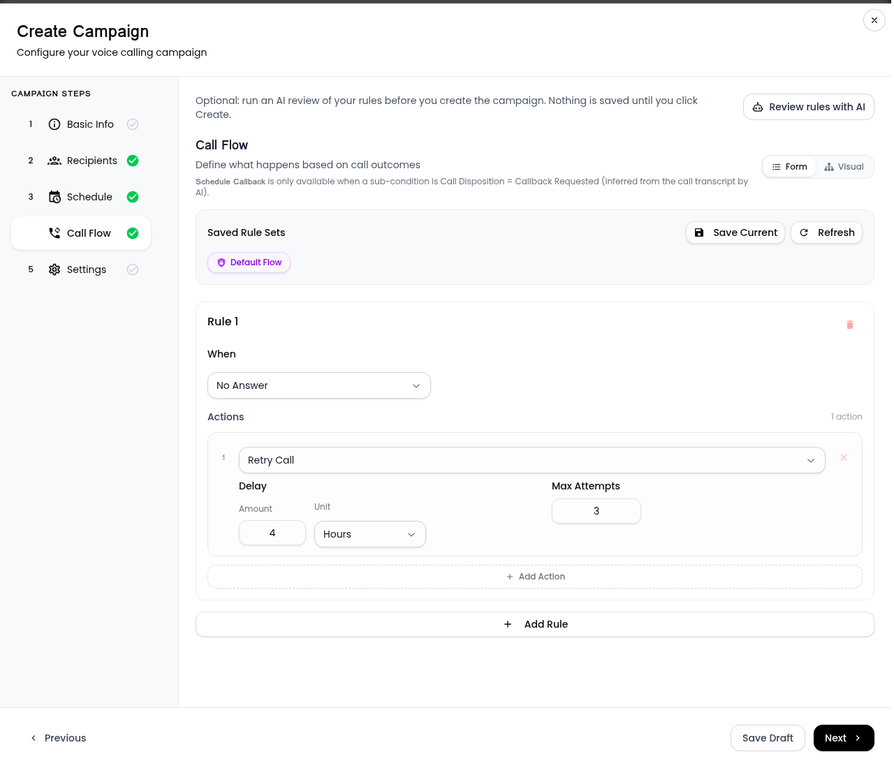
The Call Flow dictates what the system does after a call ends, based on the outcome (Call Disposition).
- The Default Flow: We highly recommend selecting the Default Flow from the "Saved Rule Sets" dropdown unless you are an advanced user who wants to customize the flow entirely on your own.
- What the Default Flow does:
- No Answer: Automatically schedules a retry call (e.g., Retry in 4 hours, maximum of 3 attempts).
- Qualified/Disqualified: Automatically removes the "Continue Calling" tag (as mentioned in Step 2) so they aren't called again if you rerun the list.
- Callback Requested: Pauses the campaign for that specific lead and schedules a callback for the requested time.
- Visual Builder: You can click the Visual tab to see a flowchart representation of your rules.
Step 5: Settings & Launch
The final step allows you to review any custom rules and launch the campaign.
- Review Rules with AI: Click this button to have our AI Copilot scan your Call Flow for any logical errors, unreachable rules, or CRM sync gaps before you launch.
- Click Create Campaign to set it live. The AI will immediately begin dialing based on your Step 3 schedule.
Frequently Asked Questions (FAQ)
How many calls can an AI voice agent make per day? While the AI itself can make unlimited concurrent calls, carrier restrictions apply to the phone numbers. To keep your phone numbers from getting burned or marked as spam, the recommended maximum is 150-200 calls per number per day.
How do I stop the AI from calling someone who already answered? Use the "Continue Calling" tag strategy. Tag your initial list with "Continue Calling". The Default Call Flow will automatically remove this tag once a lead is spoken to. When you rerun the campaign targeting that tag, the answered leads will be excluded.
Can I change the schedule after the campaign starts? Yes. You can pause an active campaign at any time, adjust the calling schedule or max calls per hour, and then resume it.
Quick Reference: Campaign Best Practices
| Strategy | Recommendation | Why it Matters |
|---|---|---|
| Call Volume Limits | Max 150-200 calls per number / day | Prevents carriers from flagging your numbers as "Spam Risk". |
| List Management | Use the "Continue Calling" tag | Ensures you don't repeatedly call leads who have already been qualified or disqualified. |
| Call Flow Rules | Use the "Default Flow" | Automatically handles retries for unanswered calls and manages the tag removal process seamlessly. |