
For complete control over your AI's conversational flow, Revamp365.ai allows you to build a custom AI voice agent entirely from scratch. This "Start from blank" option is ideal for unique real estate use cases, highly specific wholesaling scripts, or complex lead qualification processes that don't fit standard templates.
This guide will show you how to initialize a blank agent and begin building your custom flow using our intuitive node-based editor.
Step 1: Navigate to the AI Voice Dashboard
- From the main Revamp365.ai dashboard, click on AI Voice & Chat in the left navigation menu.
- Click on the Agents tab at the top of the page.
- Click the Create an Agent button in the top right corner.
- Select Voice Agent from the dropdown menu.
Step 2: Select "Start from blank"
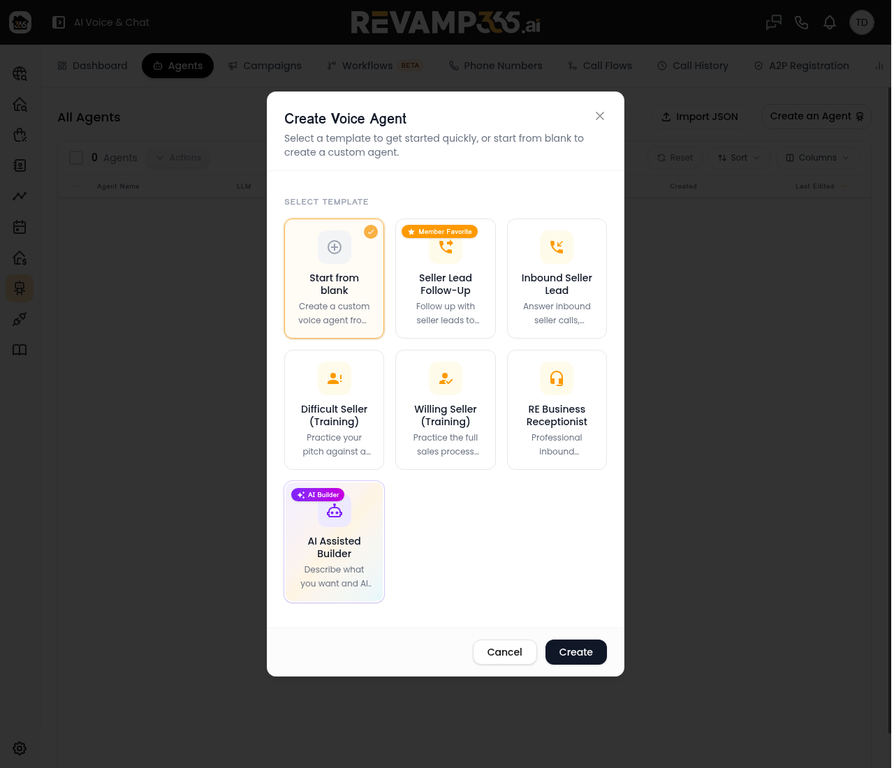
The Create Voice Agent modal will appear, showing various real estate templates.
- Locate the Start from blank option (usually the first option on the top left).
- Click on the Start from blank card to select it.
- Click the Create button at the bottom of the modal.
Step 3: Understanding the Blank Canvas
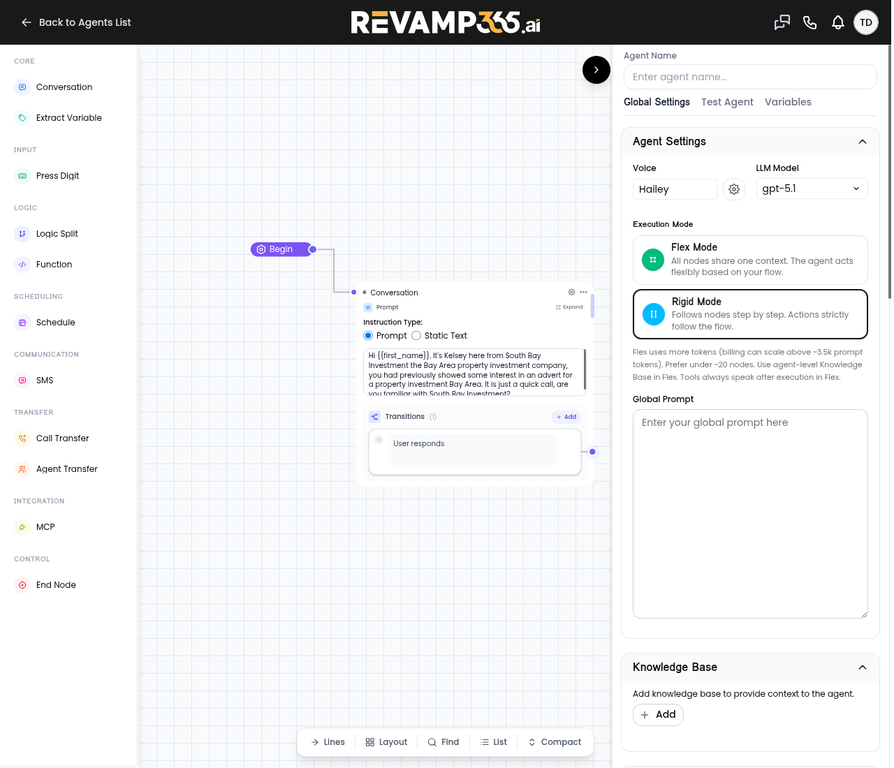
You will be taken to the Agent Editor. Unlike templates, the canvas will be mostly empty, containing only a single "Begin" node and an initial "Conversation" node.
- The Begin Node: This is the starting point of every call your AI agent makes or receives.
- The Initial Conversation Node: This node contains the very first thing your agent will say when the call connects (e.g., "Hi, is this [Name]?").
Step 4: Building Your Custom Conversational Flow
To build your custom real estate AI agent, you will add nodes and connect them with transitions to guide the conversation.
- Add Nodes: Use the left-hand panel to drag and drop different types of nodes onto the canvas.
- Conversation: For standard dialogue and prompts.
- Extract Variable: To capture specific information from the seller (e.g., a property address or asking price).
- Logic Split: To branch the conversation based on conditions (e.g., "If asking price > $500k, go to Node A; else go to Node B").
- Call Transfer: To route the call to a human acquisitions manager.
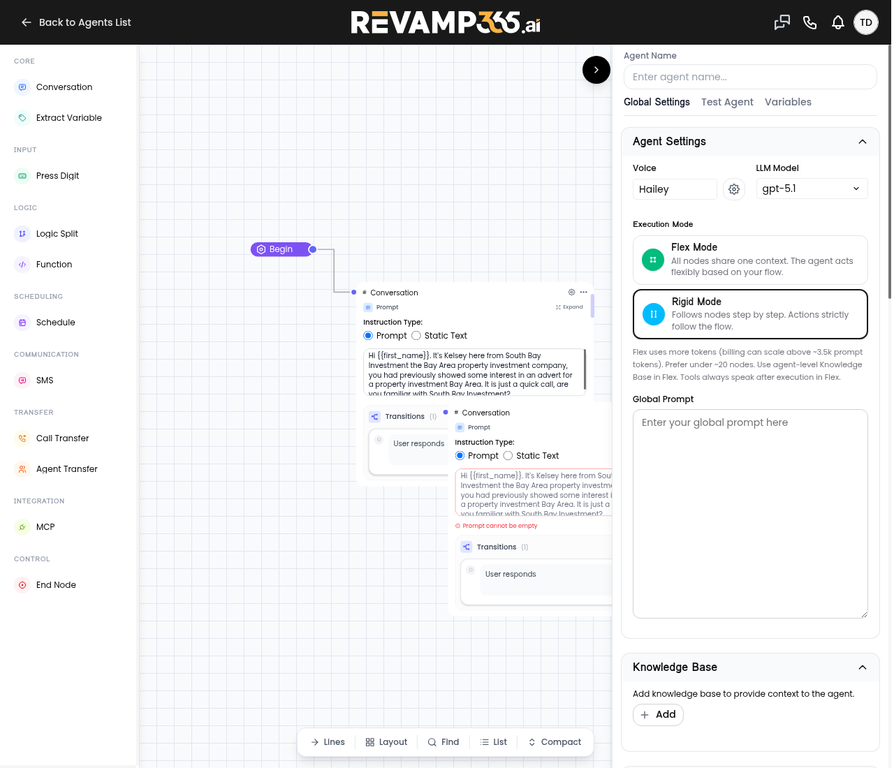
- Configure Nodes: Click on a node to open its settings. Here you will define the Prompt (what the agent says) and the Transitions (how the agent moves to the next node based on the user's response).
- Connect Nodes: Draw lines between the transitions of one node to the input of the next node to create the conversational path.
Step 5: Configure Global AI Settings
Once your flow is built, configure the agent's overall behavior in the right-hand panel.
- Agent Name: Give your custom agent a name (e.g., "Cash Buyer Outreach Bot").
- Voice & LLM: Select the voice profile and the underlying AI model.
- Execution Mode: Choose between Flex Mode (allows the agent to handle off-script questions more naturally) or Rigid Mode (forces strict adherence to your node structure).
- Global Prompt: Enter overarching instructions that the agent should follow throughout the entire call, regardless of which node it is currently on (e.g., "Always maintain a polite, professional tone and never guarantee a specific purchase price.").
Step 6: Test and Publish Your Custom Agent
- Use the Test Agent tab in the right panel to simulate calls and verify that your custom logic and transitions work correctly.
- Once testing is complete, click Publish to make your custom agent live and ready to call leads.
Frequently Asked Questions (FAQ)
Why should I build an AI voice agent from scratch instead of using a template? Building from scratch gives you absolute control over the conversation. It's best for investors who have highly refined, proprietary sales scripts or complex qualification criteria that require specific logic splits and variable extraction.
Can I transfer a call from the AI agent to a live person? Yes. You can use the Call Transfer node in the builder to seamlessly hand off a qualified lead to your acquisitions team or a live receptionist.
What is the difference between Flex Mode and Rigid Mode? Flex Mode allows the AI to handle unexpected questions or tangents from the lead while still trying to guide them back to the main flow. Rigid Mode forces the AI to stick strictly to the script and node structure you defined, which is useful for highly structured surveys or intake forms.
Node Types Reference
| Node Type | Category | Description |
|---|---|---|
| Conversation | Core | The primary node for dialogue. Contains the prompt the agent will speak and the transitions based on user replies. |
| Extract Variable | Core | Designed specifically to listen for and save a piece of data (like a date, number, or name) into a variable. |
| Logic Split | Logic | Evaluates a condition (e.g., "Is the property value > $100k?") and routes the conversation down different paths. |
| Call Transfer | Transfer | Initiates a transfer of the live call to a designated phone number (e.g., a human sales rep). |
| End Node | Control | Terminates the call gracefully. |