
The fastest way to create a custom AI voice agent on Revamp365.ai is using the AI Assisted Builder. Instead of manually connecting nodes and writing scripts, you simply describe what you want the agent to do in plain English, and the AI generates the entire conversational flow for you.
This guide explains how to use the AI Builder to generate a custom agent draft tailored for real estate investing and wholesaling.
Step 1: Access the AI Assisted Builder
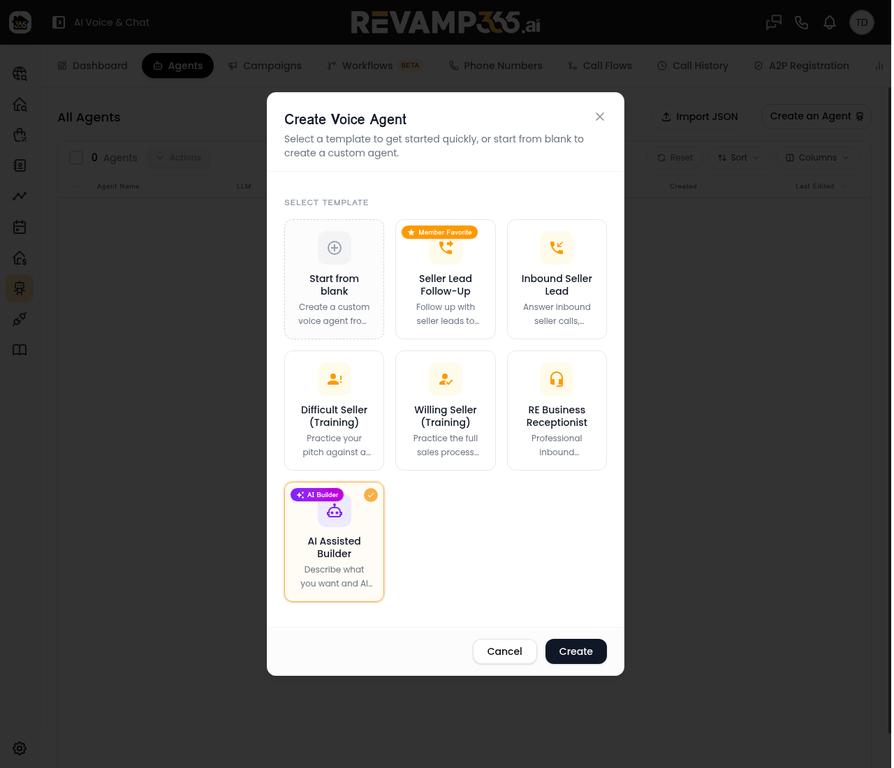
- From the main Revamp365.ai dashboard, navigate to AI Voice & Chat > Agents.
- Click the Create an Agent button and select Voice Agent.
- In the template selection modal, click on the AI Assisted Builder card (usually located at the bottom left).
- Click Create.
Step 2: Describe Your Real Estate Agent's Goal
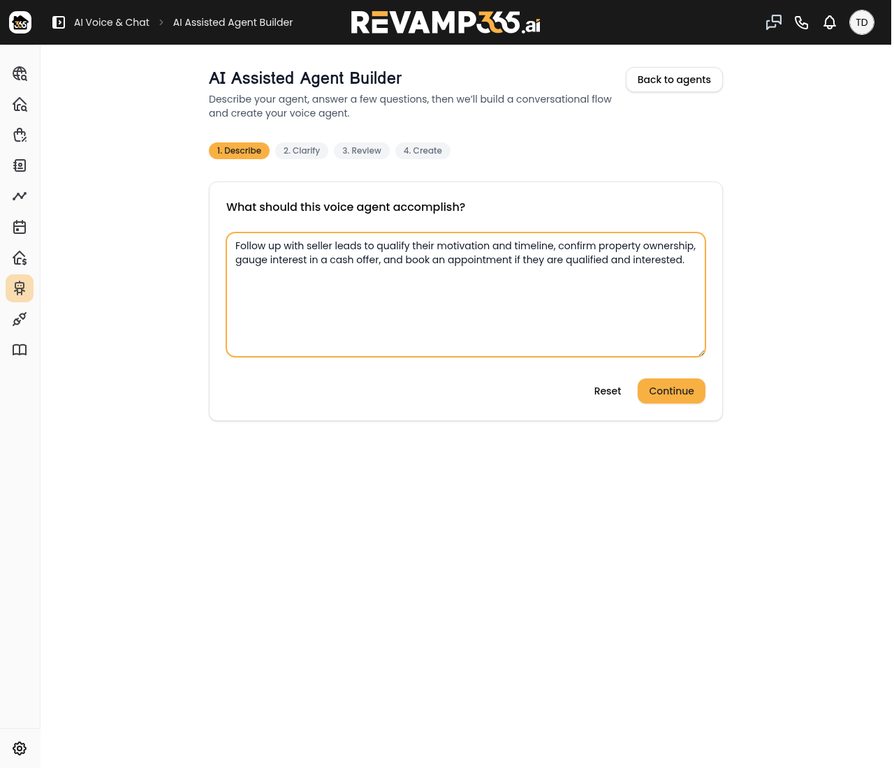
You will be taken to Step 1 of the AI Builder process: Describe.
- In the text box provided, clearly state the primary objective of your voice agent.
- Example: "Follow up with seller leads to qualify their motivation and timeline, confirm property ownership, gauge interest in a cash offer, and book an appointment if they are qualified and interested."
- Be as specific as possible about the desired outcome of the call (e.g., booking an appointment, transferring a call, gathering property details).
- Click Continue.
Step 3: Clarify the Details
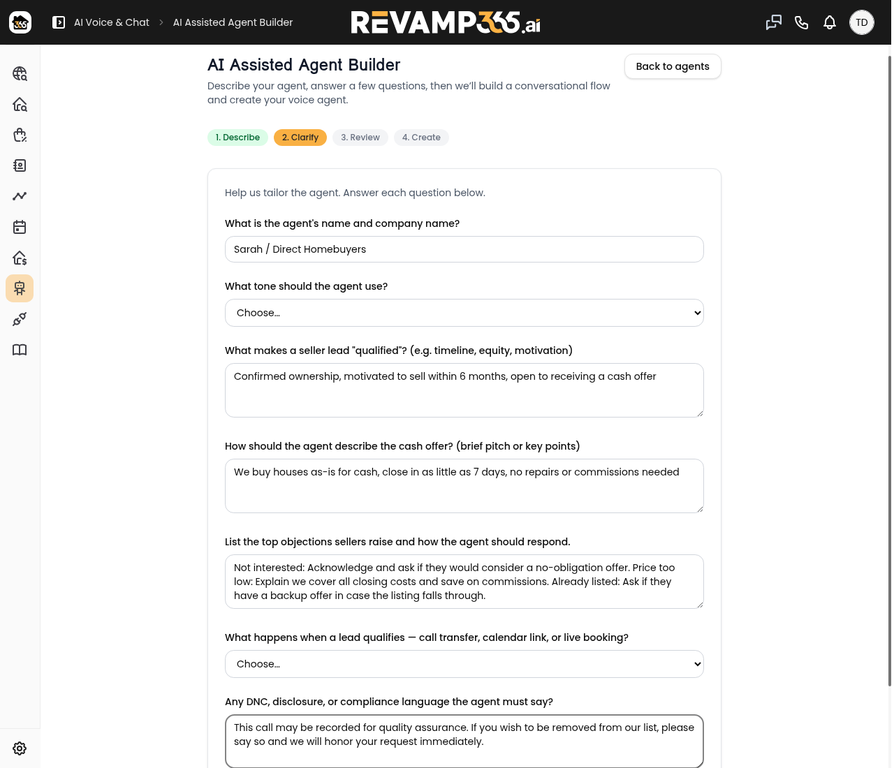
In Step 2: Clarify, the builder asks specific questions to tailor the agent's behavior and knowledge to your real estate business. Fill out the form completely.
- Agent Persona: Enter the agent's name and your company name (e.g., "Sarah / Direct Homebuyers").
- Tone: Select the desired conversational style from the dropdown (e.g., "Friendly & conversational", "Professional & direct").
- Qualification Criteria: Define exactly what makes a lead "qualified" for your business (e.g., "Confirmed ownership, motivated to sell within 6 months").
- Cash Offer Pitch: Provide the brief pitch or key points the agent should use when discussing an offer (e.g., "We buy houses as-is for cash, close in 7 days, no repairs needed").
- Objection Handling: List common objections (e.g., "Not interested", "Price too low") and how the agent should respond to them.
- Booking Action: Select what should happen when a lead qualifies (e.g., "Book via calendar link", "Live transfer to agent").
- Compliance: Enter any required legal or compliance language (e.g., "This call may be recorded...").
Step 4: Build the Agent Draft
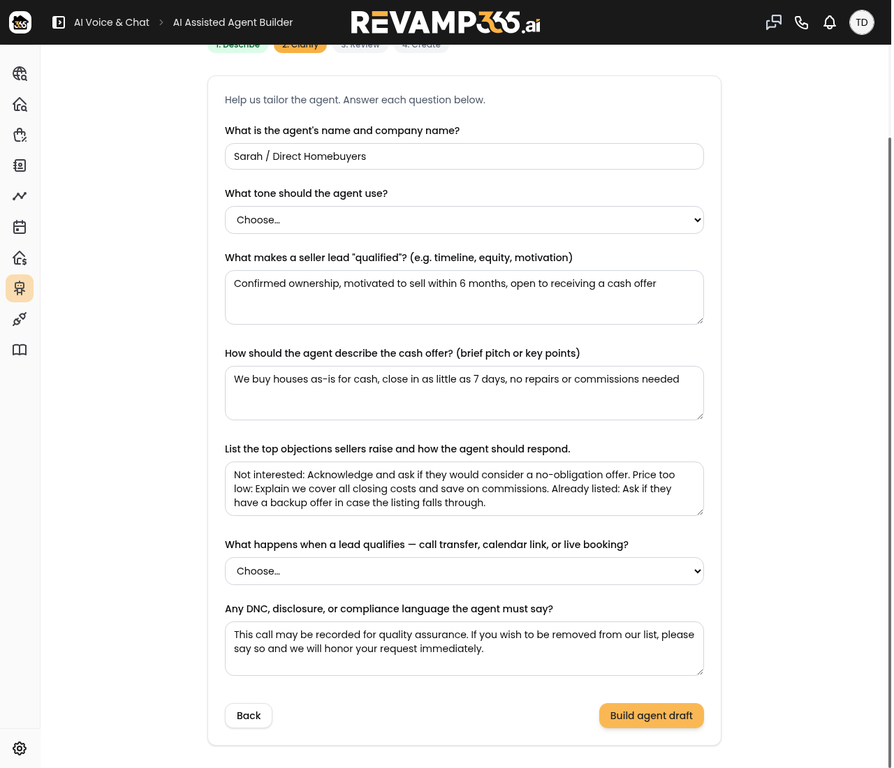
Once all fields in the Clarify step are filled out:
- Scroll to the bottom of the page.
- Click the Build agent draft button.
Step 5: Review and Refine Your AI Agent
The AI will process your inputs and generate a complete node-based conversational flow.
- You will be taken to the Agent Editor, where you can see the generated nodes and transitions.
- Review the Flow: Click through the generated nodes to ensure the prompts and logic align with your expectations.
- Make Adjustments: You can manually edit any prompt, add new nodes, or change transitions just as you would if you had built the agent from scratch.
- Test and Publish: Use the Test Agent tab to simulate a call. Once satisfied, click Publish to make your AI-generated agent live.
Frequently Asked Questions (FAQ)
How does the AI Assisted Builder work? The AI Assisted Builder uses advanced language models to interpret your plain-English description and structured inputs (like your pitch and objection handling) to automatically generate a complete, node-based conversational flow in the Agent Editor.
Can I edit the agent after the AI builds it? Absolutely. The AI Builder creates a draft. Once generated, you have full access to the Agent Editor to tweak prompts, add logic splits, or change the flow entirely.
What are the best practices for the AI Builder? Be as specific as possible in Step 1 (Describe). In Step 2 (Clarify), take the time to list out your most common objections and exactly how you want the AI to handle them. This makes the resulting agent much more robust and capable of handling real-world real estate conversations.
Tips for the AI Builder
- Be Specific in Step 1: The better your initial description, the more accurate the generated flow will be.
- Comprehensive Objection Handling: Take the time to list out your most common objections in Step 2. This makes the resulting agent much more robust and capable of handling real-world conversations.
- Always Review: The AI Builder creates a draft. Always review the generated prompts and test the flow before publishing to ensure it meets your quality standards.