
Each outbound webhook destination only fires for the events you subscribe it to. Choosing the right events keeps your CRM, Zapier, or Make scenario from being flooded with updates it does not need.
Open the events picker
- Go to Integrations & Apps → Webhooks and open the Send Data tab.
- Click Add destination to create a new one, or the edit (pencil) icon on an existing destination.
- Scroll to the Events section. New destinations come with the seven Contact events pre-selected.
To create a destination from scratch first, see create an outbound webhook destination.
Pick your events
Events are grouped into categories. Tick individual events, use a category's Select all, or use Select all events at the top. The Search events box filters the list by name.
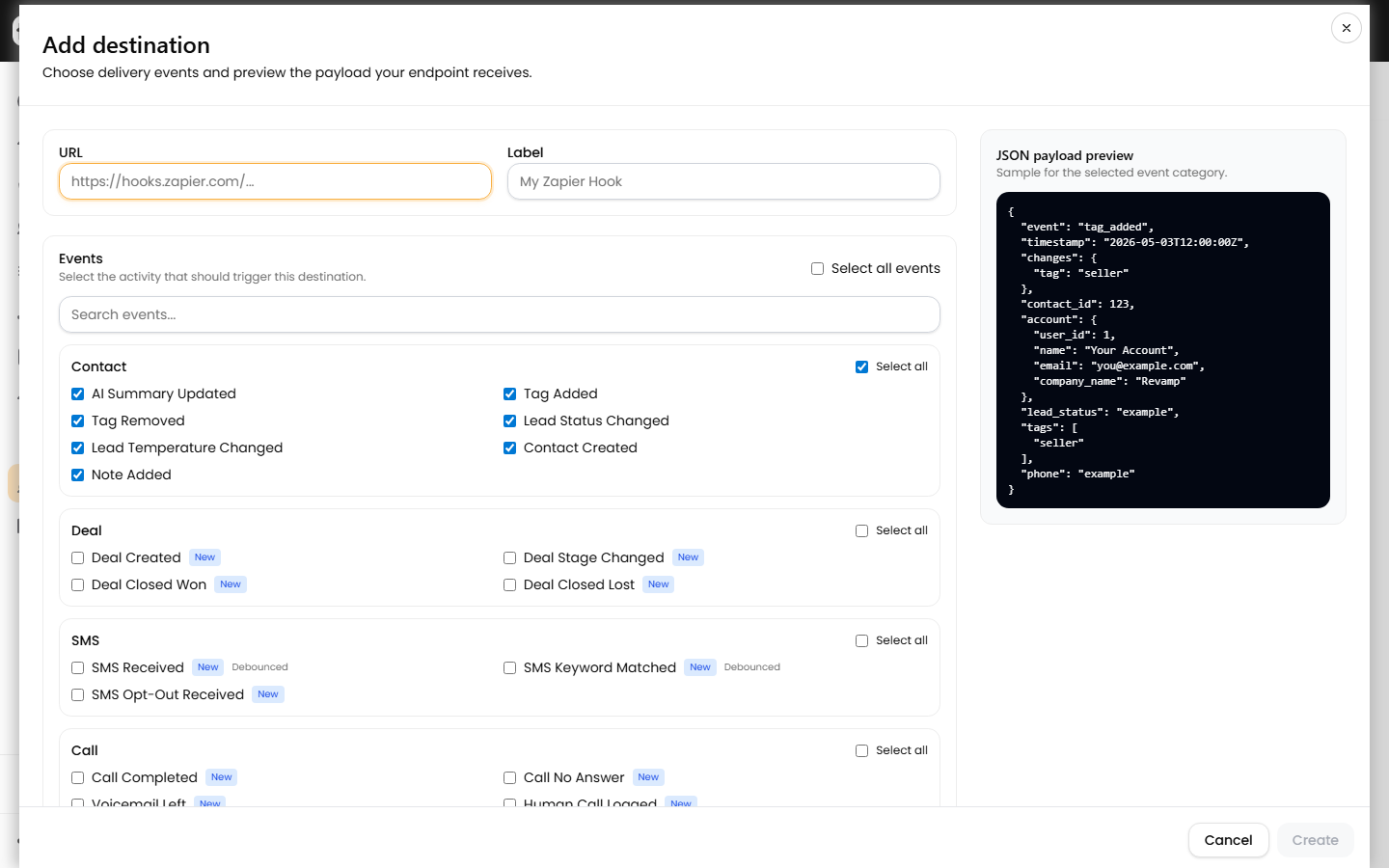
| Category | Events available |
|---|---|
| Contact | AI Summary Updated, Tag Added, Tag Removed, Lead Status Changed, Lead Temperature Changed, Contact Created, Note Added |
| Deal | Deal Created, Deal Stage Changed, Deal Closed Won, Deal Closed Lost |
| SMS | SMS Received, SMS Keyword Matched, SMS Opt-Out Received |
| Call | Call Completed, Call No Answer, Voicemail Left, Human Call Logged |
| AI Agent | AI Agent Qualified, Disqualified, Success, Fallback, Replied |
| Booking | Booking Created, Canceled, Rescheduled, No Show, Completed |
| Task/Note | Task Created |
You must select at least one event before the Create or Update button enables.
Watch for high-frequency events
Events tagged Debounced (SMS Received, SMS Keyword Matched, AI Agent Replied) are limited to one delivery per contact every 5 seconds so a chatty lead cannot flood your endpoint. Events tagged New are the recently added non-contact categories.
Two more behaviors to keep in mind:
- A single action can fire multiple events. Adding a tag sends Tag Added immediately, then AI Summary Updated about 30 seconds later when the summary regenerates.
- SMS Keyword Matched only fires when an inbound text matches one of your configured Keyword Responses.
Narrow Call deliveries with filters
When you select any Call event, a Call delivery filters panel appears. Leave a filter empty to send all matching calls, or restrict deliveries by:
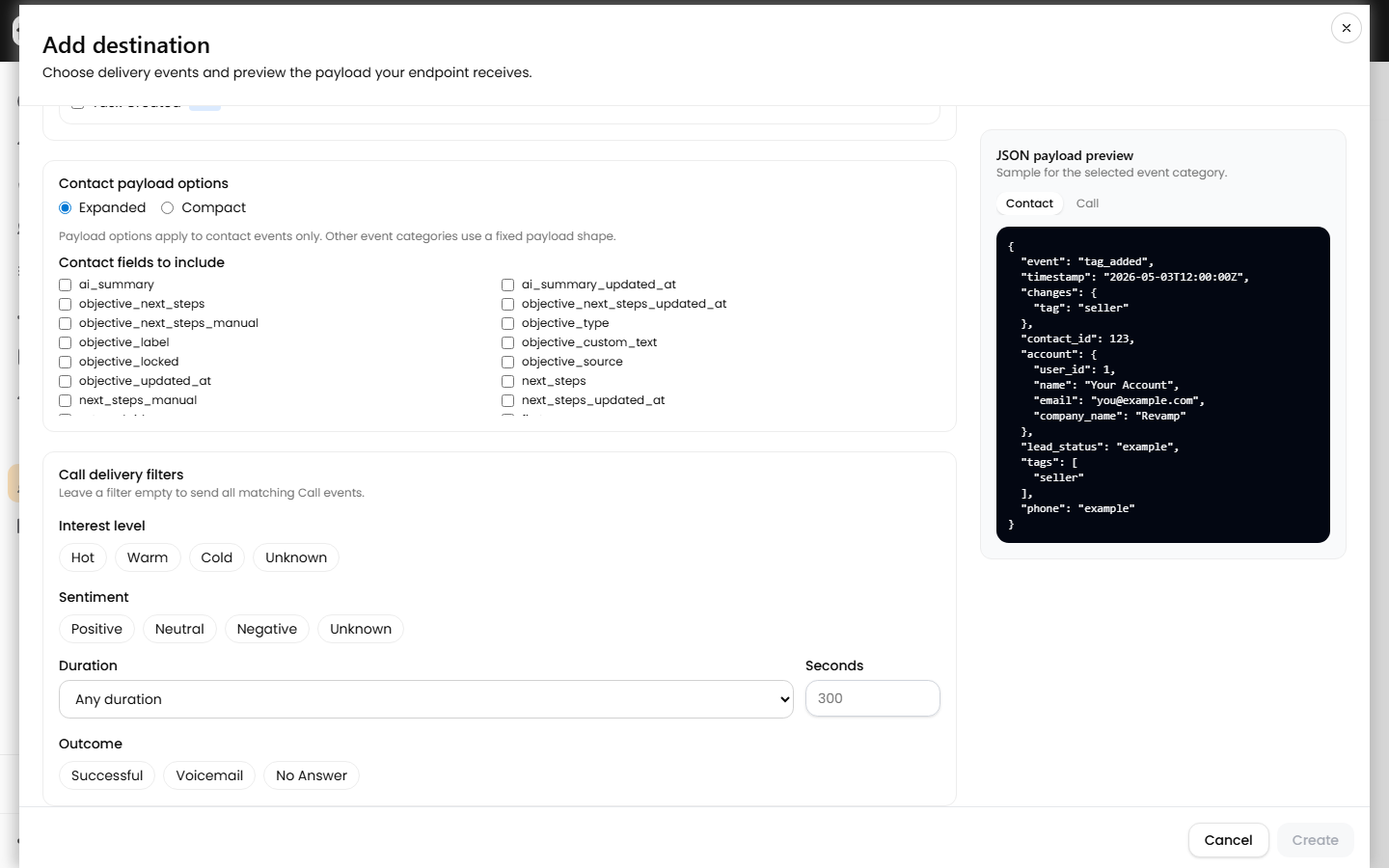
- Interest level — hot, warm, cold, unknown
- Sentiment — positive, neutral, negative, unknown
- Duration — over or under a threshold in seconds
- Outcome — successful, voicemail, no answer
Save and verify
Click Create or Update. The right-hand JSON payload preview shows a sample of what each selected category sends. A destination only delivers while it is marked Active, and each account is capped at 10 destinations.
After saving, trigger a matching event and confirm it arrived in the outbound webhook delivery logs.