
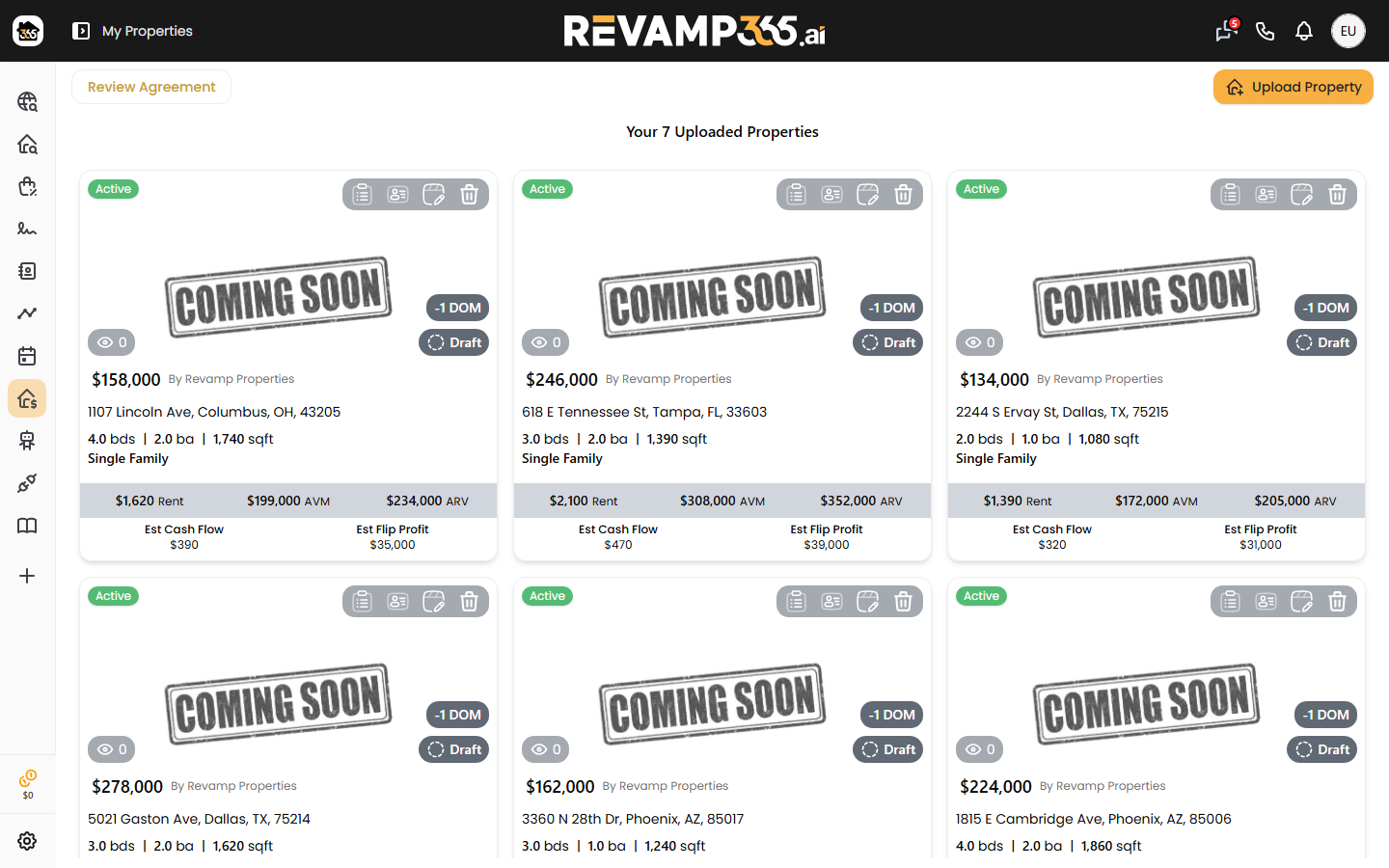
My Deals is where you upload your wholesale properties, publish them to the buyer marketplace, and track interest from cash buyers. Find it under Wholesale Toolbox > My Deals in the left sidebar.
Access and the upload agreement
My Deals requires a Scale, Pro+, or Dealmaker plan. Starter and Pro users see an upgrade prompt instead of the board.
Before your first upload, click Review Agreement and accept the Property Upload Terms. You only do this once — after that, Upload Property opens straight to the form.
Upload a property
- Click Upload Property (top-right of the board).
- Search the address. Revamp365 auto-fills specs, taxes, and value estimates from property records when a match is found.
- Work through the five sections in the left rail: Property Location, Property Specs, Pricing & Values, Listing Info, and Property Photos.
- Fill every required field (marked with a red asterisk). The header shows a live "fields remaining" count, and Submit Property stays disabled until that count reaches zero.
- Add photos in the Photos section, then click Submit Property.
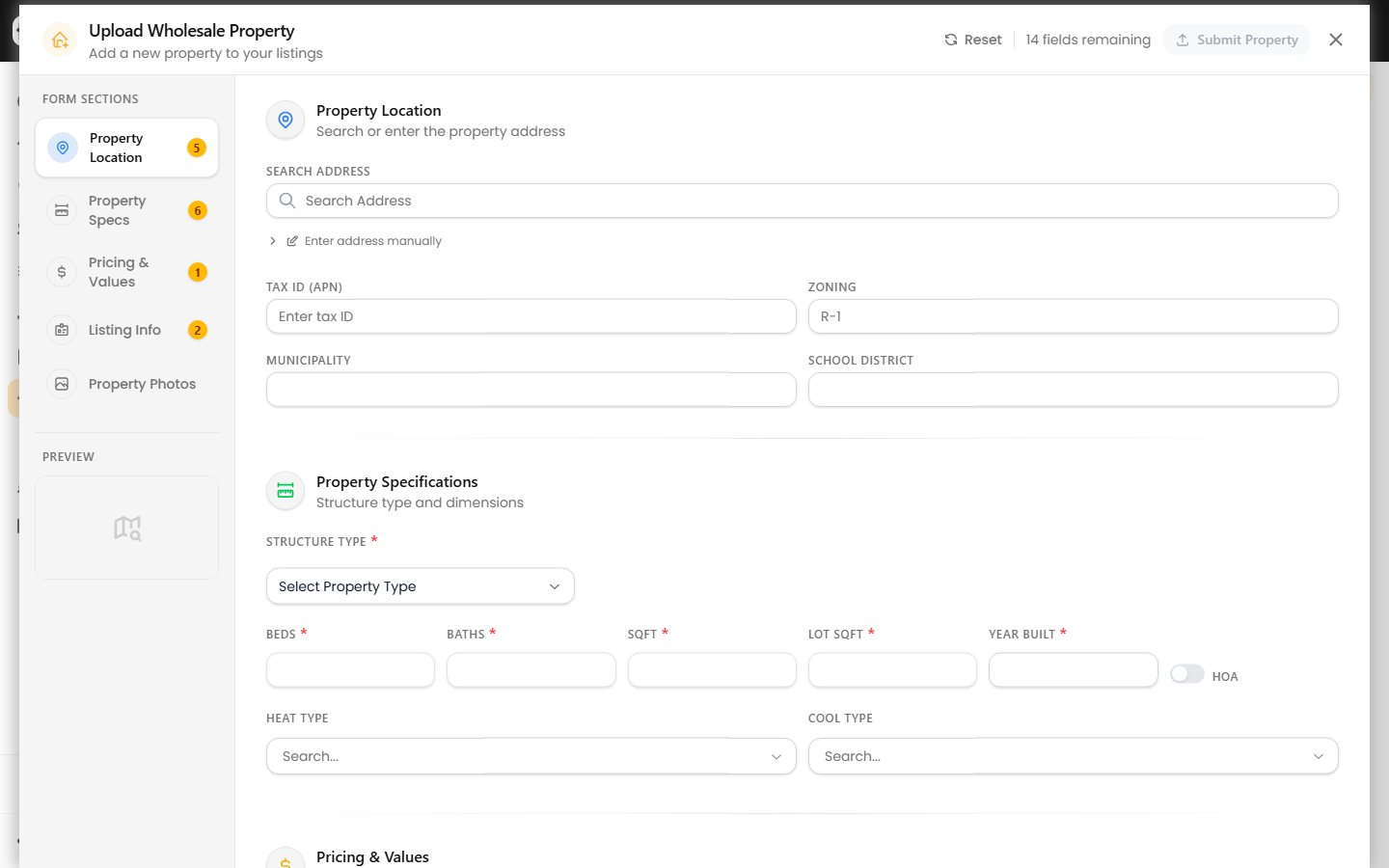
Required fields include street address, city, state, zip, county, structure type, beds, baths, sqft, lot size, year built, list price, status, listing office, listing agent, and a property description.
Deal status and badges
Each deal card shows a status and a sync state. Set status from the Pricing & Values section:
| Status | When to use |
|---|---|
| Active | Live listing seeking buyers (default) |
| Pending / Active Under Contract | Under agreement, not yet closed |
| Coming Soon / Temp Off Market | Not actively marketed |
| Closed | Deal completed — requires Closed Price and Closed Date |
| Canceled / Withdrawn / Expired | No longer for sale |
The corner badge tells you where the deal stands: Draft (not yet synced), Synced, or a green Live badge once it is published to the marketplace. Cards also show a days-on-market (DOM) counter and the listing price.
Track buyer interest
Each card shows action icons in the top-right corner:
- Views Histories — see who viewed the listing; the eye count on the card mirrors this.
- Address Request — buyers request the full address; a "Pending" badge appears when requests await your approval or rejection. Hidden addresses stay masked until you approve a request; toggle Address Visible / Address Hidden when editing to control this.
- Email Marketing — jump to an email blast pre-scoped to this property.
- View Live Property Detail — open the public listing (Live deals only).
Edit, close, or cancel
Click any card to edit it. Update price, photos, or status, then save. To mark a sale, set status to Closed and enter the closed price and date. To pull a listing, use the trash icon to Cancel it (this sets the status to Canceled, not a delete).
To put your deals in front of buyers, pair this with buyer search and your deal pipeline and run an email blast.