
After you launch an SMS Blast, Revamp365 splits reporting into two places: the per-campaign cards under SMS Blast, and the Analytics dashboard for connected-conversation outcomes. Knowing which surface answers which question saves you from guessing whether a number means "sent" or "answered."
Read per-campaign send and delivery stats
Open AI Voice → Campaigns → SMS Blast. Each campaign renders as a card with a live progress bar and status badges.
- Messages Sent — a progress bar showing
contact_count / total_contacts(how many of the targeted audience were messaged). - Status badge —
COMPLETEDonce the blast finishes, otherwisePENDING(orSENDING…mid-run). - TCR Status — carrier registration health:
VERIFIED,IN_PROGRESS,FAILED, orNot Synced. Major carriers only accept A2P traffic after TCR approval, so aFAILEDbadge here is your first delivery red flag. - Contacts and Caller ID — the audience size and the sending number.
The four tiles at the top of the tab summarize everything: Completed Campaigns, Total Audience, Messages Sent, and Pending Campaigns.
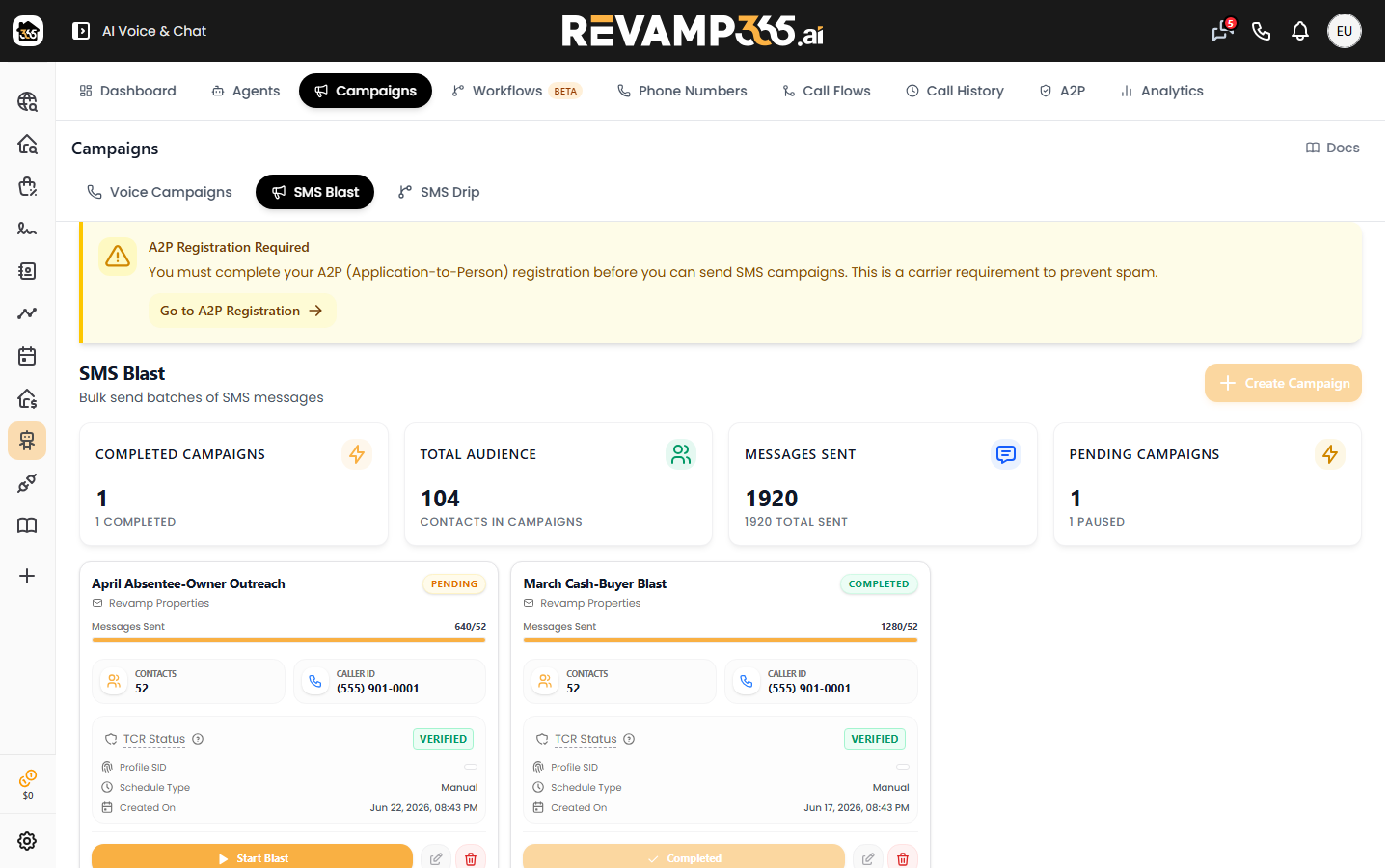
If a campaign shows a No Messaging Service warning, sends can fail with Error 30034. Use the inline Link button to attach it before reading any delivery numbers as final. For status-code-level troubleshooting, see reading SMS delivery statuses and errors.
Read pickup and outcomes in the Analytics dashboard
Go to AI Voice → Analytics. This dashboard reports on connected conversations handled by your AI agent — the pickup and outcome layer that the SMS Blast cards do not show.
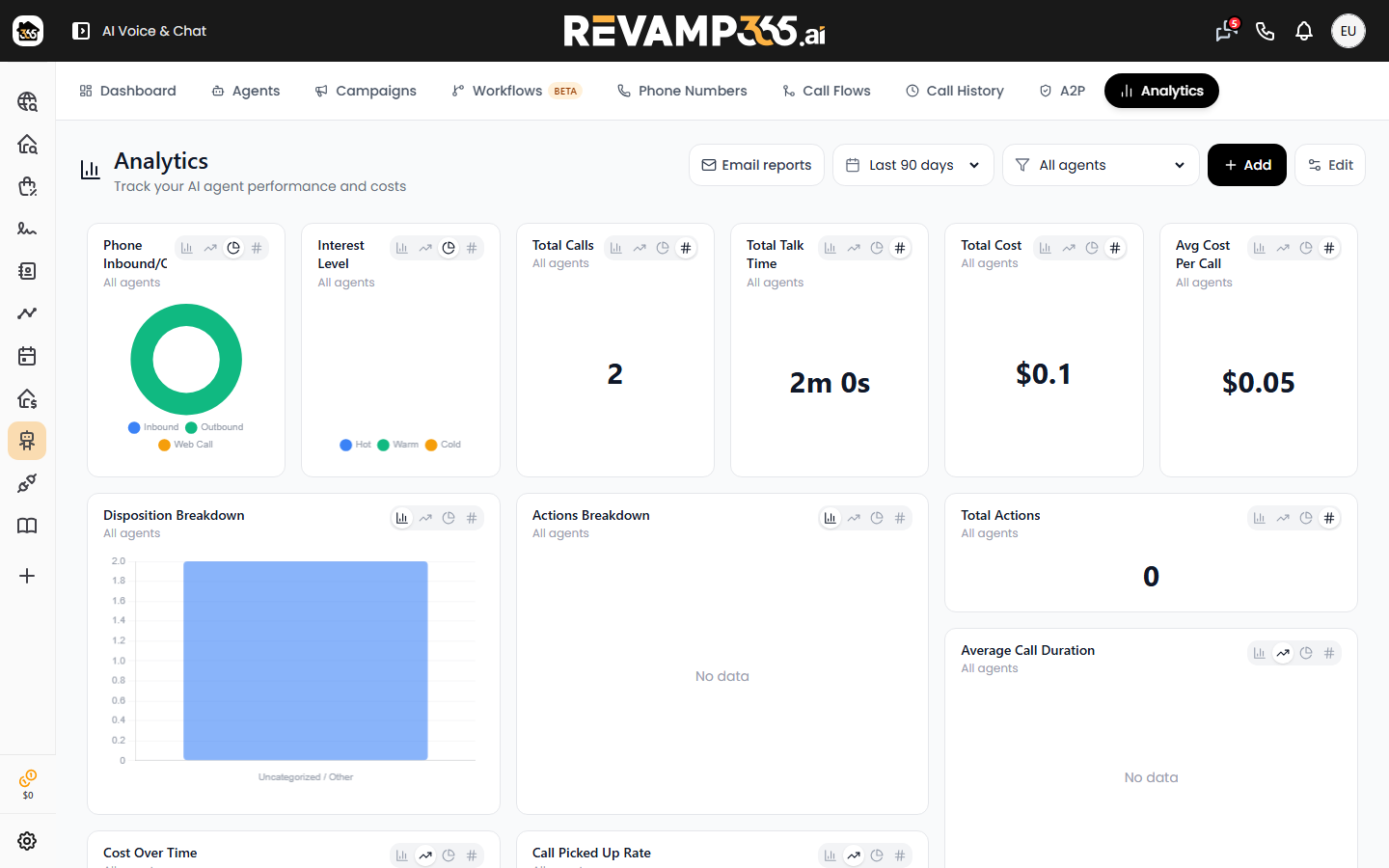
Pick a window with the time-range selector and narrow by agent:
| Control | Options |
|---|---|
| Time range | Last 7 / 30 / 90 days, Last year, All time |
| Agent filter | All agents, or a single agent |
Key widgets and what each measures:
- Call Picked Up Rate — percentage of calls answered over time (pickup).
- Call Successful Rate — share marked successful (outcomes).
- Disposition Breakdown — Qualified/Interested, Not Interested, and similar results.
- Interest Level — Hot, Warm, or Cold leads.
- Phone Inbound/Outbound — direction split, useful for gauging replies and callbacks.
- Voicemail Rate, Total Calls, Total Talk Time, Total Cost.
Customize and read the widgets
- Click Add to open the picker, choose a metric, then choose a display: Bar, Line, Pie, or Scorecard.
- Click Edit to drag and resize tiles, or Smart Layout to auto-arrange (use Undo to revert).
- Switch any tile's chart type from its header toolbar; layout changes save automatically.
For direct replies, open the Conversations tab, where inbound messages and threads live per contact. To turn a hot reply into follow-up, log it on the contact timeline.
Which surface answers which question
- "Did it send?" → SMS Blast card Messages Sent and TCR Status.
- "Did they pick up / convert?" → Analytics Call Picked Up Rate, Disposition Breakdown, Interest Level.
- "What did they say back?" → Conversations tab.
Read the SMS Blast cards right after a send to confirm delivery health, then check Analytics once conversations accrue to judge pickup and outcomes.