
Once a campaign launches, the Campaigns area is where you watch it work and step in if you need to. The controls and live stats differ between an SMS Blast and a Voice Campaign, so this covers both.
Find your running campaigns
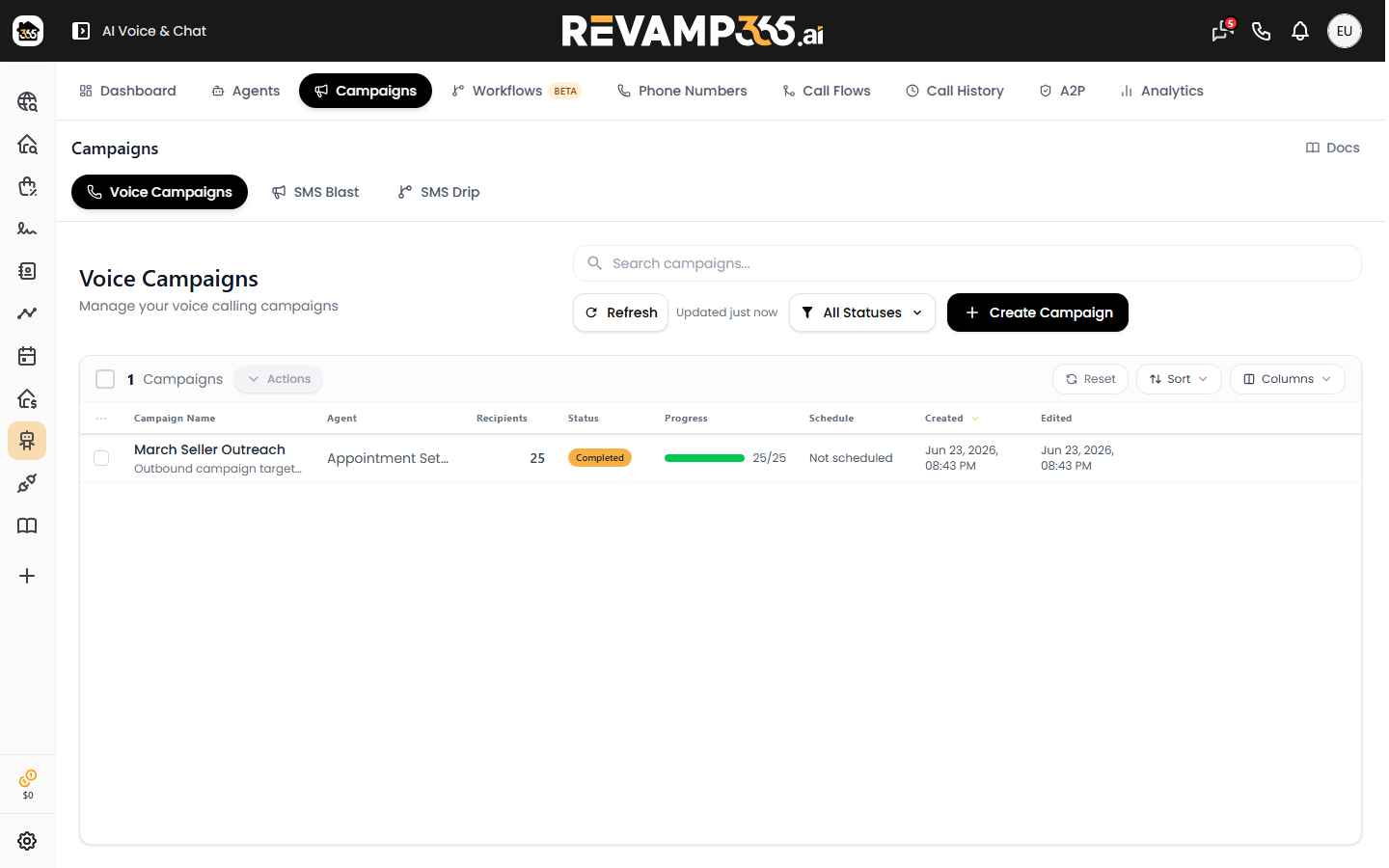
Open the Campaigns area. It splits into three sub-tabs: Voice Campaigns, SMS Blast, and SMS Drip (coming soon). Pick the tab that matches the campaign you launched. The SMS Blast list refreshes itself about every 20 seconds; the Voice Campaigns table refreshes roughly every 10 seconds, and you can hit Refresh to pull the latest immediately (it shows "Updated Xm ago").
SMS Blast: statuses and live stats
An SMS Blast sends in one shot. Each campaign card shows a status badge that moves through:
- PENDING — created, not sent yet (the action button reads Start Blast)
- SENDING… — the blast is going out (the card shows a "Sending… Processing Batch" overlay)
- COMPLETED — every message has been handed off
Because a blast runs straight through to completion, there is no pause button for an SMS Blast — once you click Start Blast it finishes the run. While it sends, watch:
- The Messages Sent progress bar on each card (sent / total contacts)
- The four summary cards at the top: Completed Campaigns, Total Audience, Messages Sent, and Pending Campaigns
- The TCR Status chip (VERIFIED, IN_PROGRESS, FAILED, or Not Synced) — if it is not VERIFIED, carriers may block delivery (error 30034)
For per-message delivery results, see Read SMS delivery statuses and fix failed messages.
Voice Campaign: pause, resume, and stop
A Voice Campaign dials over time, so it has real run controls. Its status is one of: draft, scheduled, active, paused, completed, or cancelled. Use the Filter dropdown to show only one status.
To control one or more campaigns:
- Tick the checkbox on each campaign row in the Voice Campaigns table.
- Open the Actions menu.
- Choose Pause Active to halt dialing, or Start Drafts to launch selected drafts.
Rules the system enforces:
| Action | Allowed when status is | Result |
|---|---|---|
| Pause | active | Dialing stops; campaign becomes paused |
| Resume | paused | Dialing continues; campaign returns to active |
| Stop | active or paused | Pending calls are cancelled; campaign becomes cancelled |
Pausing leaves in-progress calls alone and simply stops new ones from being placed, so you can resume right where you left off. Stopping is permanent — it cancels every pending call.
Voice Campaign: what to watch live
Click a campaign row to open its details, where the stats update as calls complete:
- Total Recipients, Completed, Pending, Retries Pending, and Failed cards
- A Completion Rate bar (share of recipients whose calls reached a final state)
- A Status Breakdown and a Call Dispositions chart covering pickup and outcomes — Qualified - Interested, Callback Requested, No Answer / Voicemail, Wrong Number / Not Owner, Do Not Call (DNC), and more
- Talk Time and Tasks Completed by your callback automations
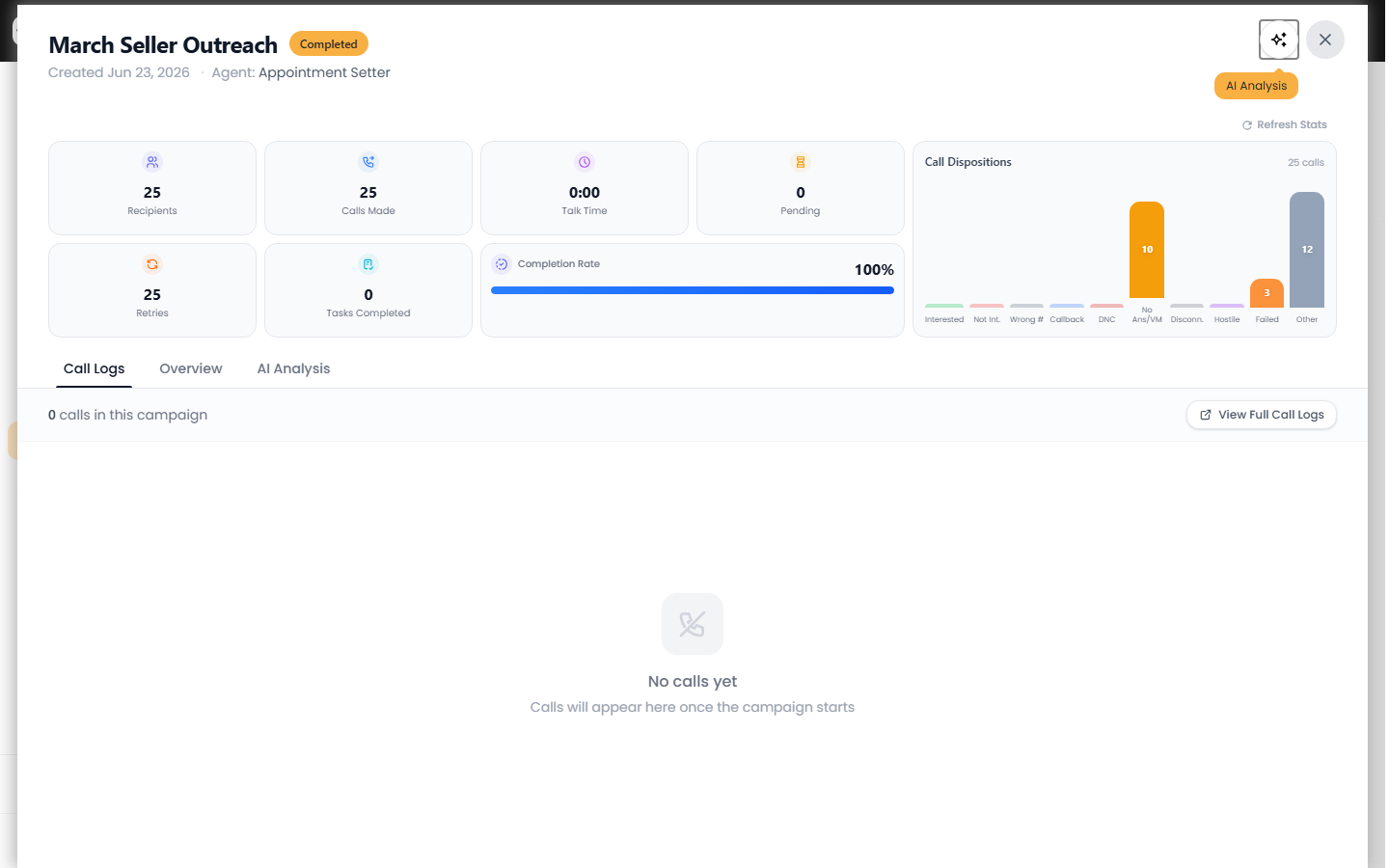
A blue retry badge on the status cell shows how many calls are queued for another attempt. Once no calls are still pending, the campaign flips itself to completed.
Quick tip
If a paused or completed voice campaign has enough finished calls, you can generate an AI performance summary from its details view to see what went well and what to change next time.