
Revamp365 lets you paste the exact JSON your form or automation would POST and see precisely what would happen — without writing anything to your CRM. Use this dry run to confirm your field mapping before going live.
Where to find the test panel
- Open Integrations & Apps, then Webhooks.
- Click the Receive Data tab (marked BETA). The header reads "Receive data."
- Click New source to create one, or the pencil Edit icon on an existing source.
- In the wizard, advance to the Test step (the steps are Basics, Security, Field mapping, Test, Done).
The test panel only appears once a source is saved. If you see "Save the basics first, then return here to test," finish the Basics step first.
Run the dry run
- On the Test step ("Test with a sample payload"), paste your JSON into the Incoming JSON box. Click Load sample to drop in a starter payload (name, email, phone, address, tags, notes).
- Click Send test.
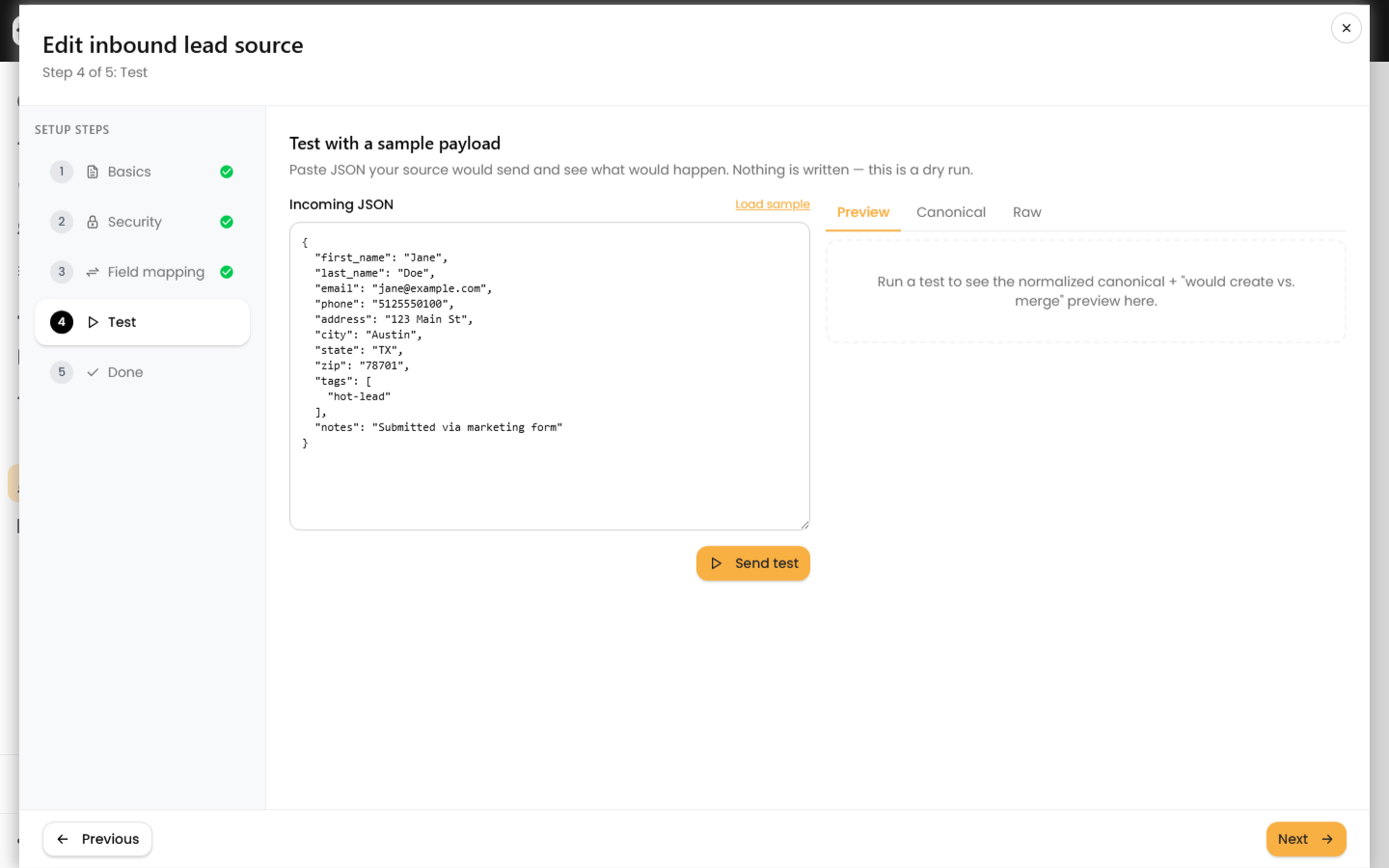
The payload must be a single JSON object — an array or malformed JSON is rejected client-side with a clear message. Nothing is written: this only normalizes the payload and checks for a match.
Read the result
The result area has three tabs:
| Tab | What it shows |
|---|---|
| Preview | The create-vs-merge outcome plus normalized phone and email |
| Canonical | The full normalized field map Revamp365 derived from your payload |
| Raw | The complete JSON response from the endpoint |
The Preview tab shows one of two outcomes:
- Would create a new Contact (green) — no existing contact matched. A new lead would be created with
lead_status=NEWandcontact_type=['lead']. - Would merge with contact #N (amber) — a match was found by phone, email, or external ID. It lists the matched contact's name, email, and phone. Merges fill blanks only: empty columns get updated, tags are unioned, and existing
lead_sourceandlead_statusare preserved.
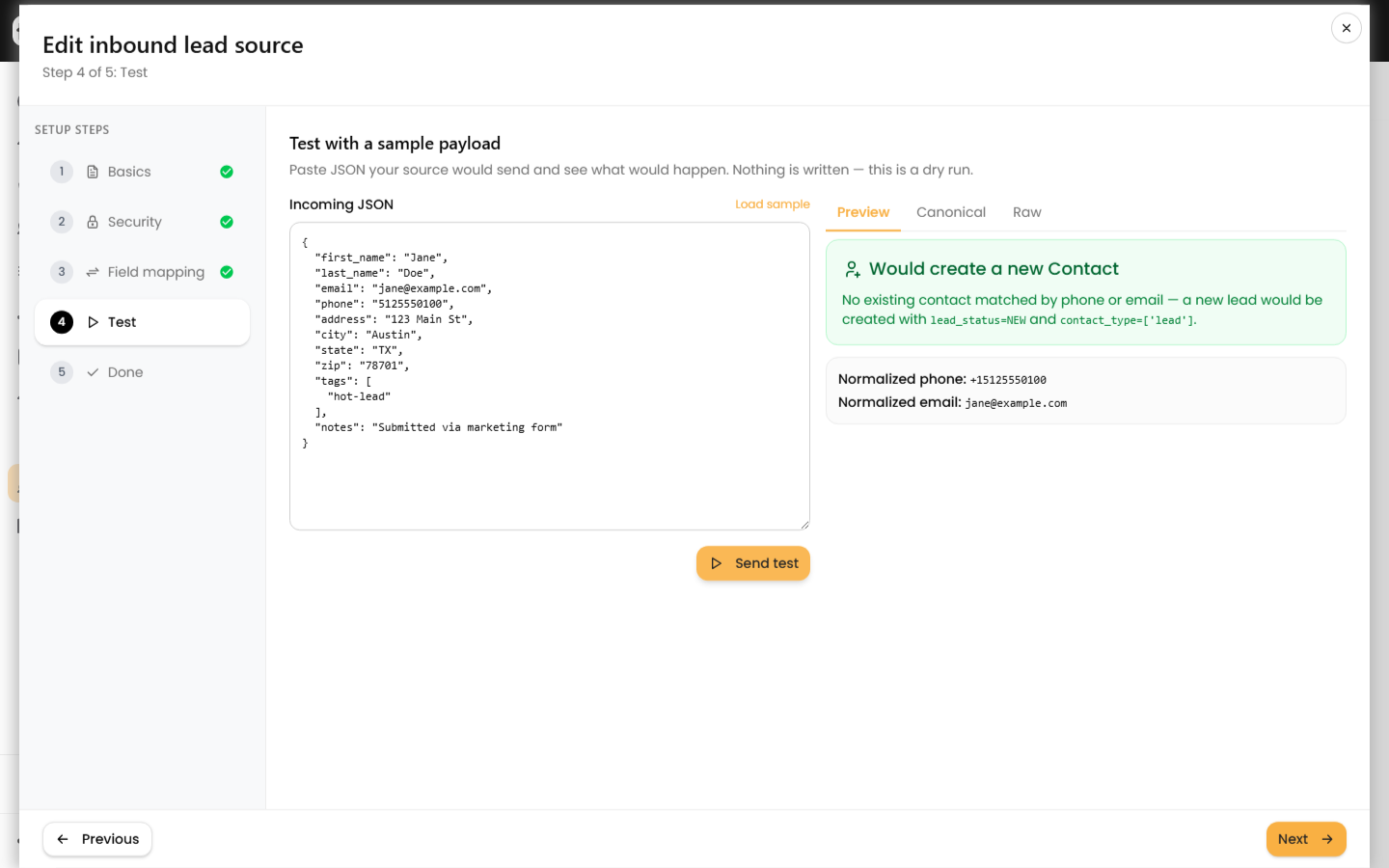
Matching ignores phone formatting (it compares the last 10 digits) and lowercases the email, so (512) 555-0100 and 5125550100 resolve to the same contact.
Tips
- Edit your mapping on the Field mapping step, then re-run the test to confirm values land in the right canonical fields.
- Check the Canonical tab to verify array fields like
tags,counties, anddeal_typeparsed correctly from comma-separated strings. - This preview does not check your HMAC signature. To validate signing, see secure inbound lead webhooks with HMAC.
When the preview matches your expectation, copy the webhook URL from the Done step and point your source at it.