
Overview
The Podio integration keeps a Podio app and your Revamp365 contacts in sync. Inbound, it pulls leads from your Podio app into Revamp as contacts whenever items are created or updated. Outbound (optional), it pushes changes you make to a contact in Revamp back to the matching Podio item, so the two stay aligned.
Available on the Dealmaker plan. The Podio CRM connection is currently in beta. Each connection syncs one Podio app — add more connections to sync more apps.
Before you start
You'll need three things:
- A Dealmaker Revamp365 plan.
- A Podio account with the app you want to sync (for example, a Leads or Sellers app).
- That app's App ID and an App Token.
To find them in Podio: open the app, open its menu and choose Modify app, then open the Developer page. The App ID is shown there, and you can generate an App Token on the same page.
You can revoke and regenerate the App Token in Podio at any time. If you ever rotate it, just update the connection's credentials in Revamp.
Connect your Podio app
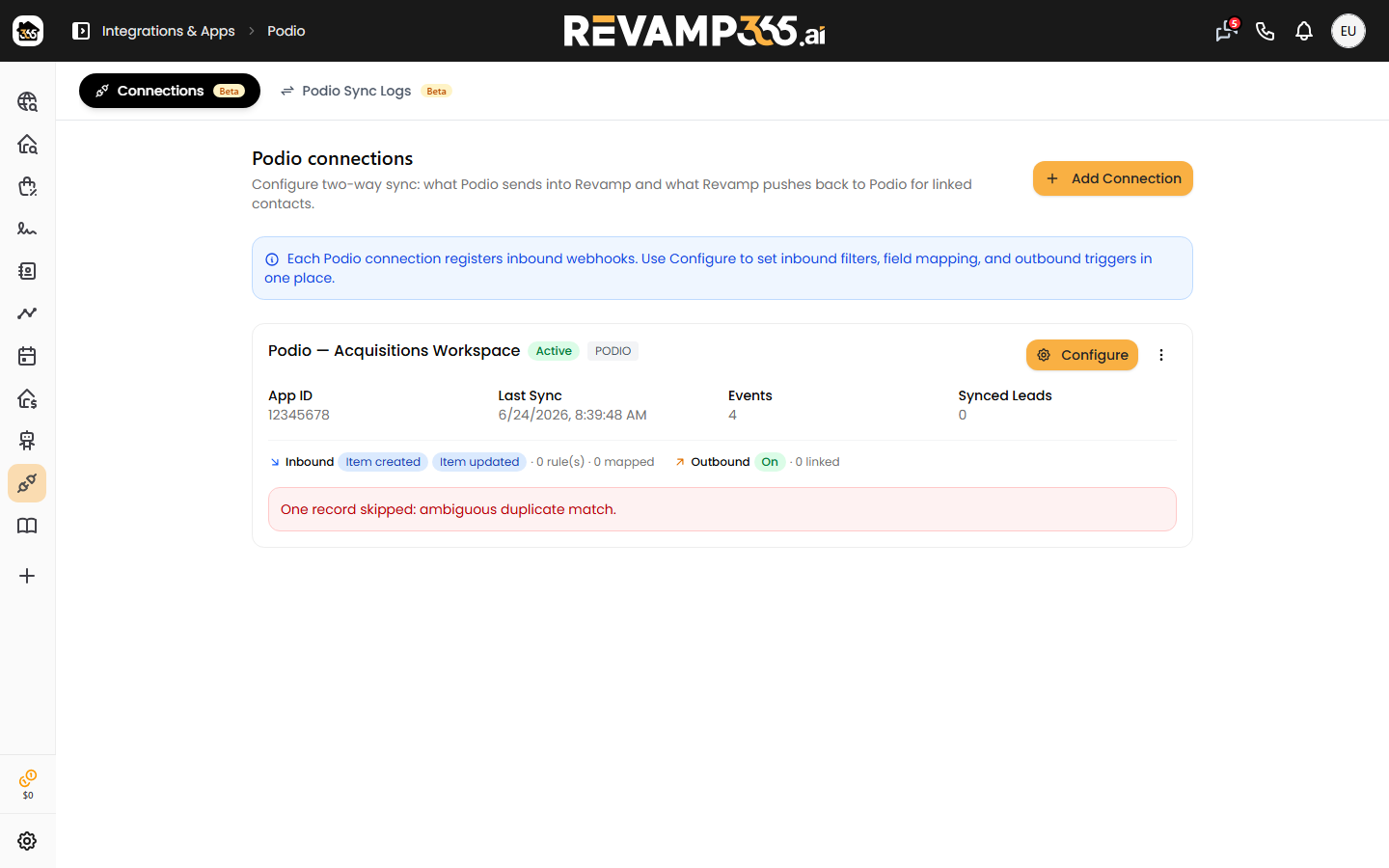
Open Integrations & Apps in the left sidebar, open the Podio card, and on the Connections tab click Add Connection. The wizard walks through six steps:
- Name — give the connection a recognizable name (e.g. "Podio – Seller Leads").
- Credentials — paste your Podio App ID and App Token.
- Test connection — Revamp validates your credentials and loads the app's fields for mapping. If this fails, re-check the App ID and token.
- Webhook events — choose which Podio events trigger a sync: Item created, Item updated, Item deleted, and/or Comment created. A separate webhook is registered with Podio for each one you pick.
- Sync conditions — optionally filter which items flow in (see Filter which leads come in below). Leave empty to sync every item.
- Field mapping — map Podio fields to Revamp fields. At least phone or email is required.
Click Save Connection. Saving registers the webhooks with Podio and activates the connection. From then on, new and updated Podio items that match your settings flow into Revamp automatically.
Map your fields
Field mapping tells Revamp which Podio field feeds each Revamp field. For each Revamp field on the left, pick the Podio field from the dropdown on the right.
Map at least phone or email. Revamp uses these to match an incoming Podio item to an existing contact so you don't get duplicates. You can't save a mapping without one of them.
| Revamp field | What it does |
|---|---|
| Phone / Email | Contact details — and the match key used to de-duplicate. |
| First / Last / Full Name | The contact's name. |
| Full Address | The property address. Most Podio apps store it in one field; expand Use separate address fields if yours splits street/city/state/ZIP. |
| Lead Status / Lead Temperature | Pipeline stage and priority. |
| Lead Tracking Campaign | The campaign or source a lead came from. Stored as the contact's Lead Source. |
| Date Lead Came In | The original lead date from Podio, instead of the date Revamp first saw it. |
| Communication Log | A Podio text field whose contents are posted to the contact's timeline as a sync entry. |
| Tags | Added to the contact's tags (existing tags are never removed). |
| Do Not Contact | Compliance flag on the contact. |
Map any other field, including custom fields
Below the standard fields, the Additional field mappings section connects any Revamp field to any Podio field — including the custom CRM fields you've created in Revamp. Click Add field, pick the Revamp field on the left and the Podio field on the right, and repeat for as many as you need.
To map one of your custom fields, create it first in Revamp (on the Contacts page), then reopen the mapping — it appears in the Revamp-field picker as a choice.
What happens when a lead syncs
- Create or link, never duplicate. Revamp matches the Podio item to an existing contact by external id, then phone, then email. If nothing matches it creates a new contact; otherwise it links to the one you already have.
- Timeline entry. Each sync adds a CRM sync entry to the contact's timeline showing what changed. A mapped Communication Log posts its own timeline entry (the same log text won't post twice).
- Idempotent updates. Re-syncing the same item updates the same contact. Mapped fields are authoritative on update — but a blank Podio value never wipes existing contact data, and tags are only added.
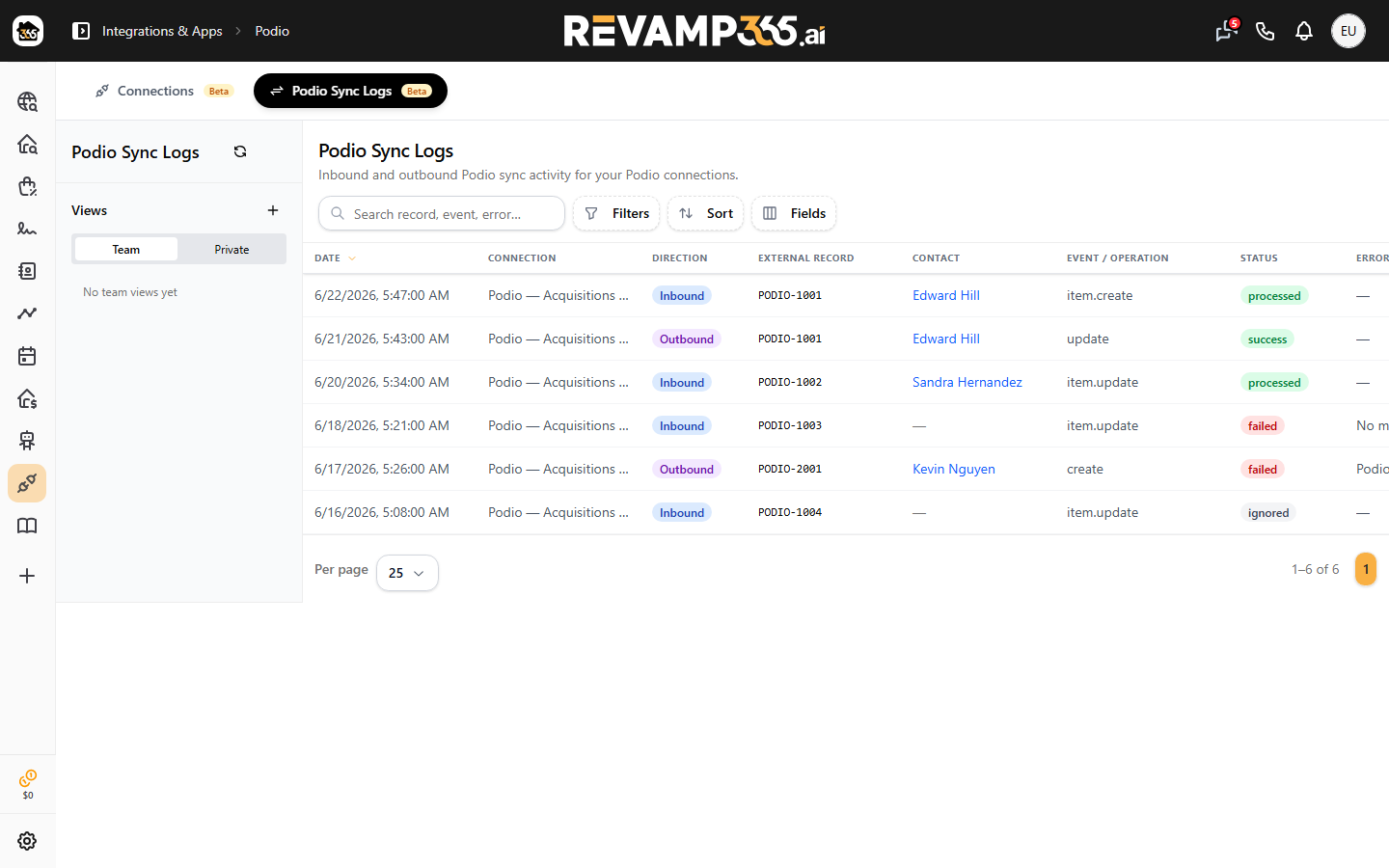
- Sync logs. The Podio Sync Logs tab shows every inbound event, its status, and which contact it touched.
Push changes back to Podio (two-way)
Outbound sync is optional and off by default. When it's on, edits you make to a linked contact in Revamp are pushed to the matching Podio item.
- Open the connection's settings and go to Outbound triggers.
- Click Turn on outbound.
- Choose which Revamp changes should push: contact fields updated, contact created, lead status changed, lead temperature changed, tag added or removed, note added, or AI summary updated.
- Open Outbound mapping and map the Revamp fields you want to send to their Podio fields (custom fields included).
- Save.
Outbound only works on already-linked contacts. A contact must first be linked to a Podio item through a successful inbound sync before Revamp can push to it. A brand-new Revamp contact that has never synced from Podio won't push until it's linked.
Inbound and outbound won't ping-pong: a change that arrives from Podio is tagged so it doesn't immediately bounce back out. Use Pause outbound to stop all pushes temporarily without losing your settings.
Filter which leads come in
By default, every item from your subscribed events syncs. Use Sync conditions — in the wizard, or under Inbound filters in the connection settings — to sync only items that match rules you set, for example only items where a Status field equals "New Lead". Leave the conditions empty to sync everything.
Troubleshooting and things to watch for
- Save is blocked. Map at least a phone or email field — one of them is required.
- You can't change events later. The Podio events a connection listens to are chosen when it's created. To listen to a different set, create a new connection.
- One app per connection. Each connection syncs a single Podio app. Add another connection for another app.
- Outbound isn't pushing. Confirm outbound is on, the contact has synced from Podio at least once (so it's linked), and the connection isn't paused.
- New leads aren't appearing. Check the Podio Sync Logs tab. A "filtered" event didn't match your sync conditions; also confirm the right events are subscribed and the item has a mapped phone or email.
- A custom field isn't in the picker. Create the custom field in Revamp first, then reopen the mapping.
- "Podio API error: 400" when saving. Podio couldn't reach the webhook URL it needs to register. On the live app this is already configured — if you hit it, contact support.
FAQ
Does it sync items that already existed in Podio? Sync is event-driven — items flow in as they're created or updated in Podio after you connect. Editing an existing item in Podio will sync it.
Will it overwrite my Revamp data? Mapped fields update from Podio on each sync, but blank Podio values never erase existing contact data, and tags are only ever added.
Can I sync more than one Podio app? Yes — create one connection per app.
Is my data pushed back to Podio automatically? Only if you turn on outbound sync, and only for contacts linked to a Podio item.