
An AI voice workflow is an ongoing, multi-touch cadence — a sequence of AI calls and text messages spread over days or weeks — that contacts are enrolled into. Where a campaign dials a one-time list, a workflow keeps following up automatically until the contact connects, opts out, or finishes the sequence. This guide walks the five-step Create Workflow wizard.
Before you start: publish an AI voice agent with an outbound number. If your cadence includes SMS steps, your account also needs A2P 10DLC approval to publish (you can still Save Draft). See A2P 10DLC.
Open the workflow builder
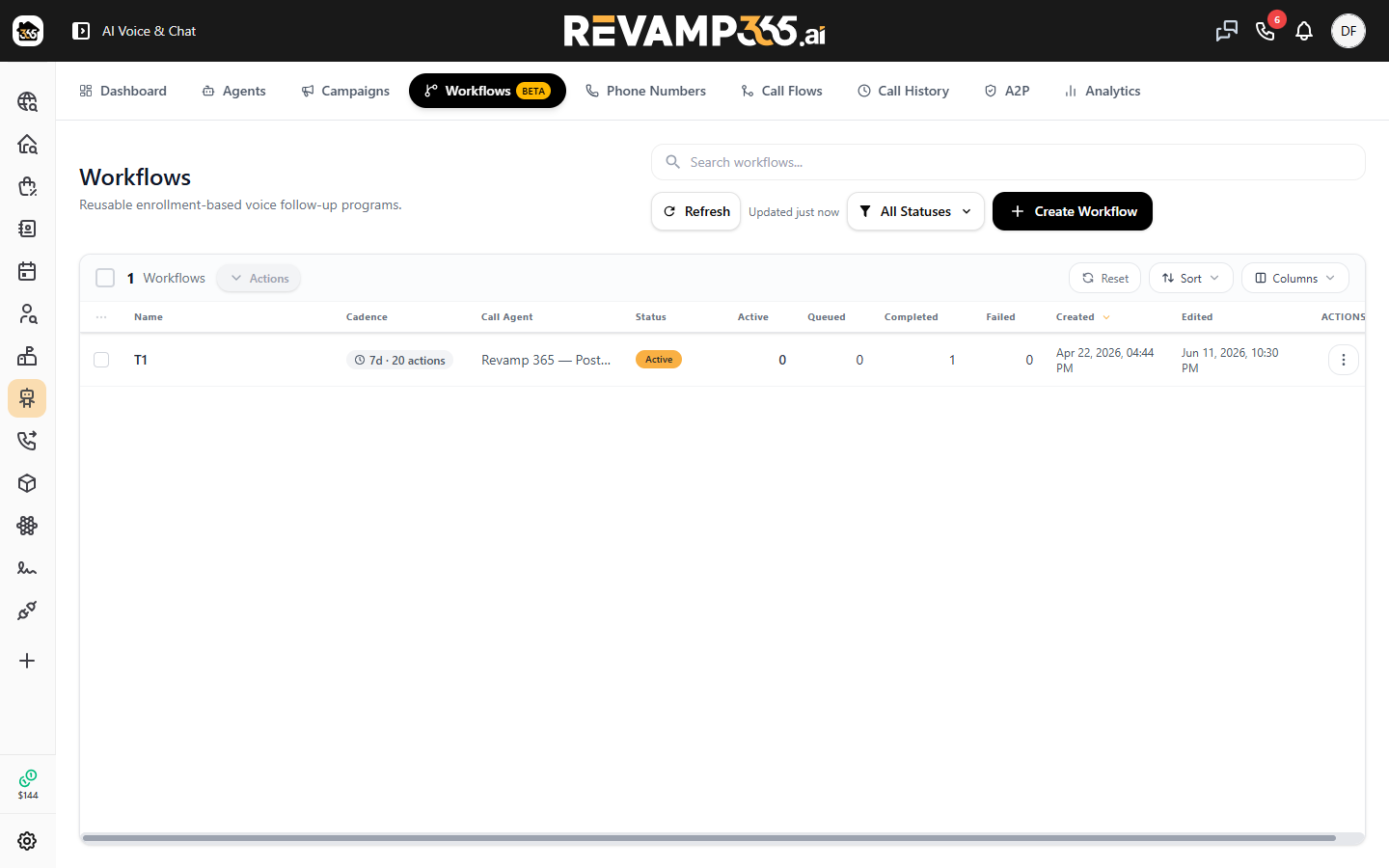
Go to AI Voice & Chat → Workflows and click New Workflow. The wizard's step rail is Basic Info → Schedule → Cadence → Outcomes → Completion. Use the rail to move between steps; nothing is saved until you publish or save a draft.
Step 1 — Basic Info
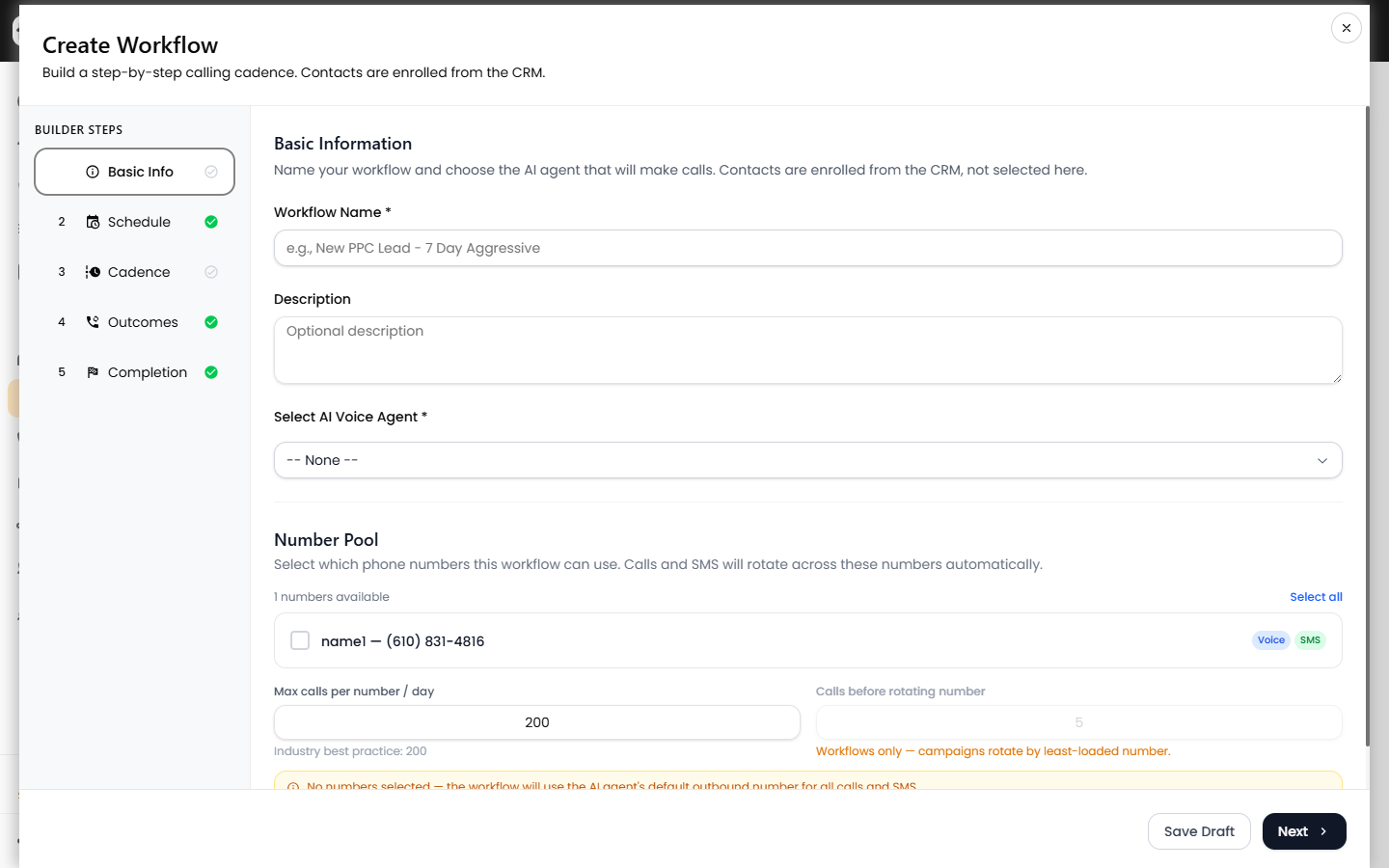
Name the workflow and choose the AI Agent that places the calls. As with campaigns, attach a number pool and set per-number daily caps and rotation to protect caller-ID reputation.
Step 2 — Schedule
Set the days and time windows the workflow may contact people, and the timezone. You can also set a daily call cap to pace enrollment. Steps in your cadence only fire inside these windows, so a step "due" overnight waits until the next allowed window.
Step 3 — Cadence
The Cadence is the sequence of touches. Add Call and SMS steps, each with a delay from the previous step, to build a follow-up rhythm. Start from a template and customize:
- Aggressive — tightly spaced touches over a few days.
- Moderate — a balanced multi-day sequence.
- Mild (30 days) — slower, longer nurture.
- Drip (6 months) — occasional long-term touches.
Double-tap heads-up. If two call steps land within a few minutes of each other, the builder flags it — a contact would be called twice in quick succession. You can remove the double-tap steps with one click, or keep them intentionally. Note that retries are handled by the cadence here, not by the Outcomes step.
SMS steps require A2P 10DLC approval before a workflow can be published. Until then you can Save Draft, or remove the SMS steps to publish a call-only workflow.
Step 4 — Outcomes (global call-flow rules)
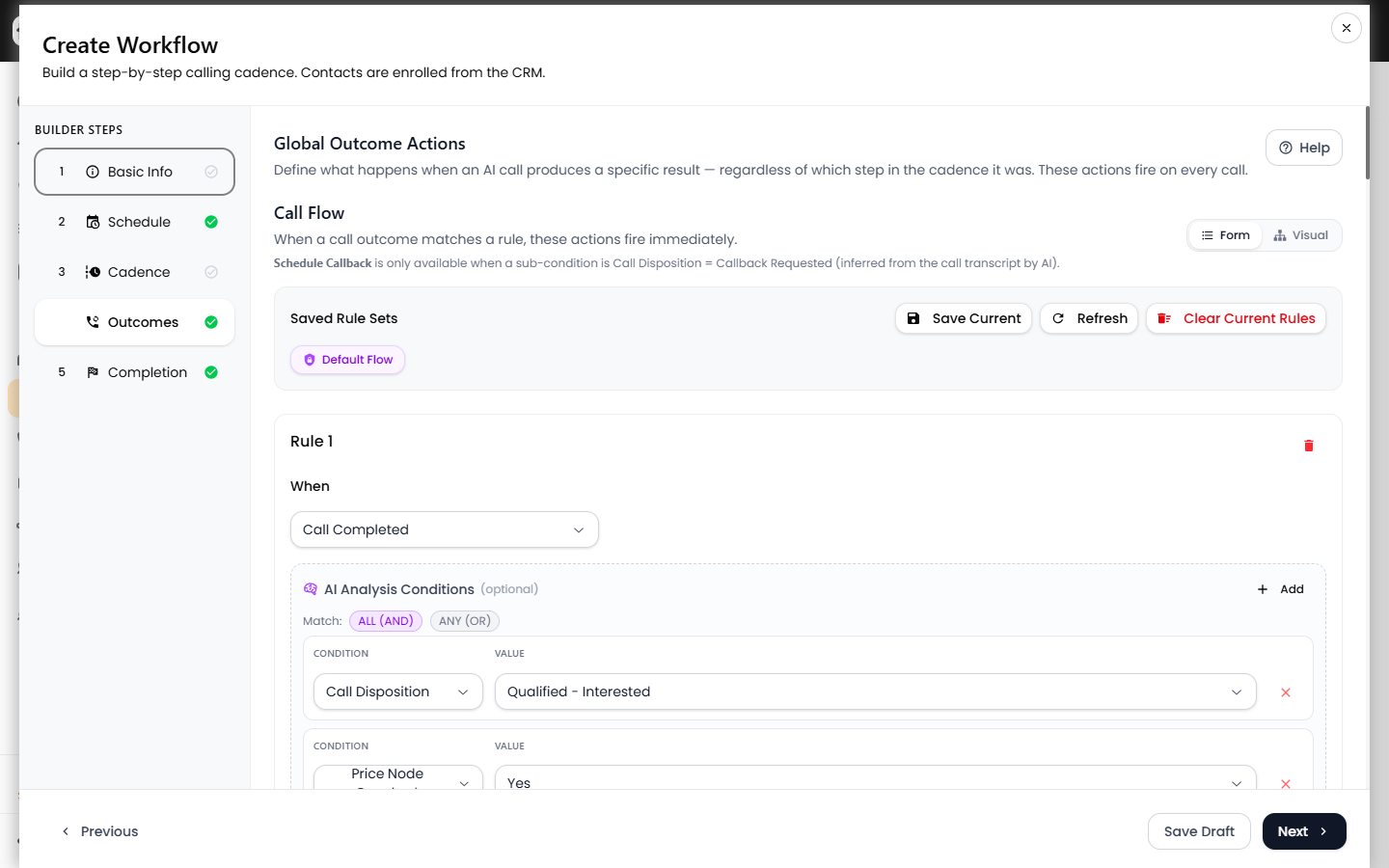
The Outcomes step (labeled "Global Outcome Actions") defines what happens after any call in the cadence, based on how it went — regardless of which cadence step placed it. A complete Default Flow is pre-loaded for new workflows, so you are never staring at a blank screen.
Saved Rule Sets toolbar
Just like campaigns, the toolbar (visible at the top of the Outcomes screenshot above) lets you reload the Default Flow, Save Current as a named preset, Refresh your presets, and Clear Current Rules (with an "are you sure" confirmation) to build from scratch.
Anatomy of a rule
Each rule is When (the call outcome) + optional AI Analysis Conditions (what the AI heard, e.g. Call Disposition = Qualified - Interested, Interest Level = Hot) + Actions. For the full breakdown of conditions and every action, see the campaign guide's rule anatomy — the builder is shared.
What's different from a campaign's Outcomes
| Difference | Why |
|---|---|
| No "Retry Call" action | The cadence (Step 3) handles re-dials. Retry actions are stripped from a workflow's Outcomes, so place double-tap retries in the cadence instead. |
| "Move to Another Workflow" | Hand a contact off to a different workflow after this one completes — useful for routing hot leads into a closer's sequence. |
| "Stop Cadence for Contact" | The pause action is named for workflows — it stops further touches for that contact. |
| Number status | Same as campaigns: mark the dialed number Valid after a real conversation and Invalid on a wrong number, leaving the contact's other numbers callable. |
What the Default Flow does
- Interested (or price discussed) → tag
ai_interested, mark the number Valid, hand off via Move to Another Workflow. - Not Interested → tag
ai_not_interested, mark the number Valid, hand off. - Wrong Number / Not Owner → stop the cadence and mark the number Invalid.
- Do Not Call → stop the cadence and mark DNC.
- Interest Level Hot / Warm / Cold → set the matching lead temperature.
Use Form / Visual to switch between a list and a flow diagram, and (once the workflow exists) Review rules with AI to audit your rules.
Step 5 — Completion
Choose what happens when a contact reaches the end of the cadence without an earlier rule stopping them — for example, do nothing, or move them into another workflow. This is the safety net for leads who never connected.
When you are ready, Publish the workflow (or Save Draft). Then enroll contacts from the CRM to start the cadence.
FAQ
Campaign or workflow? Use a campaign for a one-time call blast to a list. Use a workflow for ongoing, multi-touch follow-up (calls + texts) over time.
Why can't I add a Retry Call action in Outcomes? Retries belong in the cadence for workflows. Add a second call step in Step 3 with a short delay to "double-tap" unanswered calls.
Why can't I publish? Your cadence has SMS steps but your account isn't A2P-approved yet. Save Draft, or remove the SMS steps to publish a call-only workflow.
Do I have to build the Outcomes rules? No — a complete Default Flow is pre-loaded. Customize only if you want different behavior.