
What AI Voice Agents do (BETA)
An AI Voice Agent is a Revamp365-managed phone bot that can place outbound calls, answer inbound calls on numbers you own, hold a real conversation with the caller, and update your CRM with what it learned. You design the agent's voice, persona, knowledge base, and call goals once, then point a campaign or a phone number at it.
Time to first call: ~10 minutes if you already have a phone number provisioned and any A2P/voice compliance done. Result: a published agent that can be triggered manually, attached to an inbound number, or used as the dialer for a voice campaign.
Voice agents and SMS AI agents share the same screen but are different products. SMS AI agents send text conversations, voice agents place / receive phone calls.
How the screens fit together
Open AI Voice & Chat from the sidebar. The page is a single hub split into tabs:
| Tab | What you do here |
|---|---|
| Dashboard | Health stats, recent calls, quick actions for "new agent / new campaign / view history". |
| Agents | Create and edit agents. Sub-tab "Knowledge Base" stores docs the agent can quote from. |
| Campaigns | Outbound automation. Sub-tabs: voice, sms-blast, sms-drip. |
| Workflows (BETA) | Multi-step automations triggered by call outcomes. |
| Phone Numbers | Provisioned numbers and which agent answers which one. |
| Call History | Every inbound + outbound call with recordings, transcript, and the action log. |
| A2P Registration | Trust Center / 10DLC for any SMS the platform sends. Separate guide. |
| Analytics | Volume, duration, sentiment, and conversion rollups. |
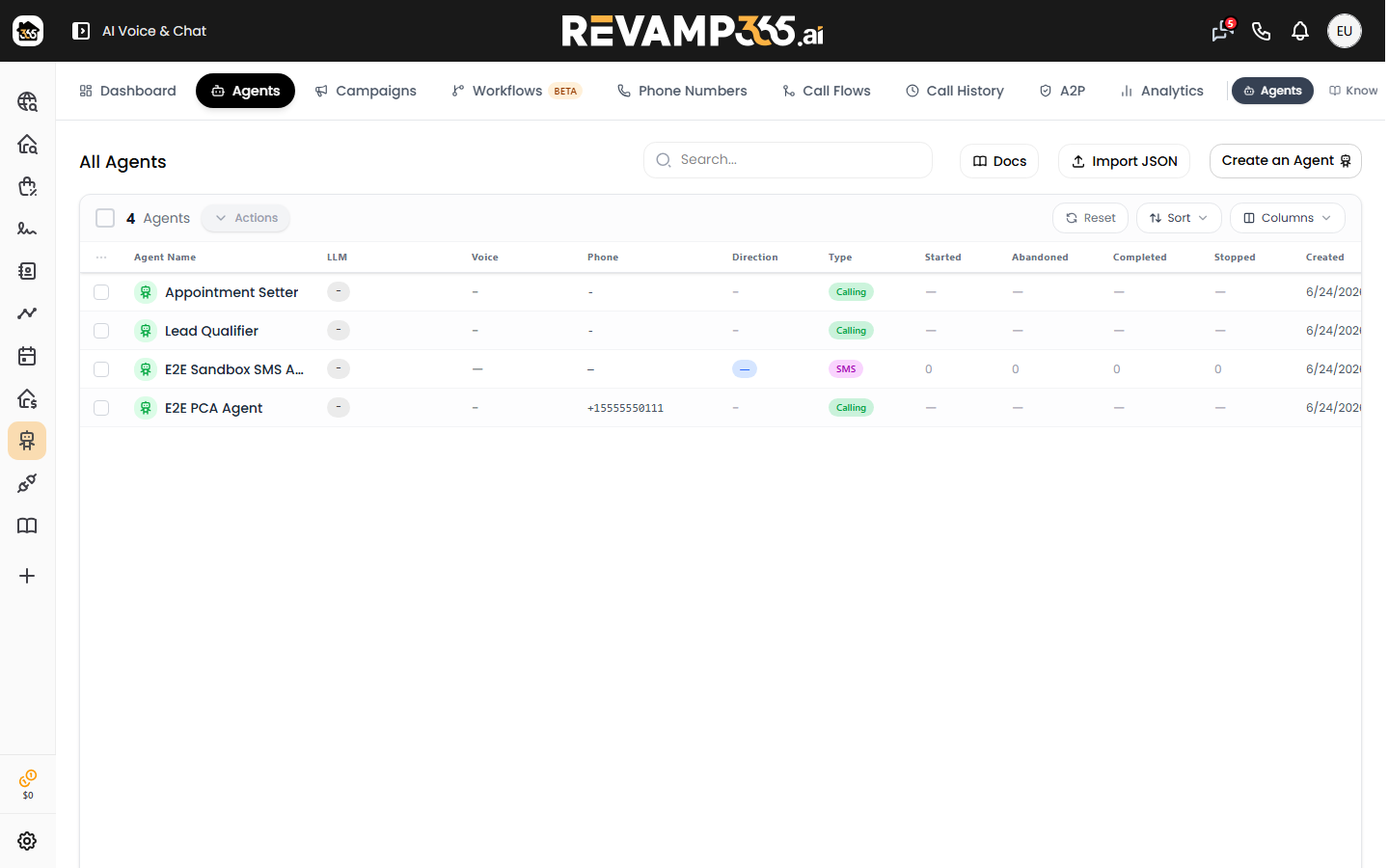
Build your first agent
- Open Agents → click New agent.
- Pick a starter template (Lead qualifier, Appointment setter, Voicemail drop, etc.) or "Blank".
- Fill in the four core fields:
- Agent name — internal label, never spoken.
- Voice — the TTS voice. Click play to preview.
- Direction —
inbound,outbound, orboth. - LLM — the underlying model (e.g. GPT-4o, Claude). Higher tier = slower + smarter.
- Write the greeting (first thing the caller hears) and the system prompt (the agent's persona, goals, and rules).
- Add up to 5 knowledge base documents on the Knowledge Base sub-tab — pricing, scripts, FAQs. The agent can quote these verbatim.
- Click Save draft, then Publish when you're ready to go live.
Keep system prompts under ~800 words. Anything longer slows down the agent's first response. Move long material to the knowledge base instead.
Connect a phone number
Open Phone Numbers. Each row shows a number you own and which agent currently answers it.
- If you don't have a number yet, click Provision number, pick an area code, and confirm — billing kicks in on the next cycle.
- Click Assign agent on the row and pick the published agent.
- Place a test call to that number from your cell phone. The call should be answered by your agent within ~2 seconds.
Inbound voice agents require an active phone number. Outbound-only agents do not need a number assigned to them — the campaign supplies the caller-id at run-time.
Run an outbound voice campaign
- Open Campaigns → voice.
- New campaign. Pick the agent, the caller-id number, and the contact list (any saved CRM list).
- Set the dialing window (e.g. 9am–6pm in the contact's timezone) and the daily call cap.
- Click Schedule. The campaign starts at the next allowed window.
While the campaign runs, every call is appended to Call History with status (completed, no-answer, voicemail, failed) and the agent's structured outcome (e.g. "interested", "not-interested", "wrong-number").
What happens after a call
Every call produces:
- Recording + transcript (searchable in Call History).
- Summary generated by the AI (~3-5 sentences).
- Post-call analysis — structured fields you defined on the agent (e.g.
budget,timeline,motivation). - Action log — every CRM update made by the agent (tags added, lead status change, note created).
If the call qualified the lead, the matching CRM Contact gets the post-call fields, a timeline note, and any tags the agent decided to add.
Troubleshooting
| What you see | Likely cause | Fix |
|---|---|---|
| Agent doesn't pick up | Number not assigned to the agent, or agent unpublished. | Phone Numbers → confirm assignment. Agents → Publish. |
| Agent rambles / ignores instructions | System prompt too long or contradictory. | Trim system prompt. Move facts to knowledge base. |
| Voice sounds wrong | TTS voice cached on previous version. | Edit agent → re-pick the voice → save → republish. |
| Outbound campaign stuck on "scheduled" | No allowed dialing window today, or daily cap reached. | Check campaign settings + campaign action log. |
| Calls drop after a few seconds | Number's voice capability disabled. | Phone Numbers → confirm Voice = enabled. Contact support if it remains off. |
FAQ
Can the agent transfer a call to a human? Yes — define a transfer condition + target number in the agent's call-flow rules. The agent will say its hand-off line then warm-transfer.
Can I record only some calls? Recording is on by default. To opt out, edit the agent's settings → Recording: off. State / federal call-recording laws still apply.
What languages are supported? Voice + LLM language is set per agent. English (US/UK), Spanish, French, German, Portuguese (BR) are supported in current voices. Mix-language calls are not supported on a single agent — duplicate the agent and pick a different voice/LLM language.
Why is "Workflows" labeled BETA? Workflows orchestrate multi-step actions across calls + SMS + CRM updates. They work, but the editor and naming may change. Existing workflows stay running across UI changes.
Why is "Call Flows" hidden in my account? The full Call Flows editor is a Dealmaker-tier feature. Standard accounts use the simpler agent-level rules. Contact your account manager if you need it.