
Your account settings live under Settings, which opens a left rail with Basic, Professional, Email Settings, Notifications, Usage, Billing, Password, and Appearance. Here is what each profile-related page actually controls and where a few fields are read-only.
Open settings
Go to Settings (the redirect lands you on Settings → Basic at /settings/profile). Pick a page from the left rail. Billing (plan, invoices and receipts) and Usage are where you manage spend on every plan.
Edit your basic profile
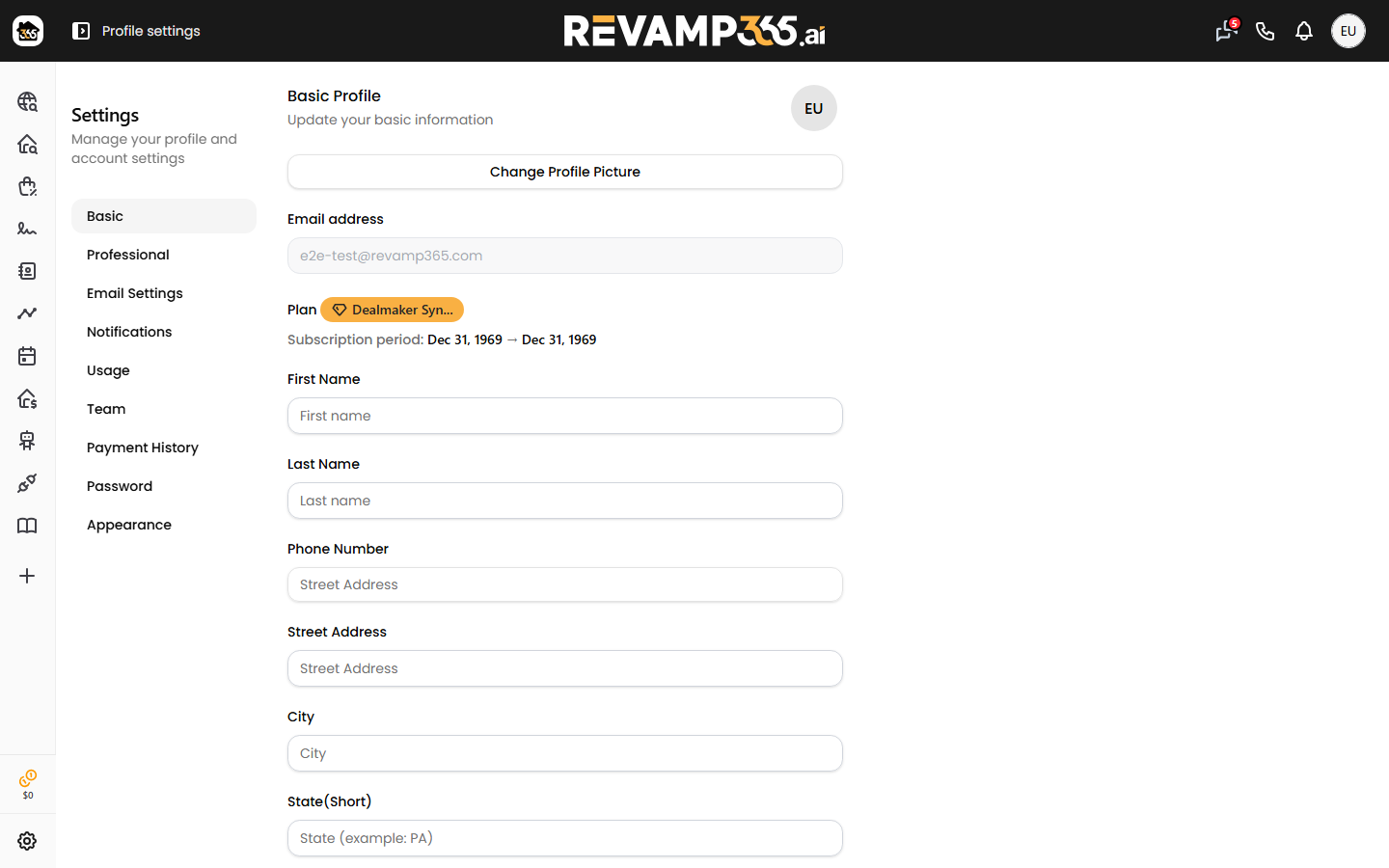
The Basic page (Basic Profile, "Update your basic information") edits these fields, then you click Save:
- First Name and Last Name — both required, 50 characters max each.
- Phone Number — required, must be a valid US number such as
(123) 456-7890or1234567890. - Street Address, City, State (Short) (for example
PA), and Zip — all optional. - About Me — optional, up to 1000 characters.
Use Change Profile Picture to upload and crop a square image. A success toast confirms the save.
A note on your email address
The Email address field is shown but disabled on both the Basic page and the Email Settings page, so you cannot change your login email from settings yourself. If the address is unverified, use the Resend verification email link. To change the email on file, contact support.
The Email Settings page is about delivery, not your address. Check categories you want to unsubscribe from, or tick Global Unsubscribe to stop all non-essential mail. Account and security emails always send.
Change your password
On the Password page ("Update password"), fill in:
| Field | Rule |
|---|---|
| Current password | Must match your existing password |
| New password | Must meet the default strength policy |
| Confirm password | Must match the new password exactly |
Click Save Password. A wrong current password or a too-weak new password returns an inline error and clears the relevant field.
Set notification preferences
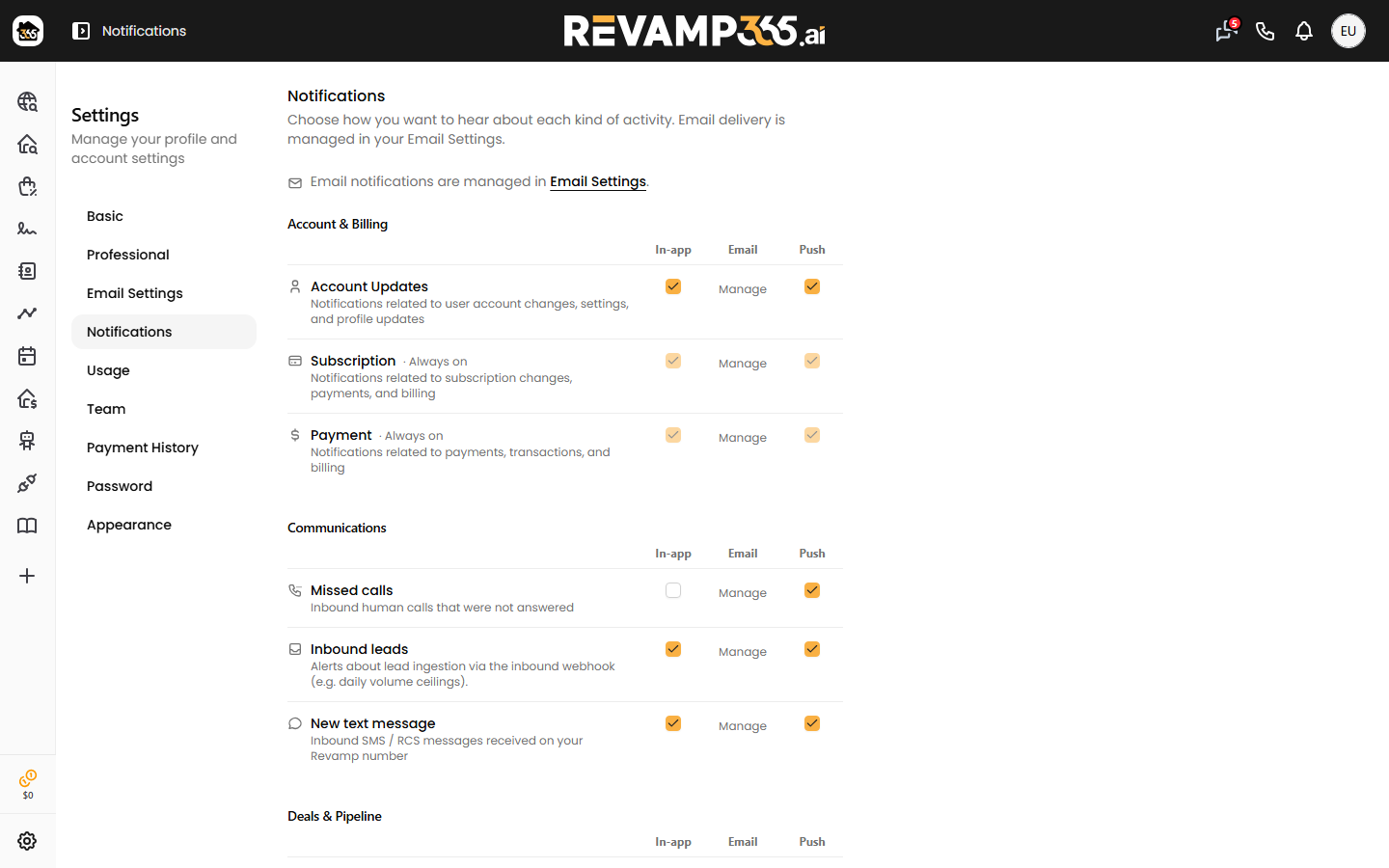
The Notifications page lets you choose how you hear about each activity, grouped by area (Account & Billing, Communications, Deals & Pipeline, Contacts, and more). Each row has two toggles you control:
- In-app
- Push
The Email column is a Manage link back to Email Settings, since email delivery is governed there. Subscription and payment notifications are marked Always on and cannot be turned off. Click Save to apply. This page also holds Saved search alerts, where each saved property search has a Daily / Weekly / Off frequency plus Email and In-app toggles that save on change.
Where timezone lives
There is no account-wide timezone setting on these pages. Timezone is set per feature that needs it — most notably your scheduling event types and booking pages, where each event carries its own timezone. Configure it there rather than in account settings.
For payment-method changes, see connect or change your billing card.