
Effective time management is critical for real estate investors, flippers, and wholesalers. Revamp365.ai provides powerful real estate booking and scheduling software built directly into your platform, allowing you to seamlessly manage appointments, create shareable booking links, and automate follow-up workflows.
This comprehensive guide will walk you through maximizing the Calendar and Scheduling features to streamline your real estate business.
1. Navigating Your Real Estate Calendar Dashboard
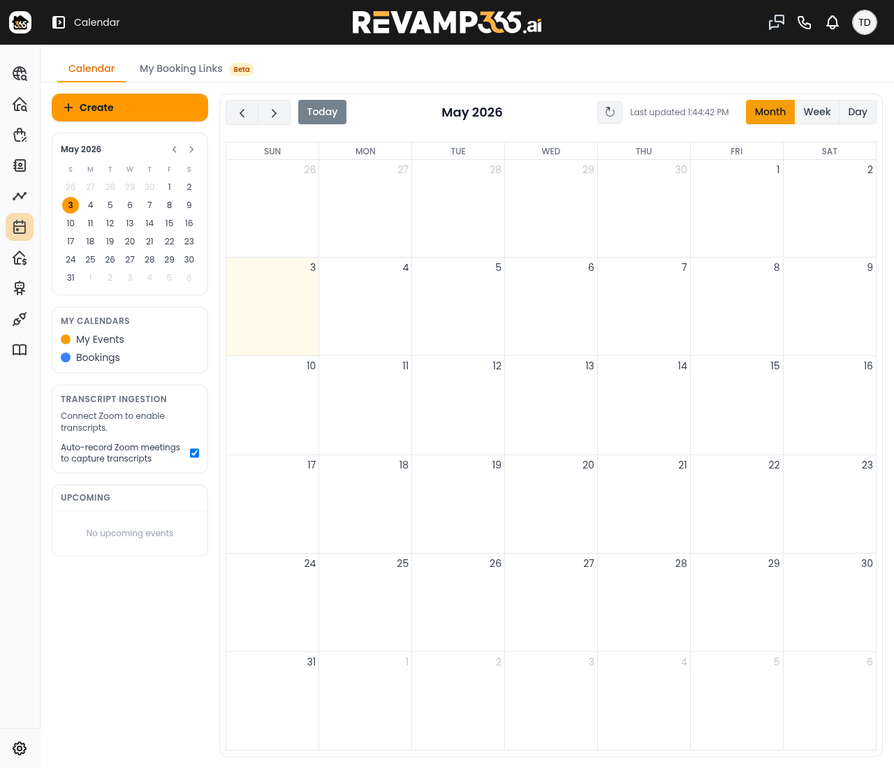
The Calendar dashboard is your central hub for all scheduled activities, from property walkthroughs to seller calls.
- Log in to your Revamp365.ai account.
- Click on Calendar in the top navigation bar.
- Use the view toggles (Month, Week, Day) to adjust your perspective.
- The Zoom toggle allows you to quickly jump to video meeting transcripts if you have the integration enabled.
2. Creating Manual Real Estate Appointments
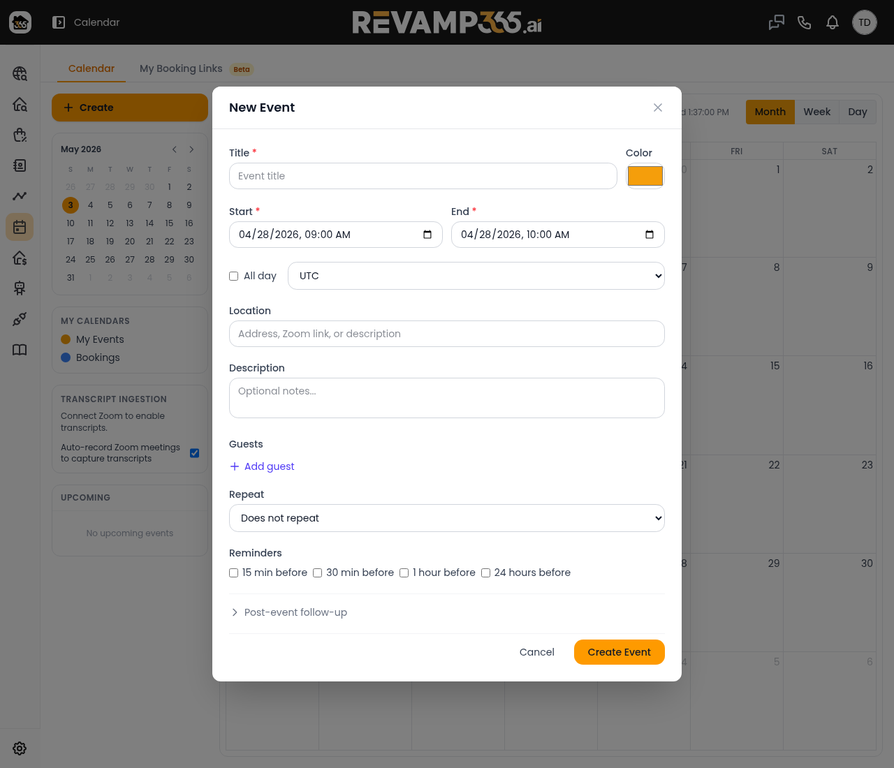
When you need to quickly block off time or schedule a one-off meeting with a seller lead or contractor, use the manual event creation tool.
- Click the Create button or click directly on any date/time slot on your calendar.
- The New Event dialog will appear.
- Fill in the essential details: Event Title, Date & Time, and add any Guests (e.g., the property owner's email).
- Set up Reminders to ensure you never miss a showing.
- Use the Repeat dropdown for recurring meetings (like weekly team syncs).
3. Building Automated Real Estate Booking Links
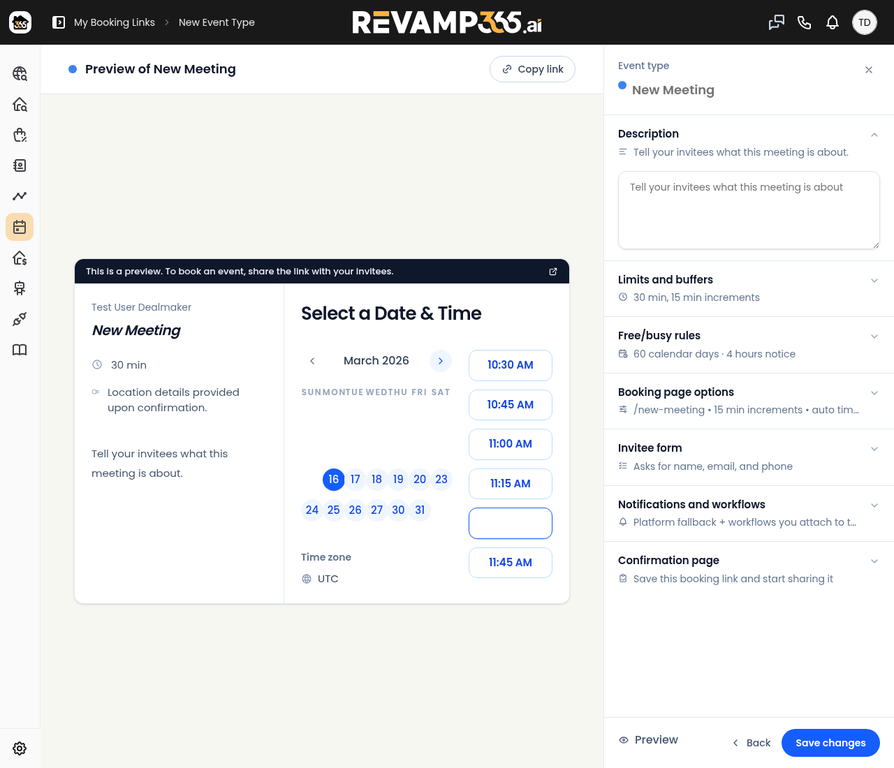
Stop the back-and-forth emails. Create custom real estate appointment scheduling links that allow motivated sellers or cash buyers to book time directly on your calendar based on your availability.
- Navigate to the My Booking Links tab.
- Click New Booking Link.
- Event Details: Name your event (e.g., "Initial Seller Consultation") and set the duration.
- Limits and Buffers: Prevent burnout by setting daily limits and adding buffer times before and after appointments.
- Free/Busy Rules: Define your exact working hours so leads can only book when you are actually available.
- Invitee Form: Customize the questions leads must answer before booking (e.g., "What is the property address?" or "What is your estimated timeline to sell?").
4. Automating Your Scheduling Workflows
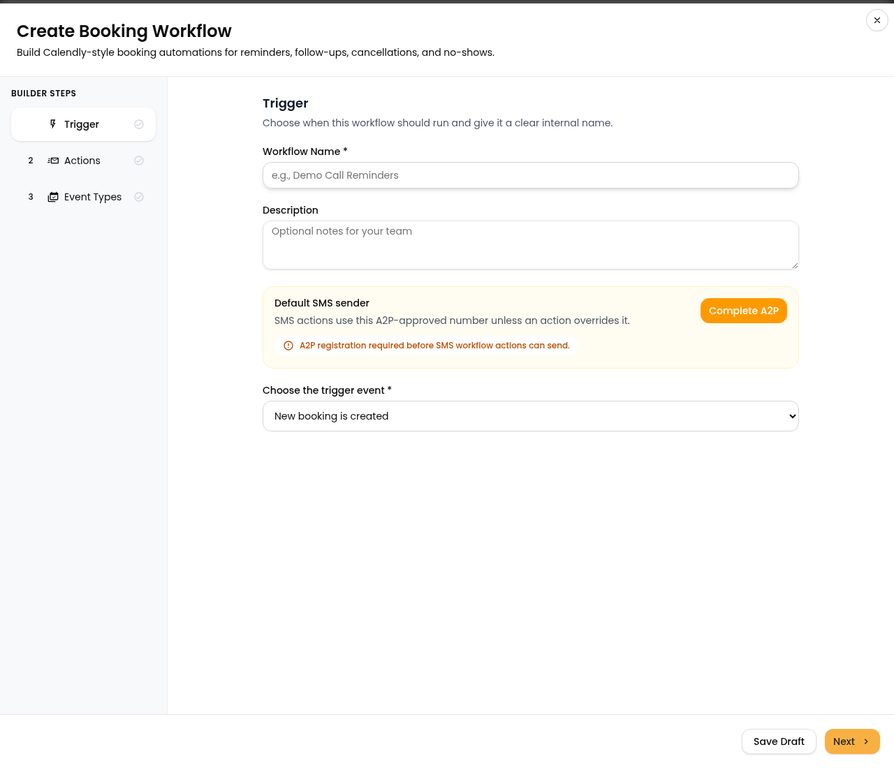
Save hours of manual work by setting up automated triggers for your appointments.
- Go to the Booking Workflows tab.
- Click Create Workflow.
- Choose a trigger (e.g., "When an event is booked" or "24 hours before event").
- Define the action (e.g., "Send SMS reminder to seller" or "Email preparation checklist").
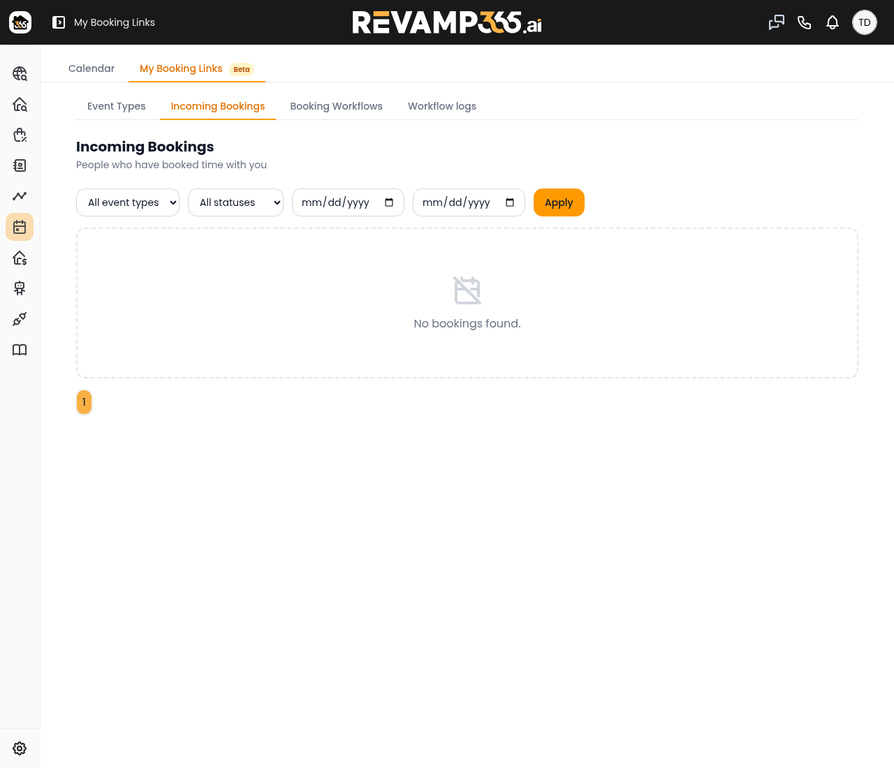
5. Managing Incoming Real Estate Bookings
Keep track of all appointments booked through your shareable links in one place.
- Click on the Incoming Bookings tab.
- Here you can view all upcoming, past, and canceled appointments.
- Use this dashboard to quickly review the answers leads provided on your Invitee Form before you jump on the call.
Frequently Asked Questions (FAQ)
What is the best scheduling software for real estate investors? The best scheduling software integrates directly with your CRM and lead generation tools. Revamp365.ai offers built-in calendar management, automated booking links, and workflow automation tailored specifically for real estate wholesalers and investors.
Can I set buffer times between property showings? Yes. When creating a Booking Link in Revamp365.ai, you can use the "Limits and buffers" section to automatically block out travel or prep time before and after every scheduled appointment.
How do I stop leads from booking last-minute appointments? In the "Free/busy rules" section of your Booking Link setup, you can set minimum scheduling notices (e.g., preventing bookings less than 12 hours in advance) to ensure you are never caught off guard.
Quick Reference: Booking Link Settings
| Setting Category | Key Features | Best For |
|---|---|---|
| Limits and Buffers | Daily limits, pre/post event buffers | Preventing schedule overload and allowing travel time between properties. |
| Free/Busy Rules | Weekly hours, date overrides, minimum notice | Ensuring leads only book during your designated working hours. |
| Invitee Form | Custom questions, required fields | Qualifying seller leads and gathering property details before the call. |
| Confirmation Page | Custom redirects, custom messages | Sending leads to a "Thank You" page or a property intake form after booking. |